
Staff
Add the people who take bookings, with their services, hours and days off; let customers choose; give staff their own view.
Note
This is part of Bookline Pro.
With staff members, each person has their own diary: two people can take bookings at the same time, each customer books someone who does the service, and nobody is booked for two things at once.
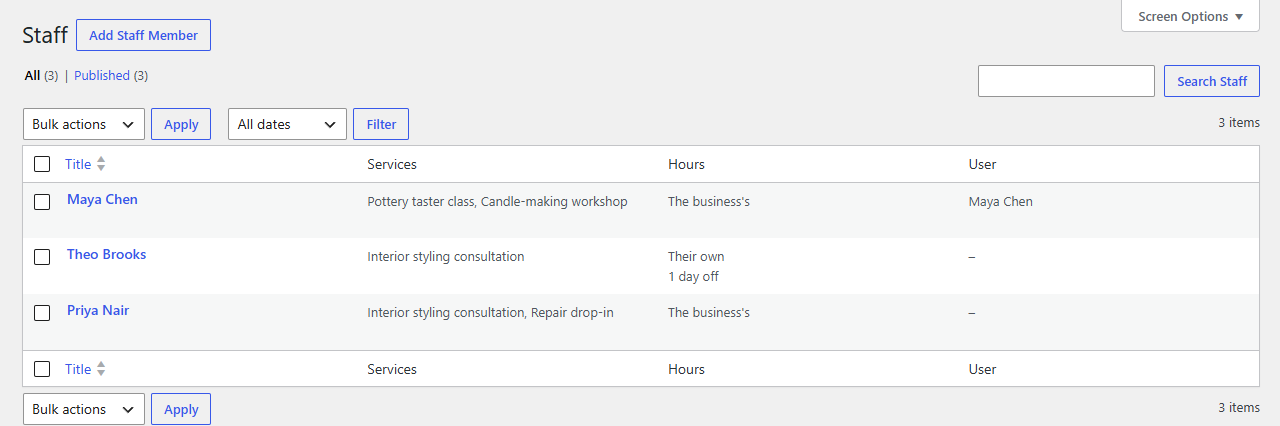
Add a staff member
Go to Bookline → Staff → Add Staff Member:
- Name and an optional bio (customers see the first words).
- Details: an optional WordPress user (see below), an email for the business's emails about their bookings, a phone number and a colour.
- Services: tick what they do. A service nobody is assigned to is booked on the business's own schedule, as without Pro.
- Working hours and days off: the business's opening hours, or their own hours, plus their own days off. The business's days off apply to everyone.
- Calendar sync: their own calendar feed and Google Calendar connection (see Google Calendar and feeds).
How bookings are shared out
- A time is free for a service when anyone who does it is free then.
- Each staff member is busy with their own bookings only, and does one thing at a time. (For group services, customers share the places with the same person.)
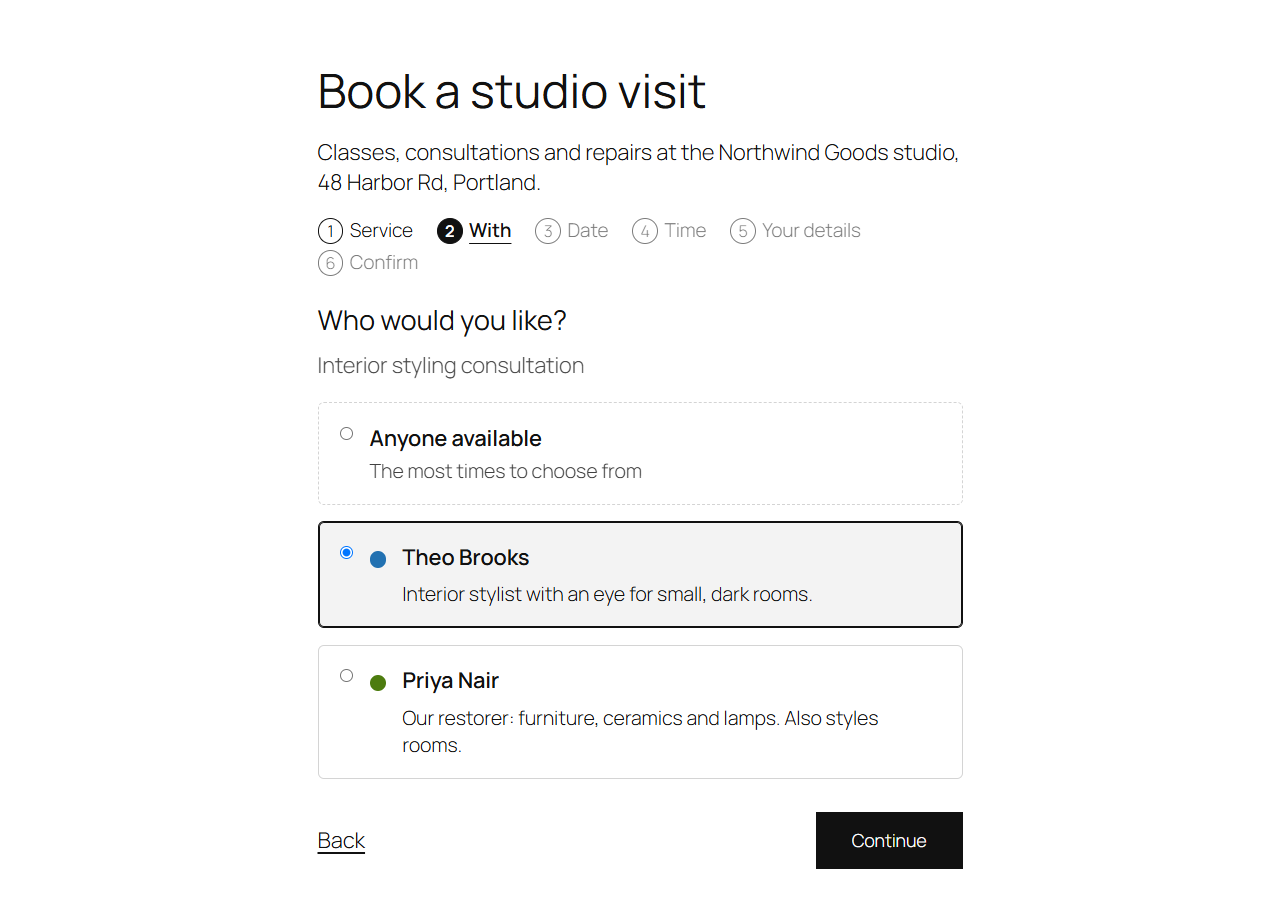
- With Customers can choose who they book with (Settings → Staff, on by default), the form gets a "Who would you like?" step after the service, with Anyone available first. It's skipped when only one person does the service.
- Anyone available goes to whoever has the fewest bookings that day.
The calendar and the bookings list show and filter by staff member, and you can change who a booking is with on its screen.
Staff who log in
Link a staff member to a WordPress user, and that person sees Bookline → Calendar and Bookings with only their own bookings, and can change those. Give them the Bookline staff role if they need nothing else in the dashboard (or keep their current role).
Emails to staff
The business's emails (new, cancelled, moved) also go to the staff member the booking is with: to their email, else their WordPress user's. Switch this off under Settings → Staff. Use {staff} in any email for their name.