
Getting started
Installation
Install Bookline from WordPress.org, set your hours, add a service and put the booking form on a page.
Bookline is free and listed on WordPress.org, so you can install it from your dashboard. It works on any WordPress site: no WooCommerce or other plugin needed.
Install the plugin
- Go to Plugins → Add New Plugin and search for Bookline.
- Click Install Now on "Bookline – Appointments & Bookings", then Activate.
With a zip file instead, use Plugins → Add New Plugin → Upload Plugin, choose the file, then Install Now and Activate.
A Bookline menu appears in your dashboard, with Calendar, Bookings, Services and Settings.
Set up in five minutes
- Your hours. Go to Bookline → Settings → Schedule. Bookline starts with Monday to Friday, 9:00 to 17:00. Change the hours, add a second range on days you close for lunch, and add any days off. See Schedule and days off.
- A service. Go to Bookline → Services → Add Service. Give it a name, a description, its length and a price. For a class, set Places per time to the class size. See Services.
- The booking form. Add a new page (for example "Book an appointment"), add the Booking Form block, and publish. In a classic theme or page builder, use the
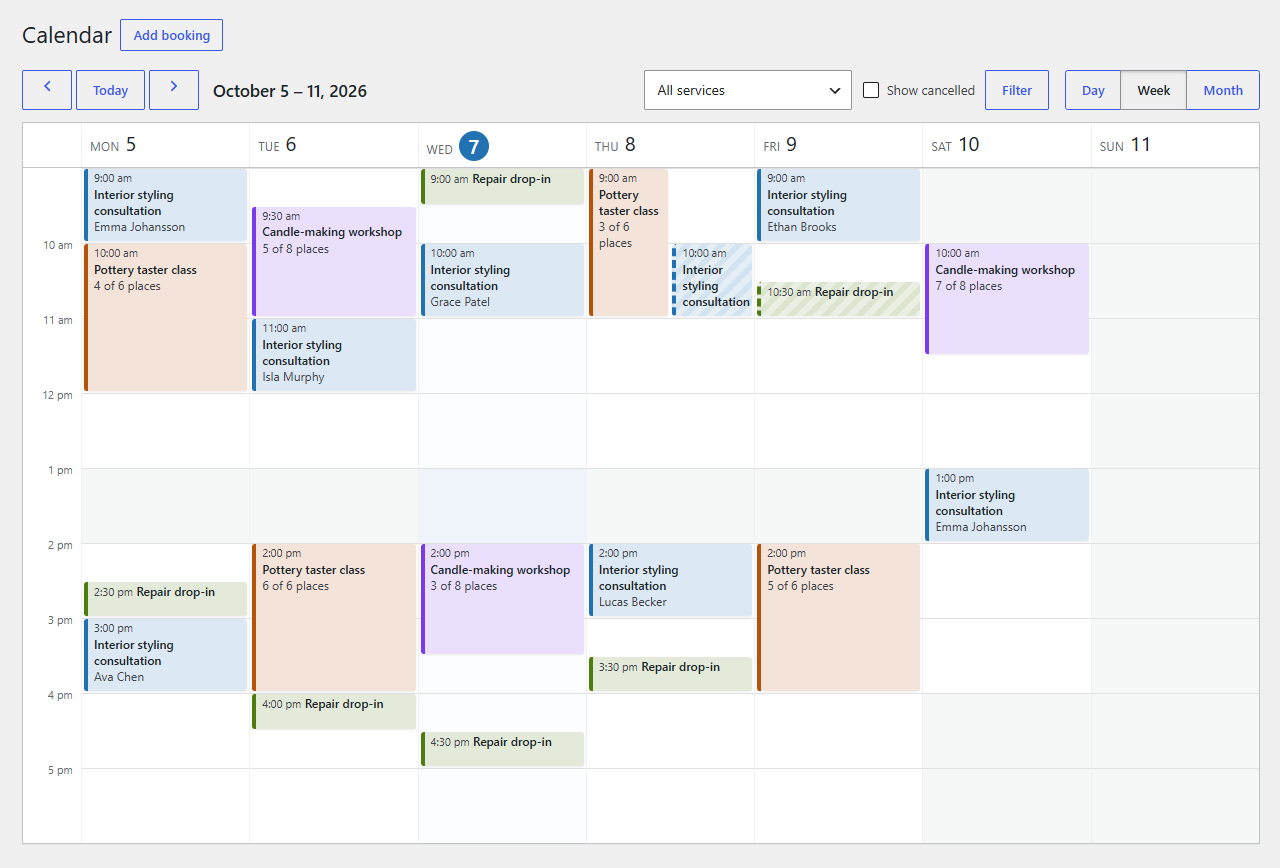
[bookline]shortcode instead. See The booking form. - A test booking. Open the page, pick a service, a day and a time, enter your details and confirm. You'll get the confirmation email, and the booking shows on Bookline → Calendar.
Tip
Check the general settings once, under Bookline → Settings → General: whether bookings are confirmed straight away or wait for your approval, how much notice you need, how far ahead customers can book, and whether customers may cancel or move their bookings.
What's next
- Services covers lengths, buffer times, prices and group places.
- Managing bookings and the calendar shows how to work with bookings day to day.
- Emails explains which emails go when, and how to change their text.