When a jumper comes in six colours and five sizes, WooCommerce asks shoppers to choose from two dropdowns of words. They can't see the colours, and they only find out a size is sold out after they choose it. This guide turns those dropdowns into colour chips, photos and size buttons, so the shopper sees what they're choosing and what they can't buy.
What you need
- WooCommerce, with at least one variable product whose variations use global attributes (the ones under Products → Attributes).
- Swatchline, a free plugin from WordPress.org. Every step in this guide is free, apart from the note near the end about the shop pages, which needs Swatchline Pro.
The worked example is a small knitwear studio. Its Fisherman Jumper (£85) comes in Moss, Oatmeal, Rust and Charcoal, in sizes S to XL. Rust has sold out in XL, and Oatmeal isn't made in S.
What WooCommerce shows on its own
WooCommerce draws variation choices in one of two ways, depending on your theme:
- Classic themes, such as Storefront, show a dropdown for each attribute: "Choose an option", then a list of names. On a product with up to 30 variations, the list quietly leaves out values that don't exist with what the shopper already chose. A sold-out size stays in the list; the shopper only reads "Out of stock" after choosing it. Above 30 variations, every value stays in the list until everything is chosen.
- Block themes, with the Add to Cart + Options block, show each attribute's values as text chips (or a dropdown, as set on the block). The block can grey out or hide values that can't be chosen.
Neither shows a colour as a colour or a finish as a photo, or tells the shopper why a value can't be chosen. That's where Swatchline comes in. It doesn't replace WooCommerce's variation form: the dropdowns are still there, hidden, so the price, the product image, the stock message and Add to cart work exactly as before.
Install Swatchline
Go to Plugins → Add New Plugin, search for "Swatchline", then click Install Now on "Swatchline – Variation Swatches for WooCommerce" and Activate. WooCommerce must be active first.
Nothing changes in your shop yet. Every attribute starts on Dropdown, WooCommerce's own, until you give it a swatch type.
Choose a swatch type for each attribute
The swatch type belongs to the attribute: set it once and every product that uses it follows.
- Go to Products → Attributes and click Edit under the attribute, here Colour.
- Set Swatch type to Colour and click Update.
- Do the same for Size, with Swatch type set to Label.
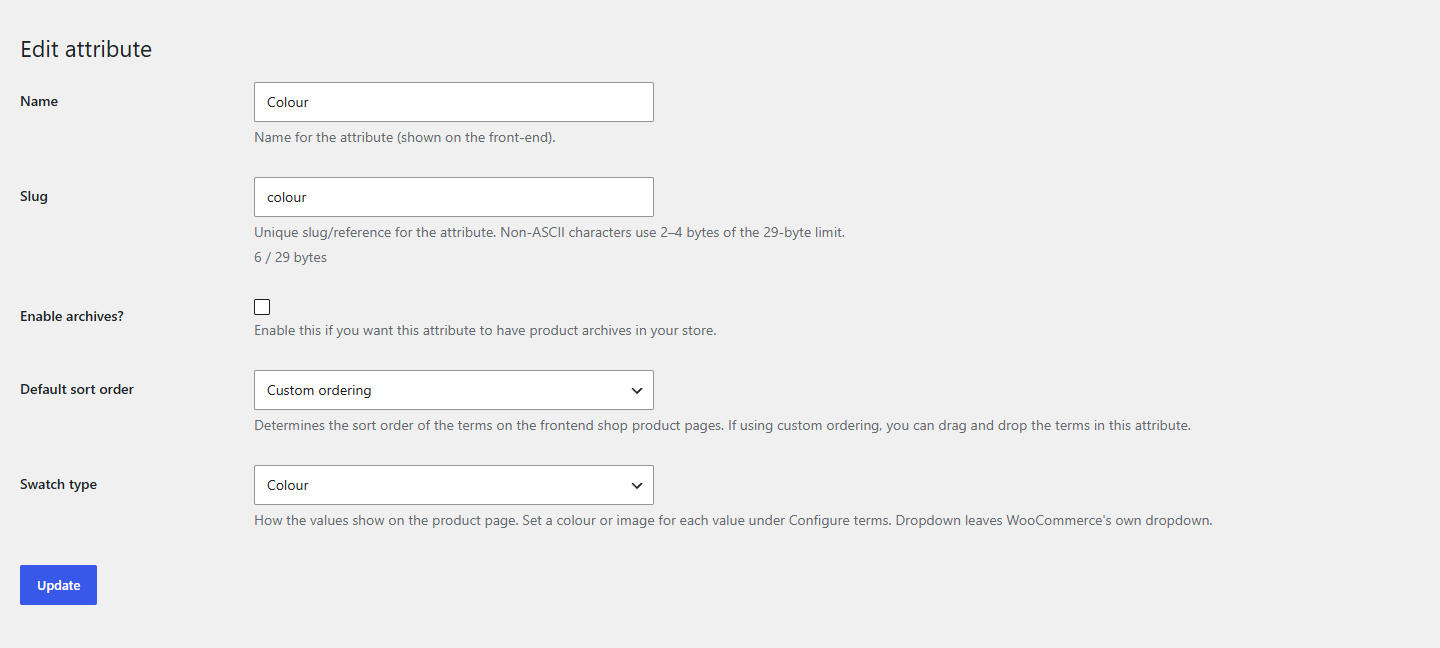
The four types:
- Colour: a round chip of one flat colour per value. For colours you can name: Moss, Rust, Charcoal.
- Image: a small photo per value. For things a flat colour can't show: a cable knit, a speckled yarn, a wood grain.
- Label: a button with the value's name. For sizes, lengths and anything that reads better as a word: S, M, L, 500 ml.
- Dropdown: WooCommerce's own dropdown, unchanged.
Tip
Label swatches need nothing else: sizes work as soon as you click Update.
Give each value its colour or image
Colour and Image swatches need a colour or a picture for each value. WooCommerce calls the values "terms".
- Back on Products → Attributes, click Configure terms under Colour.
- Click a value's name, say Moss.
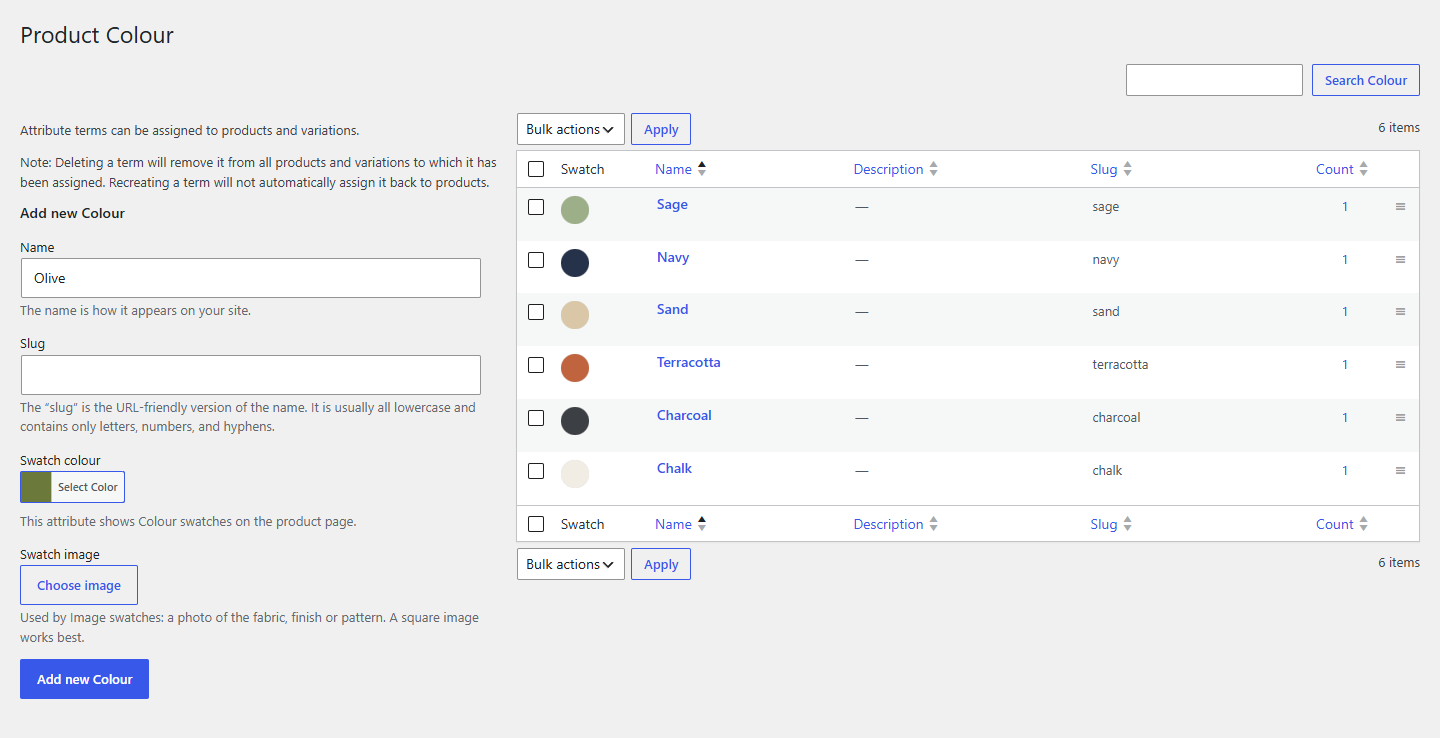
- Under Swatch colour, click Select Color and pick the colour, or type its hex code (#6b7a4b for Moss).
- Click Update, then do the same for Oatmeal, Rust and Charcoal.
For an Image swatch, click Choose image under Swatch image instead, and pick or upload a photo. A square, close-up crop of the yarn or material works best, since the swatch is small.
The list of values has a Swatch column, so you can check them all at a glance. A dash means a value has no colour or image yet; on the product page it shows as an empty, striped chip until you set one.
Set the shape, size and tooltips
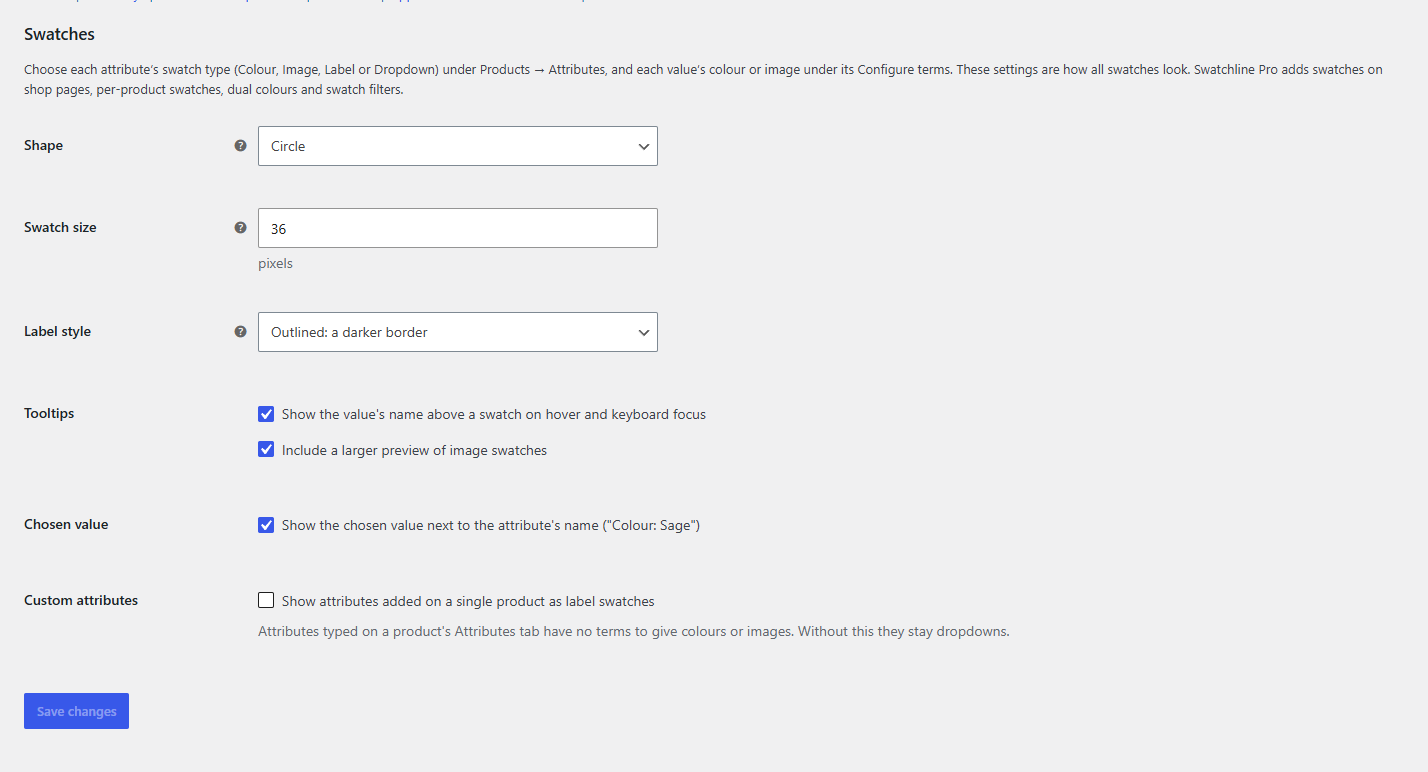
The look of every swatch in the store is under WooCommerce → Settings → Products → Swatches:
- Shape: Circle, Rounded square or Square, for colour and image swatches. The default is Circle.
- Swatch size: the width and height of colour and image swatches, from 16 to 96 pixels. The default is 36.
- Label style: how the chosen size stands out, Outlined: a darker border or Filled: dark with light text.
- Tooltips: the value's name above a swatch on hover and keyboard focus, and a larger preview for image swatches.
- Chosen value: the chosen value next to the attribute's name, "Colour: Moss".
- Custom attributes: show attributes typed on a single product's Attributes tab as label swatches. Off by default, so they stay dropdowns.
The studio keeps the defaults and only switches Label style to Filled, so the chosen size reads as a dark button. Click Save changes. If your site has a page cache, clear it to see the new look straight away.
What the shopper sees
On the Fisherman Jumper, the Colour dropdown is now a row of four colour chips and the Size dropdown a row of buttons. When the shopper picks Rust, "Colour: Rust" appears next to the attribute's name, and XL is crossed out. Picking a chosen swatch again clears it, and WooCommerce's Clear link clears them all.
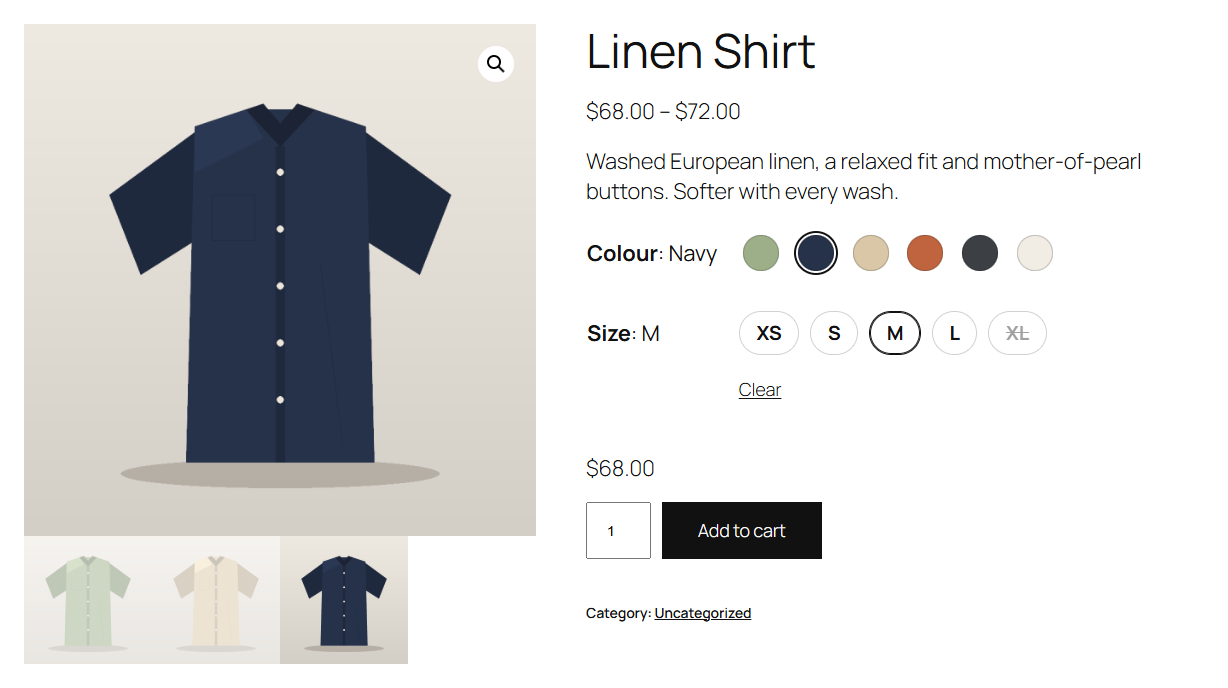
A swatch is crossed out for one of two reasons, and hovering over it says which:
- Out of stock: the variation exists but has sold out, like the Rust jumper in XL.
- Not available with your other choices: there's no such variation, like Oatmeal in S.
Every attribute narrows the others: choose S first and Oatmeal is crossed out. Variations on backorder count as available, and a variation set to "Any" for an attribute fits every value of it. Crossing out works the same on products with hundreds of variations, past the 30 at which WooCommerce stops loading them all into the page.
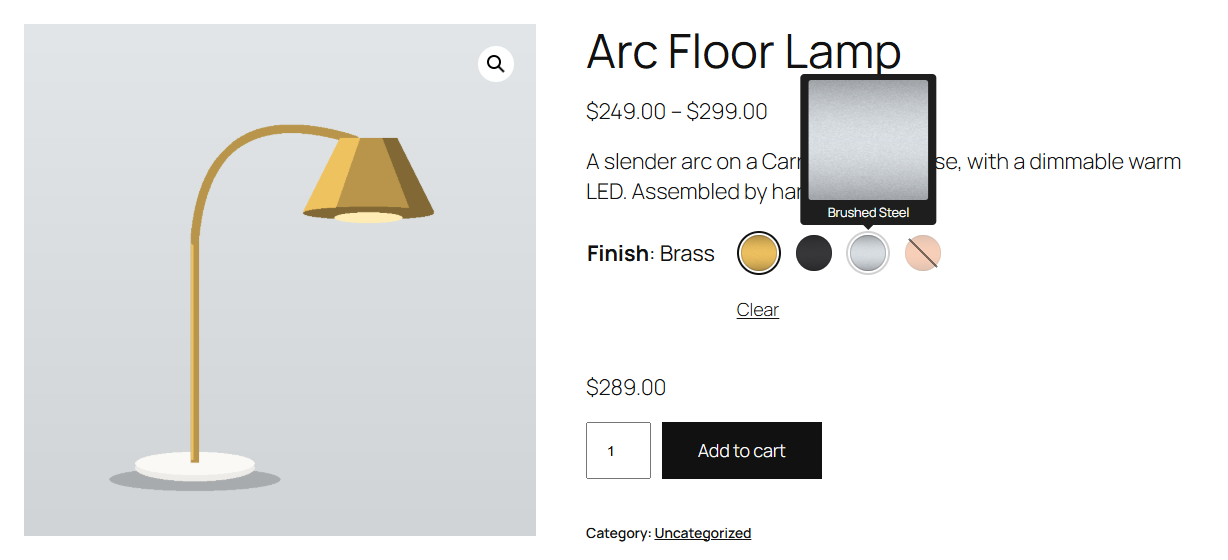
Image swatches show a larger preview in their tooltip, so the shopper can see the knit before choosing.
Block themes
In a block theme such as Twenty Twenty-Five there's nothing extra to set up. WooCommerce's single product template uses the Add to Cart Form block, which shows swatches exactly as a classic theme does. In the Add to Cart + Options block, Swatchline's swatches take the place of the text chips for every attribute with a swatch type; attributes left on Dropdown keep the block's chips or dropdown.
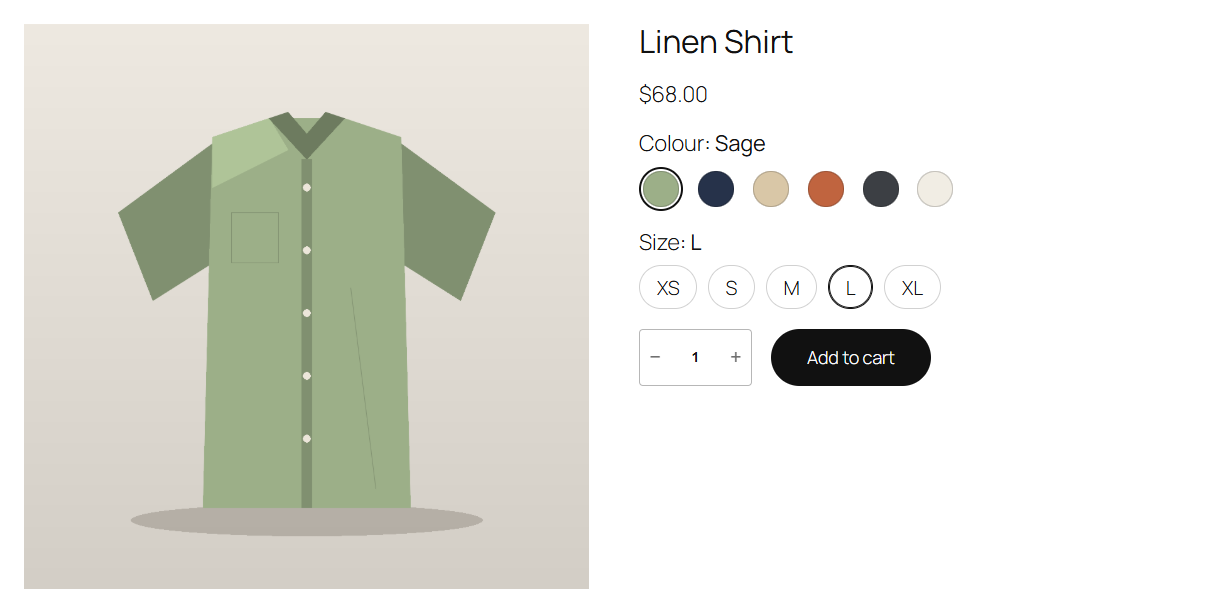
Swatches on shop pages
Swatchline puts swatches on the product page. To show them under each variable product on shop and category pages too, switch on Shop swatches in the Swatchline Pro group under WooCommerce → Settings → Products → Swatches.
Note
This step needs Swatchline Pro.
Check it works
- Open a variable product that uses the attributes you set up, in a private window so you see what a shopper sees.
- Check that each attribute shows swatches instead of a dropdown, and that choosing one shows its name next to the attribute's name.
- Choose a colour that has a sold-out size: that size is crossed out, and hovering over it says "Out of stock".
- Choose every attribute: the price, the image and Add to cart update as they did before.
Common questions
Some of my products still show a dropdown. Swatches show for attributes from Products → Attributes whose swatch type isn't Dropdown. Attributes typed on a single product's Attributes tab have no colours or images to give; switch on Custom attributes in the settings to show them as label swatches.
A colour shows as an empty, striped chip. That value has no colour yet. Set its Swatch colour under Configure terms.
What happens if I remove Swatchline? Your attributes and products aren't touched: they show WooCommerce's dropdowns again. When you deactivate it, Swatchline asks whether to keep its swatch types, colours and images in case you install it again.
Related
You’re set

SwatchlineColour, image and label swatches instead of dropdowns for variable products, with sold-out combinations crossed out. Classic and block themes.
See Swatchline