A shopper types "stonware mugs" into your search box and gets "No products were found", even though you sell twelve of them. A trade customer pastes a SKU from last year's invoice and gets the same page. This guide sets up a shop search that finds the right products despite typos, plurals and SKUs, and shows you the searches that still come up empty so you can fix them.
What you need
- WooCommerce, installed and active.
- Searchline, a paid plugin from extendiment.com. Every step in this guide uses it.
Out of the box, WordPress searches for the exact letters a shopper types, in the product title and text only. WooCommerce adds what you choose to show in search: a product's Catalog visibility ("Shop and search results", "Search results only") and WooCommerce → Settings → Products → Inventory → Hide out of stock items from the catalog. Both keep working with Searchline. What core doesn't do is look in SKUs, categories or attributes, forgive a typo, or tell you which searches found nothing. That is where Searchline comes in.
Our example is a small pottery shop selling stoneware mugs, bowls and planters. Its best seller is the "Stoneware Mug, Speckled Oat", SKU MUG-STN-12, with a variation per glaze.
Step 1: Install Searchline and let it build its index
- Go to Plugins → Add New Plugin → Upload Plugin, choose
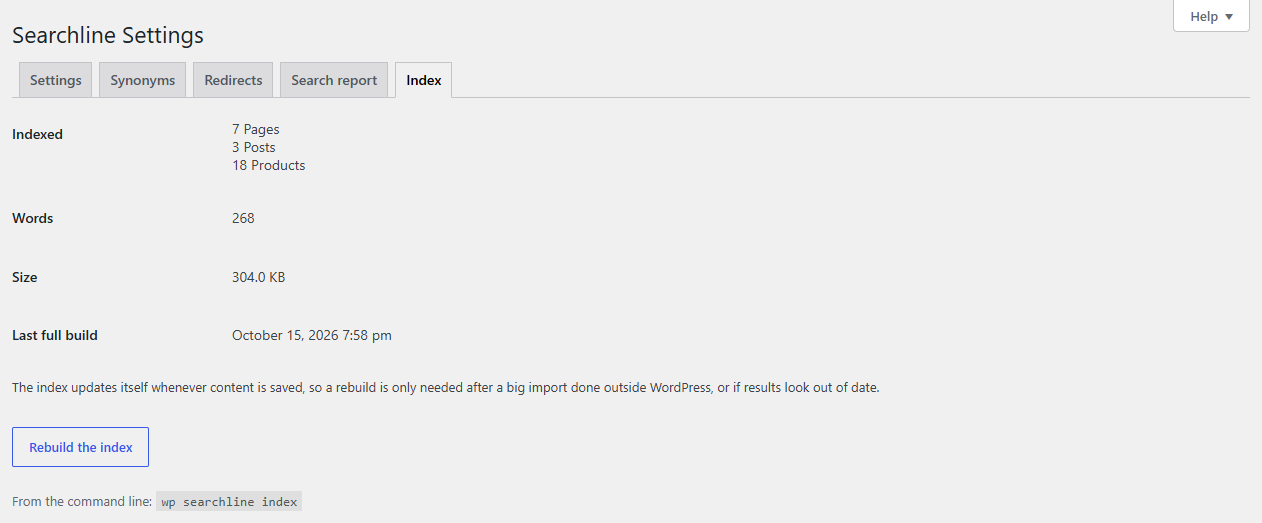
searchline.zip, then Install Now and Activate. - Go to WooCommerce → Searchline → Index. A notice shows "Indexed … of … posts…" while Searchline reads your products, pages and posts. Keeping the tab open makes it go faster, but you can leave the page.
Until the first build is done, your shop's searches work exactly as before. When it's ready, the message says "The index is ready. Reload the page to see its numbers." The Indexed row then shows, for example, "84 Products".
From then on the index updates itself whenever you save a product, change a SKU or rename a category. You don't need to rebuild it after normal edits.
Step 2: Choose what is searched
Go to WooCommerce → Searchline → Settings, section What is searched.
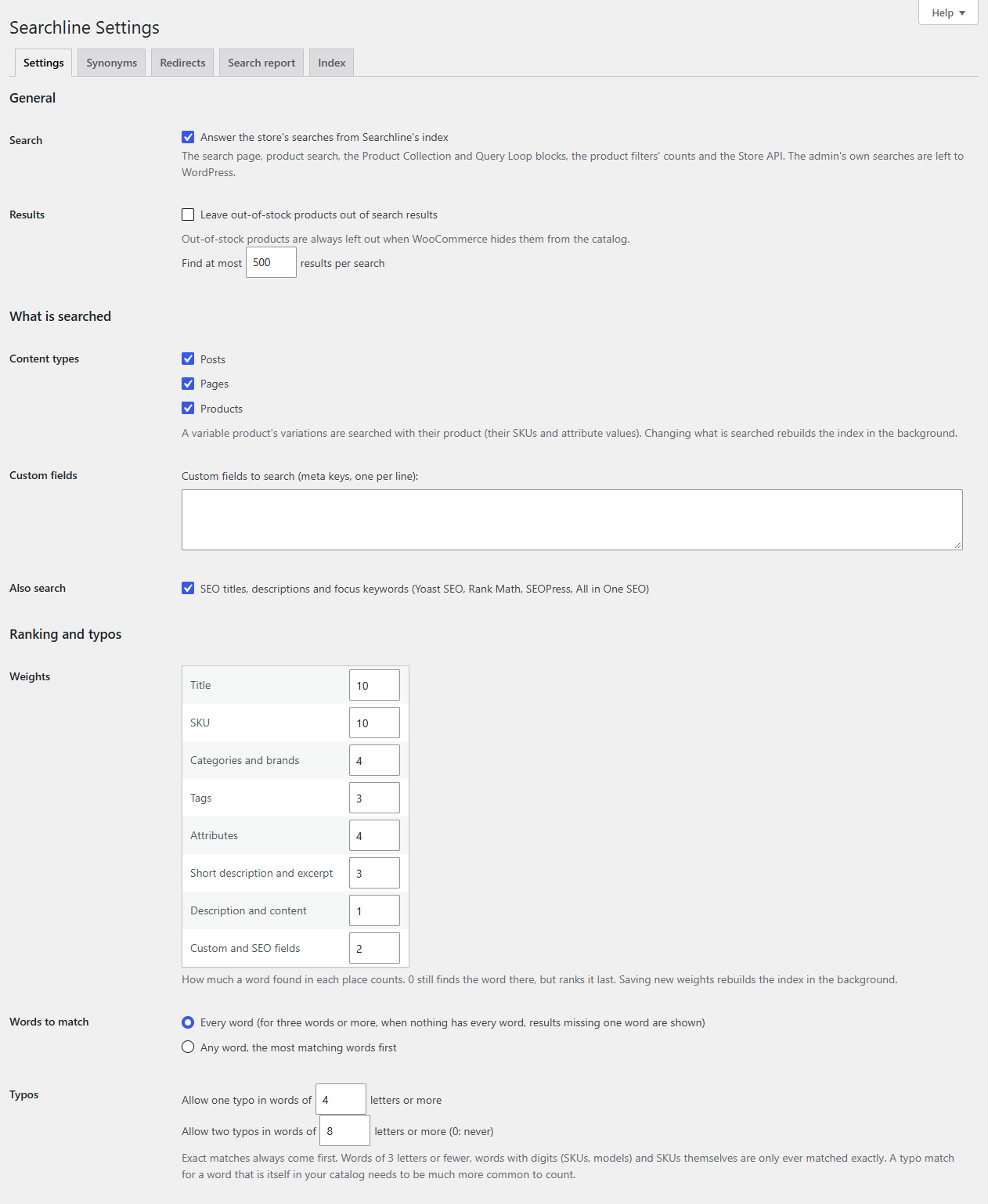
- Content types: tick what shoppers should find. Products, pages and posts are usual. For the pottery shop, products and pages (so "shipping" finds the shipping page).
- Custom fields: text fields made with ACF, Meta Box or Pods are listed with checkboxes. If the shop keeps a "Clay body" field on each product, tick it and "porcelain" finds every porcelain piece. Any other field can go in the box below the checkboxes, by its meta key, one per line.
- Also search: SEO titles, descriptions and focus keywords is ticked from the start, so what you wrote in your SEO plugin is searched too.
You don't need to tick anything for SKUs. For products, Searchline always searches the title, SKU, categories, brands, tags, attributes, short description and description, and each variation's SKU and attribute values with its product. A search for MUG-STN-12, mug-stn-12 or mugstn12 finds the mug, and a search for "oat" finds it through its glaze attribute.
Click Save Changes. Changing what is searched rebuilds the index in the background, and searches keep working meanwhile.
Step 3: Decide what counts most
Still on Settings, under Ranking and typos → Weights, each place a word can be found has a number from 0 to 100. A word found in a place with a higher number counts for more. Title and SKU start at 10, Description and content at 1.
The defaults suit most shops. Change them when the wrong products come first:
- If long descriptions mention other products ("pairs well with our oat bowl"), a search for "bowl" can bring up mugs. Leave Description and content at 1, or set it to 0: the word is still found there, but ranked last.
- If your categories carry the words shoppers type ("Planters", "Serving bowls"), raise Categories and brands from 4 to 6.
Saving new weights rebuilds the index in the background.
Step 4: Set how forgiving search is
Under Ranking and typos → Typos:
- Allow one typo in words of 4 letters or more (4 by default).
- Allow two typos in words of 8 letters or more (0: never) (8 by default).
A typo is one letter missing, added, changed, or two letters swapped, so "stonware" finds "stoneware" and "planetr" finds "planter". Words of 3 letters or fewer, words with digits and SKUs are only ever matched exactly, so MUG-STN-12 never brings up MUG-STN-13. Exact matches always come first, and a word your catalog really has is never treated as a typo: "skirt" won't turn into "shirt".
On English sites, plurals match without you doing anything: "mugs" finds "mug" and "bowls" finds "bowl". Hyphens and accents don't matter either: "t-shirt" finds "tshirt", "creme" finds "Crème".
Under Words to match, keep Every word for most shops. "speckled oat mug" then finds the speckled oat mugs, and if nothing has all three words, it shows what has two of them rather than an empty page. Choose Any word, the most matching words first only if your shoppers type long phrases and you'd rather show more.
Click Save Changes.
Step 5: Add the words shoppers use and you don't
Typos and plurals are one thing. Shoppers also use different words: they search for "cup" when you call it a mug, or "pot" when you sell planters. Synonyms cover that without renaming your products.
- Go to WooCommerce → Searchline → Synonyms.
- Type one rule per line:
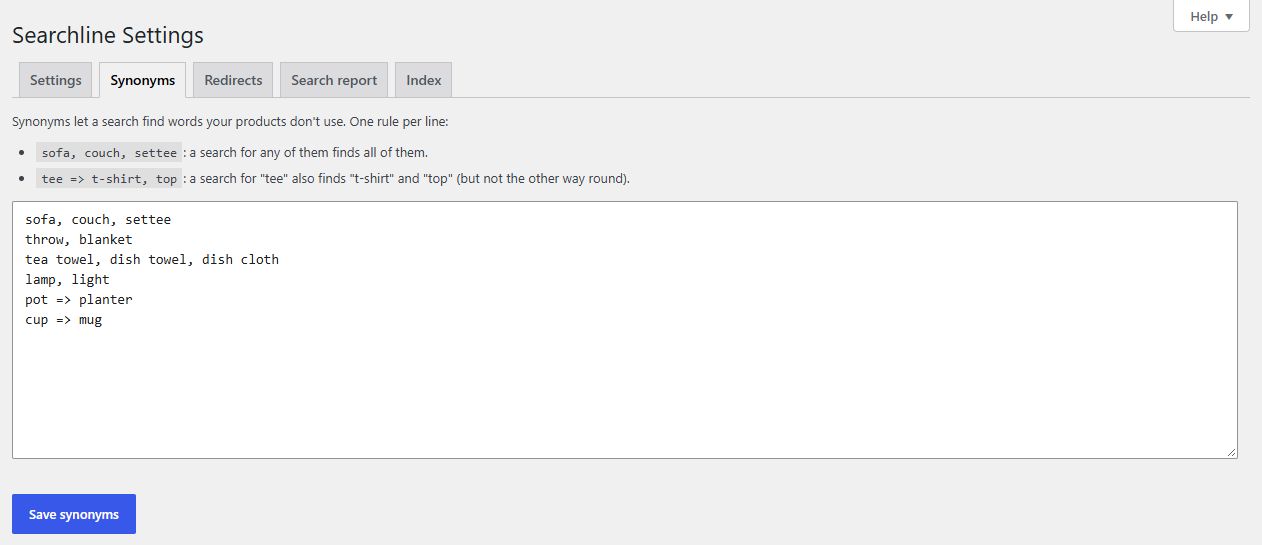
mug, cup, beaker
pot => planter
- Click Save synonyms. They work straight away, no rebuild needed.
The first line is two-way: a search for any of the three words finds all of them. The second is one-way: "pot" also finds planters, but "planter" stays with planters. Each rule also covers plurals and typos of its words, so "cups" and "beakr" find the mugs too.
Tip
Forgot how a rule is written? The Help tab at the top right of the screen has the rules in short.
Step 6: Show results while shoppers type (optional)
Under Settings → Live search, Show results while visitors type is on from the start: a dropdown under the search box shows products with their image, price and stock, then pages and posts, and a link to all results.
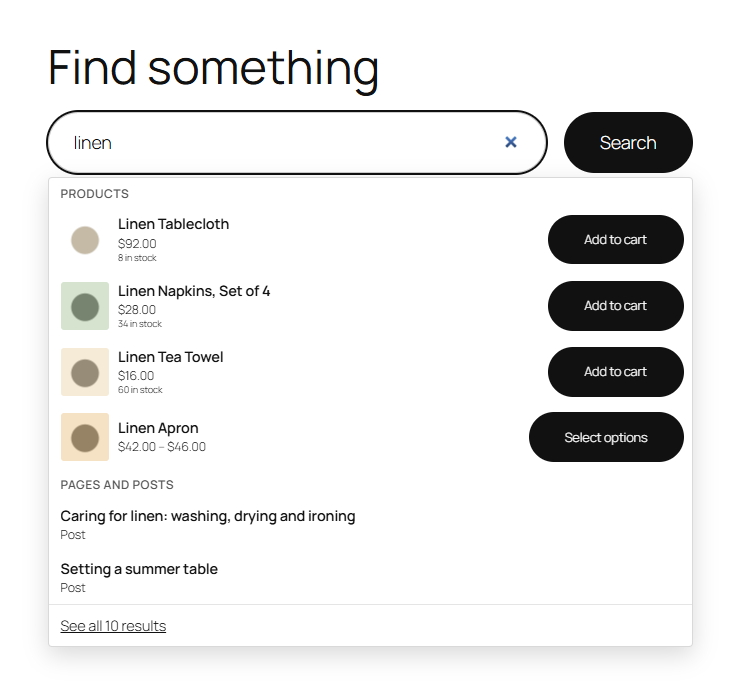
On every search form puts it on your theme's own search boxes; untick it to show it only where you add the "Searchline search" block, the Elementor widget or the [searchline] shortcode.
The dropdown uses the same index, so typos, SKUs and synonyms work there too. When a search finds nothing, both the dropdown and the results page offer Did you mean: with a corrected search, for example "Did you mean: stoneware mug", but only when the correction finds something.
Step 7: Fix the searches that still find nothing
No setting catches everything. After a week or two, look at what shoppers actually typed.
- Go to WooCommerce → Searchline → Search report.
- Click Found nothing. These are searches that found no results in the period, and that nothing covers yet.
- Hover over a search to fix it in place:
- Add “…” appears when Searchline knows a close match. For "spekld", Add “speckled” adds it as a synonym in one click.
- Add synonym opens a row: in Also find, type the words your products use. For "tumbler", type
mugand click Update. - Redirect sends the search straight to a page. For "returns", start typing in Goes to, pick your returns page and click Update.
- Ignore hides noise, such as keyboard mashing.
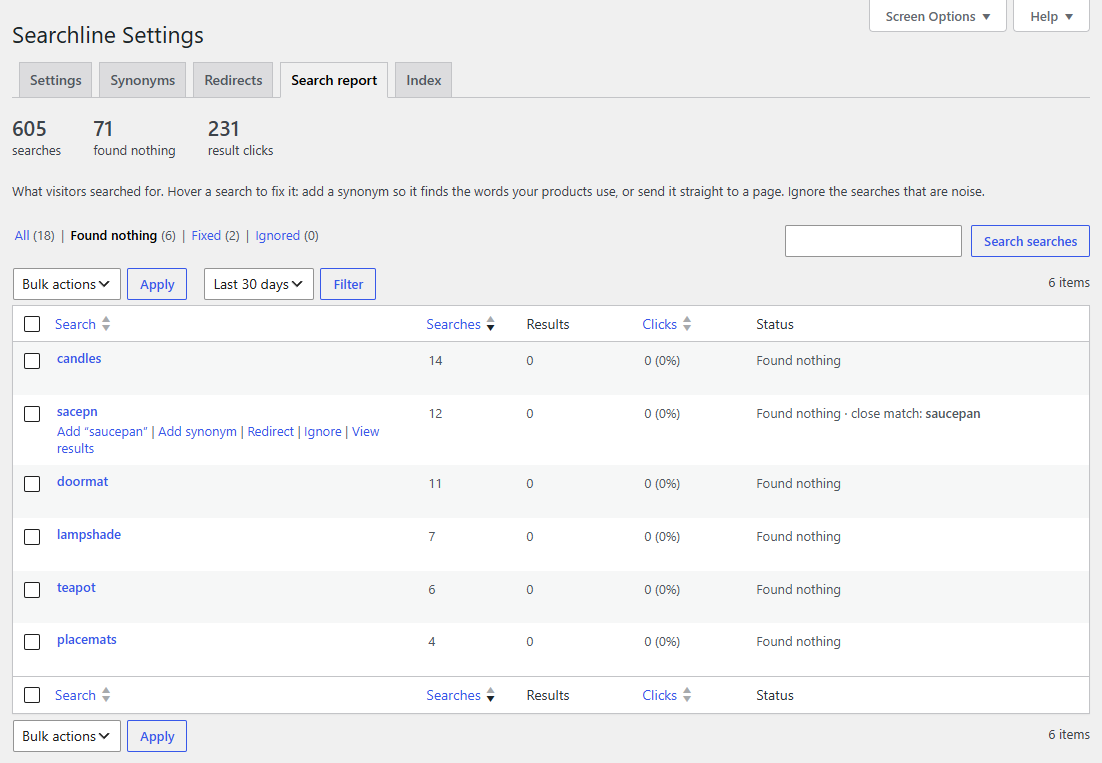
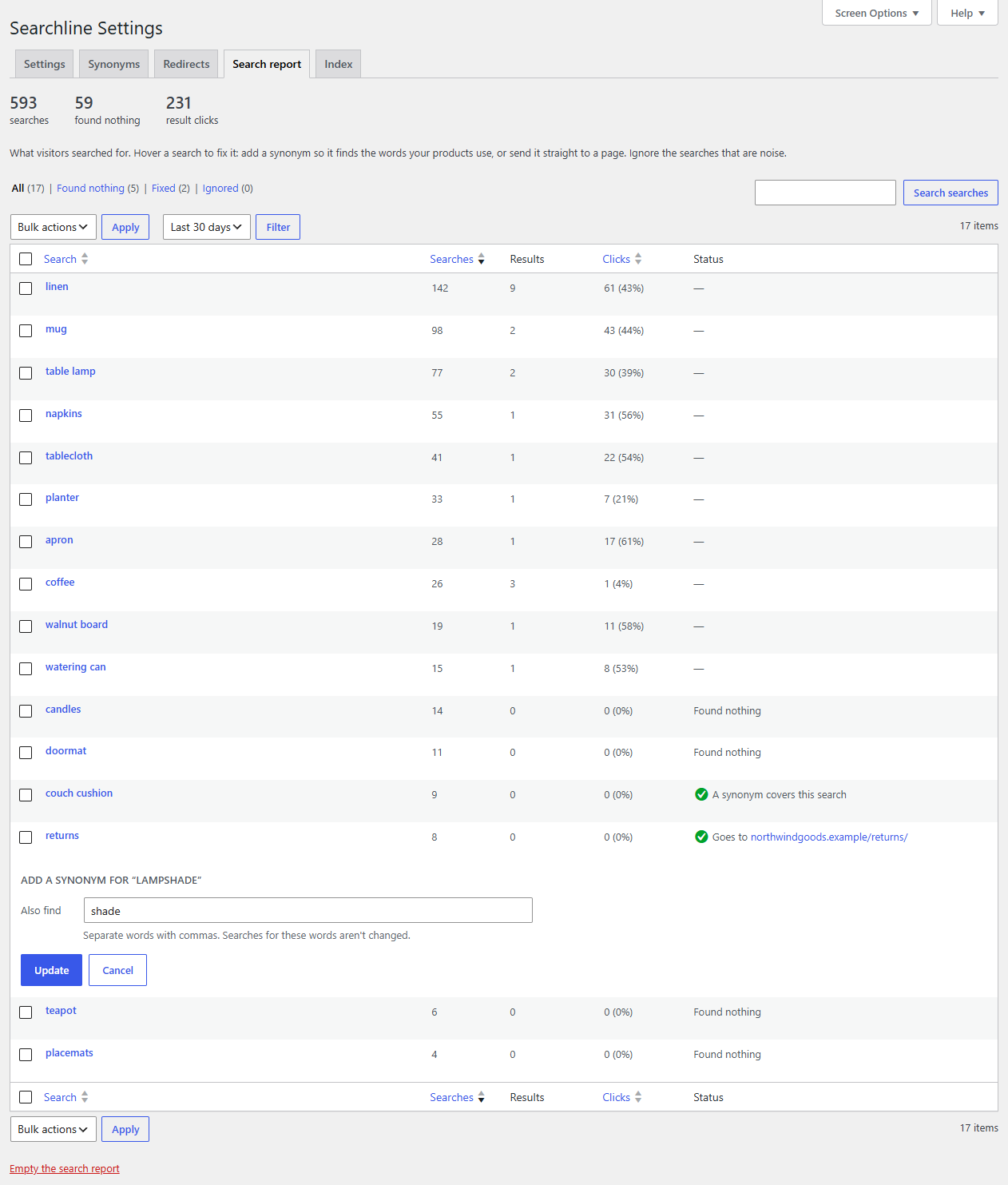
Fixed searches move to Fixed, and the rules you added appear on the Synonyms and Redirects tabs, where you can change them. The Clicks column is worth a look too: a search that many people make but few click on probably finds the wrong products.
Check it works
Open your shop in a private window and try what a real shopper would:
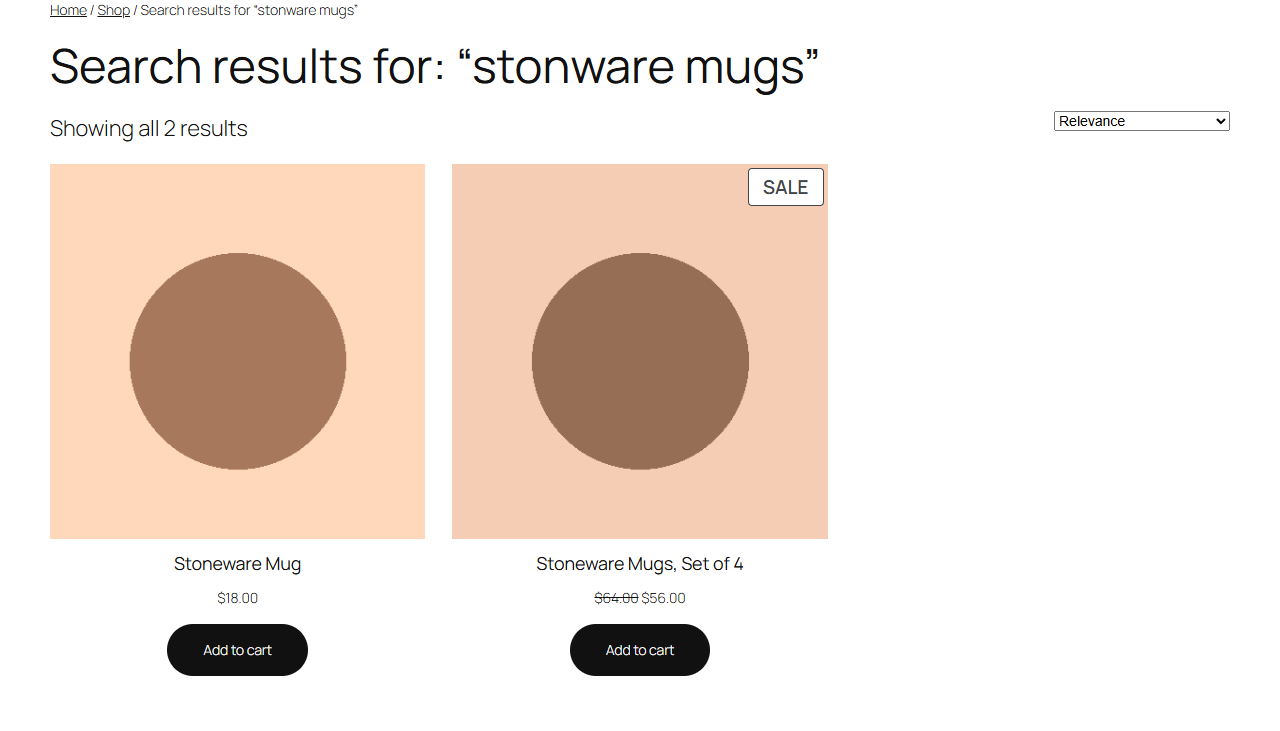
- A typo: "stonware mugs". The stoneware mugs show, on the results page and in the dropdown.
- A SKU, with and without dashes:
MUG-STN-12andmugstn12. The mug shows, even when the SKU belongs to one of its variations. - A synonym: "cup". The mugs show.
- A word you don't sell: "teapot". If nothing matches, you see "Did you mean" or no results, and the search appears under Found nothing in the report.
Searches in the admin, such as the product list, aren't changed: they stay as WordPress does them.
Common questions
My searches still work the old way. The index may not be built yet. Check WooCommerce → Searchline → Index, and on the Settings tab check that Answer the store's searches from Searchline's index is ticked. If the build doesn't move on, look for pending "searchline" actions under WooCommerce → Status → Scheduled Actions.
A product doesn't show up. Check it is published, its Catalog visibility is "Shop and search results" or "Search results only", and Hide from search results isn't ticked in its Publish box. Out-of-stock products are left out when Leave out-of-stock products out of search results is ticked, or when WooCommerce hides them from the catalog.
Does it work in other languages? Yes, apart from matching plurals, which is for English sites only. Elsewhere, add a synonym for the plurals your shoppers use.
I imported products straight into the database. Go to WooCommerce → Searchline → Index and click Rebuild the index. Searches keep working while it builds.
Related
You’re set

SearchlineFast WooCommerce-first search with its own index: typo tolerance, synonyms, a live dropdown and a no-results report you can fix in one click.
See Searchline