
Search report
See what visitors search for and click, and fix searches that found nothing without leaving the page.
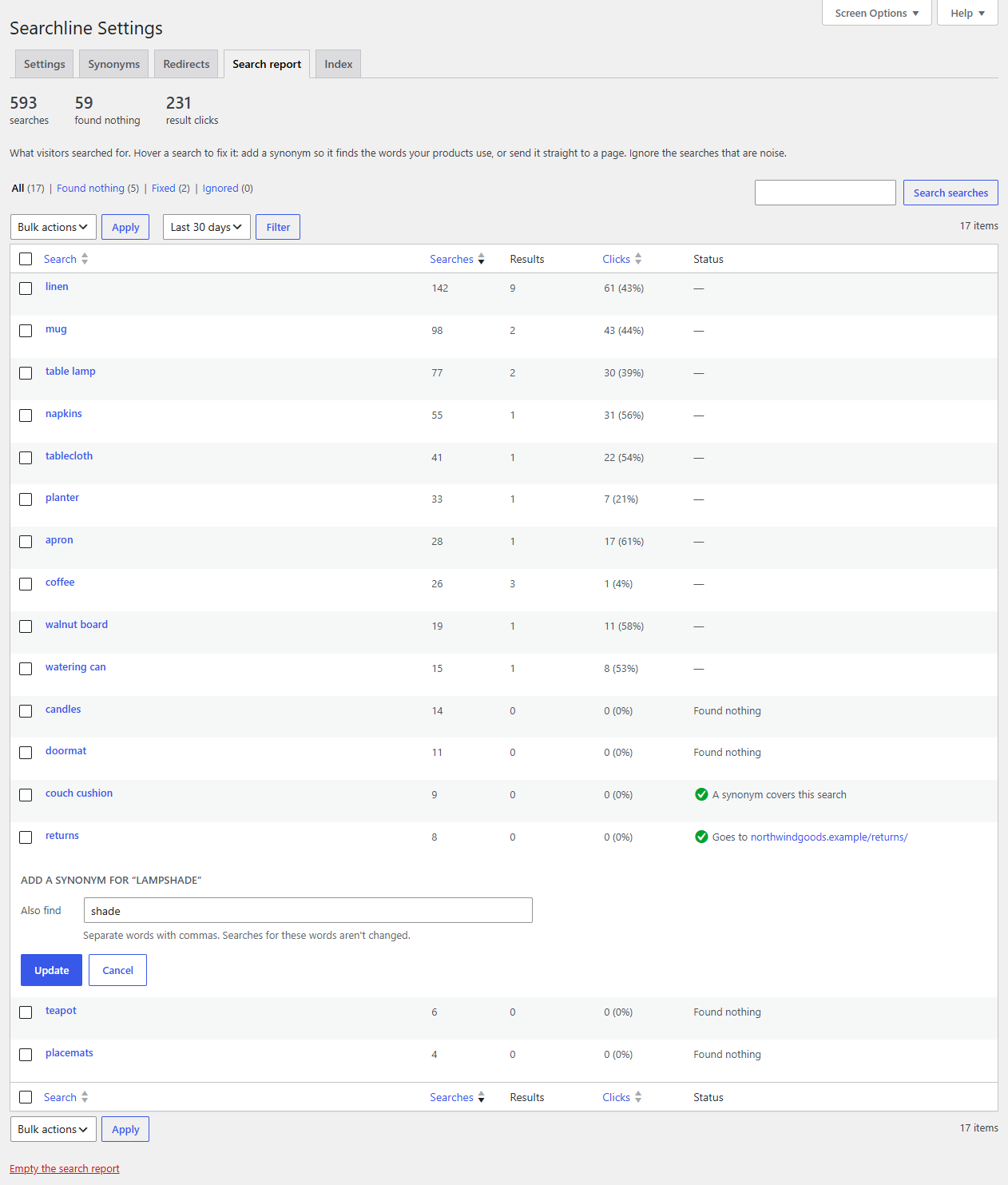
The search report shows what visitors look for in your shop, how many results they got and what they clicked. Most useful are the searches that found nothing: each one is a visitor who left without the product they wanted. You can fix each one from the list, without leaving the page.
Read the report
- Go to WooCommerce → Searchline → Search report.
- Choose a period (Last 7 days, Last 30 days, Last 90 days or Last 365 days, up to how long the counts are kept) and click Filter. The report opens on the last 30 days.
At the top are the totals for the period: searches, how many found nothing, and result clicks.
Above the list, the views split the searches:
| View | What it lists |
|---|---|
| All | Every search in the period, except the ones you ignored. |
| Found nothing | Searches that found no results in the whole period, and that nothing covers yet. Start here. |
| Fixed | Searches that found nothing, and that a synonym or a redirect now covers. |
| Ignored | The searches you chose to ignore. |
Each view shows how many searches it has. The list has these columns:
| Column | What it shows |
|---|---|
| Search | What visitors typed. Click it to see the results on your site, in a new tab. Opening it there isn't counted as another search. |
| Searches | How often it was searched in the period. |
| Results | How many results it found. |
| Clicks | How often a result was clicked, and the share of searches that led to a click. A search with many searches and few clicks may find the wrong products. |
| Status | What is done about it (see below). |
Click Search, Searches or Clicks at the top of a column to sort by it; click again to reverse the order. To find one search, type in the box at the top right and click Search searches.
The Status column says:
- Found nothing: no results, and nothing covers it yet. When Searchline knows a close match in your catalog, it's shown too, for example "Found nothing · close match: stoneware" for the search "stonware".
- A synonym covers this search: a synonym now makes it find something.
- Goes to and a page: a redirect sends it straight to that page.
- Ignored: you chose to ignore it.
- —: it finds results and has no redirect. Nothing to fix.
Tip
The list shows 20 searches a page. To show more, open Screen Options at the top right of the screen and change Searches per page.
Fix a search that found nothing
Hover over a search (or tab to it with the keyboard) to see what you can do with it:
- Add “…”: shown when Searchline knows a close match, for example Add “stoneware”. One click adds it as a synonym, with nothing to fill in.
- Add synonym: opens a row under the search. In Also find, type the words your products use, separated by commas, for example
shade. When Searchline knows a close match, it's already filled in. Click Update. - Redirect: opens a row under the search. In Goes to, start typing to pick a page, post, product or product category from the list, or type a path on your site (
/returns/) or a full web address. Click Update. - Ignore: hides a search that is noise (see below).
- View results: opens the search on your site, in a new tab.
Enter saves the row too, and Cancel or Escape closes it without saving. The row is saved without reloading the page: its status changes straight away, and the counts above the list follow. When the search no longer belongs in the view you're on, for example a fixed search under Found nothing, it leaves the list.
A synonym is added to the Synonyms tab as a one-way rule (lampshade => shade): searches for "lampshade" also find "shade", and searches for "shade" don't change. A redirect is added to the Redirects tab. You can change or remove them there.
A search that already has a fix shows Edit synonyms (which opens the Synonyms tab) or Edit redirect instead.
You can fix searches that found something the same way, for example to send a search that finds the wrong products straight to the right page.
Note
A fixed search stays under Fixed until visitors search for it again and find something. From then on it shows under All only.
Ignore searches that are noise
Some searches will never find anything, such as keyboard mashing or a word that has nothing to do with your shop. Ignore them to keep the list for the searches that matter.
- One search: hover over it and click Ignore. It leaves the list straight away.
- Several: tick their checkboxes, choose Ignore from Bulk actions and click Apply.
Ignored searches move to the Ignored view. They are still counted, in the totals too, and searching for them on your site works as before. To bring one back, open Ignored, hover over it and click Stop ignoring, or tick several and choose Stop ignoring from Bulk actions.
An ignored search is forgotten together with its counts: once they are older than the days the report keeps, or when you empty the report.
Note
Searchline remembers up to 1,000 ignored searches. Past that, the one ignored longest ago is forgotten first.
What is counted
- Searches on the search results page and in WooCommerce's product blocks (the first page of results only, so paging through results isn't counted again).
- Searches in the dropdown, once the visitor stops typing, whether they found something or not, or when they click a result.
- Clicks on results, in the dropdown and on the search results page.
Not counted: search engines and other crawlers, searches you open from the report, and searches that look like personal data (see Privacy).
Settings
Under WooCommerce → Searchline → Settings → Search report and privacy:
- Count what visitors search for: untick it to stop counting. The report keeps what it has; the tab then shows a notice that new searches aren't counted.
- Keep the counts for 90 days (1 to 730): older days are deleted once a day. The report only offers periods up to what is kept (with 90 days: Last 7, 30 or 90 days; another number adds a period of that length).
Empty the report
Empty the search report, the red link under the list, deletes every count and every ignored search straight away. WordPress asks you to confirm first, because it can't be undone. Click Cancel to keep the report.