
Hiding results
Keep a product, page or post out of search results, and leave out-of-stock products out.
Some content shouldn't turn up in a search: a thank-you page, a landing page for one campaign, a product only sold through a link. Hide it from search results and it stays on your site as before.
Hide one product, page or post
- Open the product, page or post for editing.
- Tick Hide from search results:
- on the product screen and in the classic editor, it's in the Publish box;
- in the block editor, it's in the sidebar's Page (or Post) tab, at the end of the details under Status and Publish, above Move to trash.
- Click Update (or Save).
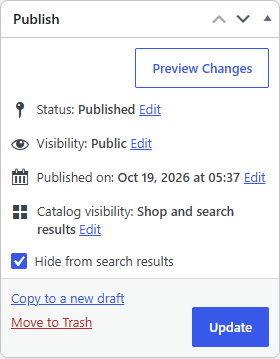
It disappears from Searchline's results everywhere: the dropdown, the search results page and the product blocks. Untick the box to bring it back.
The checkbox shows on every content type Searchline searches (see How results are found).
Note
The checkbox is Searchline's. If you turn off Answer the store's searches from Searchline's index, WordPress's own search answers again and doesn't know about it.
Out-of-stock products
Go to WooCommerce → Searchline → Settings → General → Results and tick Leave out-of-stock products out of search results. They come back as soon as they are in stock again.
Out-of-stock products are always left out when WooCommerce hides them from the catalog (WooCommerce → Settings → Products → Inventory → Hide out of stock items from the catalog), whatever this setting says.
What is never in search results
Without you doing anything, search results leave out:
- products whose Catalog visibility is "Shop only" or "Hidden";
- drafts, scheduled, private and password-protected content;
- content of types you didn't tick under Content types;
- anything the visitor isn't allowed to see, for example because another plugin limits who can see it.