
Redirects
Send a search straight to a page, such as "returns" to your returns policy.
Some searches have one right answer. A visitor searching for "returns" wants your returns policy, and "gift card" the gift card product. A redirect takes them there instead of showing a list of results.
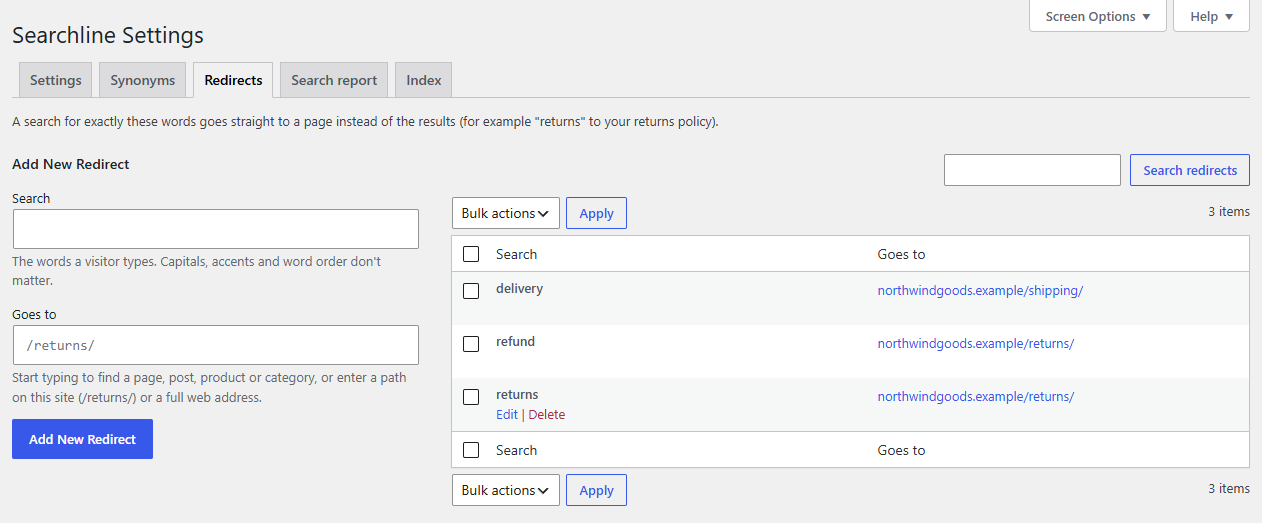
Add a redirect
- Go to WooCommerce → Searchline → Redirects. The tab is laid out like the Tags screen: the form on the left, your redirects on the right.
- Under Add New Redirect, type the Search, for example
returns. - In Goes to, start typing the name of a page, post, product, product category, brand or tag, and pick it from the list. Or type a path on your site (
/returns/) or a full web address. - Click Add New Redirect.
The notice "Redirect added." appears, and the redirect is in the list. Adding a redirect for a search that already has one replaces it.
If the search or the address is missing or isn't valid, nothing is saved and you see "Nothing was saved: fill in both the search and a valid web address."
Tip
You don't have to guess which searches need a redirect. The search report has a Redirect link under every search, so you can add redirects where visitors really need them.
Find, change and delete redirects
The list shows each Search and where it Goes to: the page's name, with the full address under it when that says more. To find a redirect, type part of its search or address in the box at the top right and click Search redirects.
Hover over a redirect (or tab to it with the keyboard) to see its links:
- Edit: opens a row under it with its Search and Goes to. Change either one and click Update Redirect, or press Enter. The row is saved without reloading the page. Cancel or Escape leaves it as it was.
- Delete: deletes it.
To delete several at once, tick their checkboxes, choose Delete from Bulk actions and click Apply.
After deleting, the notice ("1 redirect deleted.") has an Undo link that brings the redirects back. It works for an hour after you delete them.
Note
Each search can have only one redirect. If you edit a redirect's search to one another redirect already has, nothing is saved and you see "Nothing was saved: another redirect already has that search. Edit or delete that one instead." In the same way, Undo skips a redirect when you've added a new one for the same search since.
The list shows 20 redirects a page. To show more, open Screen Options at the top right of the screen and change Redirects per page.
Which searches are redirected
A search for exactly these words is redirected. Capitals, accents and word order don't matter, so Gift Card and card gift both match a redirect for gift card. A longer search, such as "returns label", isn't redirected: it shows its results.
Redirects work for:
- the search results page, from any search box;
- the dropdown: pressing Enter, or its Go to … link, opens the redirect's page.
Related
- Synonyms: find more products instead of going to one page.
- Search report: see which searches need a redirect.