
Live search
Show results in a dropdown while visitors type, on every search form or only the Searchline search block, Elementor widget and shortcode.
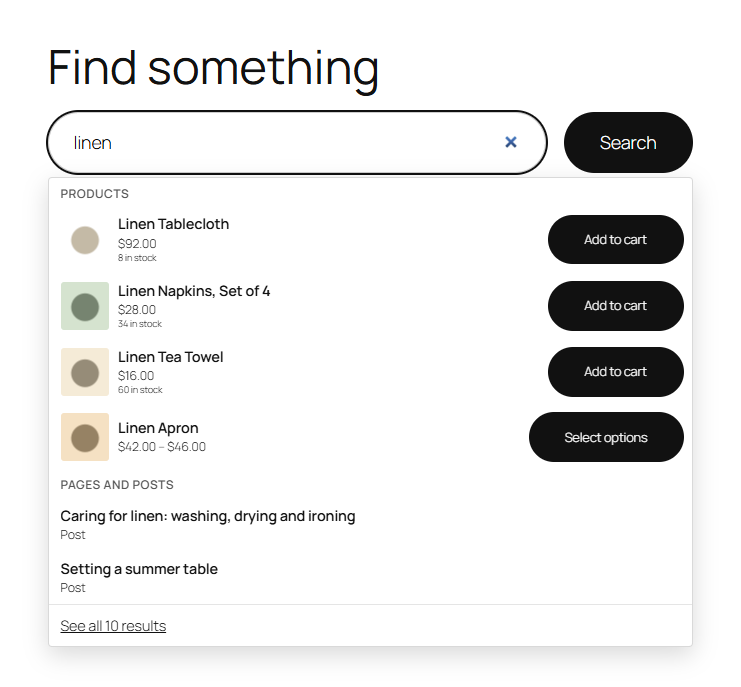
While a visitor types in a search box, a dropdown shows the best matches: products first, with their image, price, stock, badges and an add to cart button, then pages and posts. A link at the bottom opens all results.
Set up the dropdown
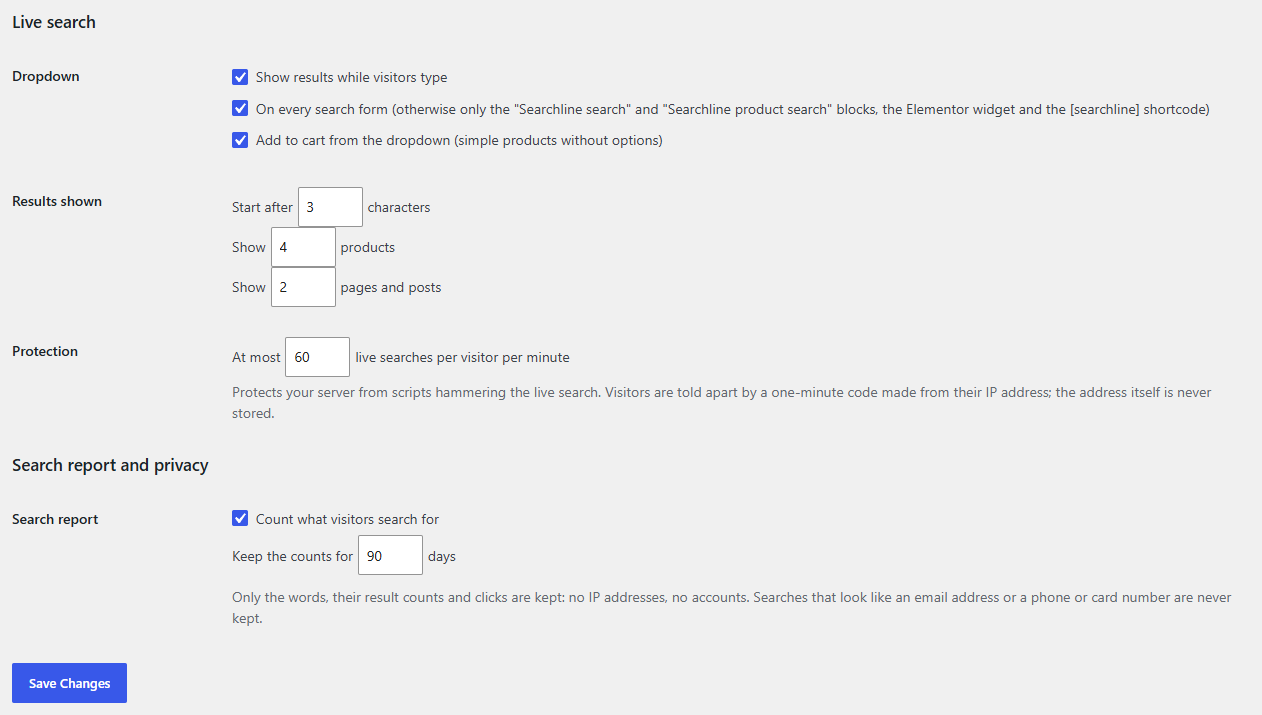
- Go to WooCommerce → Searchline → Settings and scroll to Live search.
- Under Dropdown, choose:
- Show results while visitors type: the dropdown on or off.
- On every search form (otherwise only the "Searchline search" and "Searchline product search" blocks, the Elementor widget and the [searchline] shortcode): tick it to add the dropdown to your theme's search boxes too. Untick it to have the dropdown only where you place it yourself.
- Add to cart from the dropdown (simple products without options): shows an add to cart button on simple products that are in stock. Other products, such as variable products, get their usual button ("Select options") that opens the product. Both buttons use your theme's button style.
- Under Results shown, set when the dropdown starts and how much it shows:
- Start after 3 characters (2 to 10).
- Show 6 products (0 to 20; 0 shows no products).
- Show 3 pages and posts (0 to 10; 0 shows none).
- Click Save Changes.
Add a search box with the dropdown
In the block editor
- Add a block and search for Searchline search, or Searchline product search for a box that only searches products.
- Both are the WordPress Search block with the dropdown switched on, so you can change their label, button and width as usual.
You can also turn an existing Search block into either one from the block's Transform menu.
In Elementor
- In the Elementor editor, search the widget panel for Searchline search. It's in the Extendiment category.
- Drag it onto the page. Under Search form:
- Products only: the box searches products only, in the dropdown and on the results page.
- Placeholder: the text shown in the empty box. Leave it empty for "Search…" ("Search products…" with Products only on).
- Button: Text, Icon (a magnifying glass) or None (visitors press Enter to search).
- Button text: the button's text. Leave it empty for "Search". With an icon, screen readers read it out instead.
- On the Style tab, change the look if your theme's doesn't suit the spot:
- Box: typography, text, background and border colours, and the border radius.
- Button: typography, text and background colours (also on hover), border radius and padding.
The widget works with the free Elementor. Your theme styles the box and its button until you change them on the Style tab: with a block theme such as Twenty Twenty-Five, the widget is the theme's own Search block, so it looks like the search box in the theme's header.
With the shortcode
Use [searchline] in a page, a widget or another page builder. Its options:
| Option | What it does |
|---|---|
products="yes" |
Searches products only, in the dropdown and on the results page. |
placeholder="…" |
The text shown in the empty box. The default is "Search…" ("Search products…" with products="yes"). |
button="icon" |
A magnifying glass instead of the button's text; button="none" leaves the button out (visitors press Enter). The default is button="text". |
button_text="…" |
The button's text, "Search" by default. With an icon, screen readers read it out. |
For example: [searchline products="yes" placeholder="Find a product" button="icon"]. With a block theme, the shortcode shows the theme's Search block too.
Tip
A search box that searches products only (the product search block, products="yes", or WooCommerce's own product search widget) shows only products in its dropdown, and its "See all" link opens the product results.
What visitors see
- Products, then Pages and posts, each with how many you chose to show.
- Products show their badges: the labels from Labelline when it's active, otherwise "Sale" for products on sale.
- See all … results opens the search results page. When the search has a redirect, the link says Go to … with the page's name and opens that page instead.
- When nothing is found but the search has a redirect, the dropdown shows Go to and the page, for example "Go to Returns".
- Otherwise, when nothing is found, Did you mean: suggests a corrected search, if the correction finds something the search didn't. Otherwise "No results".
- After Add to cart, the button shows WooCommerce's usual states: a spinner while the product is added, then a tick. On block themes it says how many are in the cart instead, for example "1 in cart", as WooCommerce's own product buttons do. A View cart link appears next to it, and screen readers hear "Added to your cart".
The dropdown opens under the box, at least as wide as the box, and wider than a narrow box so results stay readable. A box near the right of the screen, such as one in a phone's header, opens it further left, so it stays on screen.
The dropdown works with the keyboard: the arrow keys move through the results (left and right between a product and its button), Enter opens a result or adds it to the cart, Escape closes the dropdown. Screen readers hear how many results are available.
Products and pages a visitor isn't allowed to see never show in their dropdown, and hidden or out-of-stock products are left out the same way as on the results page (see Hiding results).
Protection from too many searches
Under Protection, At most 60 live searches per visitor per minute (10 to 600) stops scripts from hammering your server through the dropdown. A visitor over the limit sees "Too many searches. Wait a moment and try again." for the rest of the minute. Normal typing never comes near the limit.
Visitors are told apart by a code that changes every minute. The visitor's IP address itself is never stored.
Note
Behind a proxy or CDN, every visitor can seem to come from the same address and share one limit. Ask your developer to pass on the real visitor address (see Hooks), or raise the limit.
Related
- How results are found
- Search report: searches in the dropdown are counted there too.