If you sell from an EU country to businesses in other EU countries, they expect to pay without VAT when they give you a valid VAT number. WooCommerce charges VAT by country, but it has no VAT number field and no way to check one. This guide sets up a VAT number field at checkout that checks each number with VIES, the European Commission's VAT number service, takes VAT off the order straight away when it is valid, and keeps the proof on the order and the invoice.
Folioline is a paid product: everything below is part of it.
Note
Folioline applies the rules you set up; it is not tax advice. When reverse charge applies, what your invoices must say and how you report these sales depends on your country and what you sell. Check with your accountant or tax office.
What you need
- Folioline, installed and active (see Installation).
- Your store address in the EU, under WooCommerce → Settings → General. Folioline only takes VAT off when the shop itself is in the EU.
- Taxes turned on and your VAT rates set up in WooCommerce, under WooCommerce → Settings → Tax. Folioline takes off the VAT that WooCommerce charges; it doesn't set up or calculate rates itself.
The example store in this guide is a ceramics studio in Lille, France. It sells hand-made mugs (physical products) and an online glazing course (a virtual product). A café in Munich wants to order 40 mugs for its counter.
Add your own VAT ID
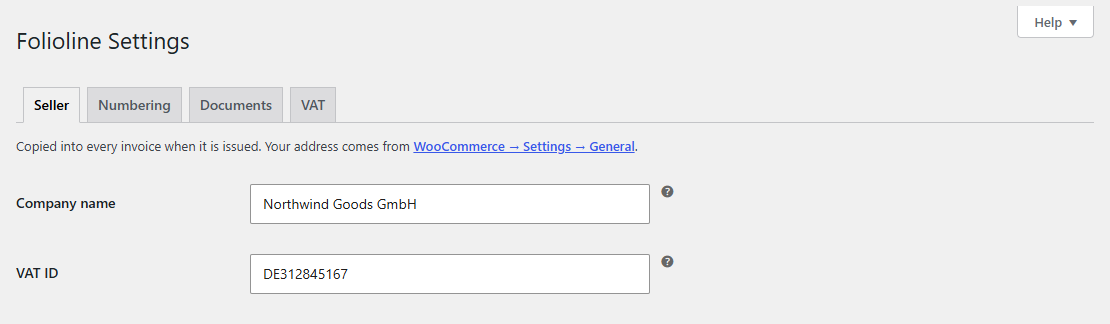
Go to WooCommerce → Folioline, open the Seller tab and fill in VAT ID with its country prefix, for example FR12345678901. Click Save Changes.
Your VAT ID matters twice here. EU invoices must show it, and Folioline sends it along with each check, so VIES answers with a consultation number: a reference that proves you checked the customer's number, and when. Without your VAT ID, checks still work, but you get no consultation number, and Folioline's screens remind you to add it.
While you're on the Seller tab, fill in Company name too: it is your legal name on invoices.
Turn on the VAT number field
Open the VAT tab. These settings decide what customers see and when VAT comes off:
| Setting | What to choose for the studio |
|---|---|
| VAT number field | On: Ask business customers for their VAT number at checkout. |
| Required | Off for now. Tick Make the VAT number required when a company name is entered if you only sell to businesses. |
| VIES check | On: Check VAT numbers with the EU's VIES service and take VAT off (reverse charge) only for valid ones. |
| When VIES is down | See the next step. |
| Location evidence | On, if you sell digital products to consumers in other EU countries. |
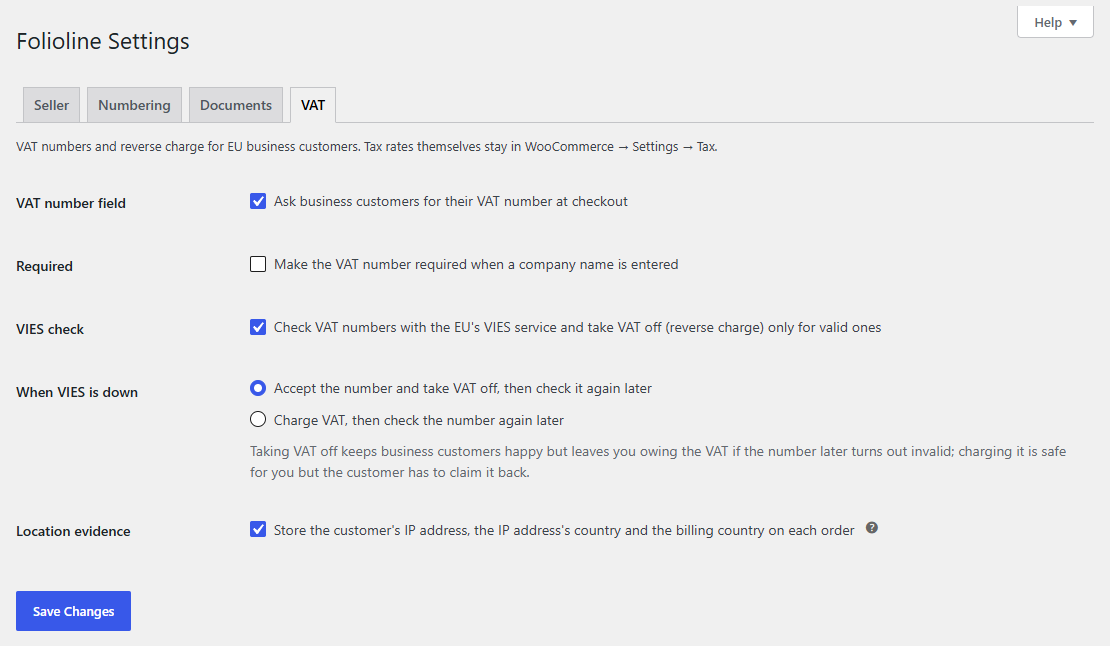
Click Save Changes.
Customers now see the field with their billing address: as VAT number (optional, for businesses) in the Checkout block, and as VAT number after the company name in the classic checkout. It's also under My Account → Addresses, so returning customers don't type it again.
Tip
If you turn VIES check off, a number in the right format for the billing country is enough to take VAT off. Leave it on unless you check numbers some other way.
Decide what happens when VIES is down
VIES relies on each EU country's own register, and one is sometimes unavailable for minutes or hours. Under When VIES is down, pick one:
- Accept the number and take VAT off, then check it again later (the default). Business customers can always order without VAT. If the number later turns out invalid, the order went out without VAT, and you may owe it.
- Charge VAT, then check the number again later. Safe for you, but the customer pays the VAT and has to claim it back.
Either way, Folioline checks the number again on its own over the next day (after 15 minutes, then 1, 3, 12 and 24 hours) and adds the answer as an order note. A later check never changes the order's totals.
Tip
A number VIES confirmed within the last day still counts while VIES is down, so a short outage doesn't affect customers who just ordered.
What the business customer sees
The café's buyer adds 40 mugs to the cart, enters a billing address in Germany, the company name, and their VAT number, such as DE123456789. Spaces, dots and dashes don't matter.
As soon as they leave the field, Folioline checks the number and the totals change. Under the totals, a line explains what happened:
| The checkout says | What it means |
|---|---|
| VAT number verified. Reverse charge: no VAT is charged. | VIES confirmed the number; VAT is off. |
| This VAT number isn't valid in the EU VAT number check (VIES), so VAT is charged. | VIES doesn't know the number. |
| This VAT number is from another country than the billing address, so VAT is charged. | A German number with an Austrian billing address, for example. |
| VAT is charged: your business is in the same country as the shop. | A French café ordering from the French studio: domestic sales are never reverse charged. |
| This VAT number doesn't have the right format for its country, so VAT is charged. | Most likely a typo. |
A number without a country code is refused with a message showing the right format, so mistakes are caught before the order is placed.
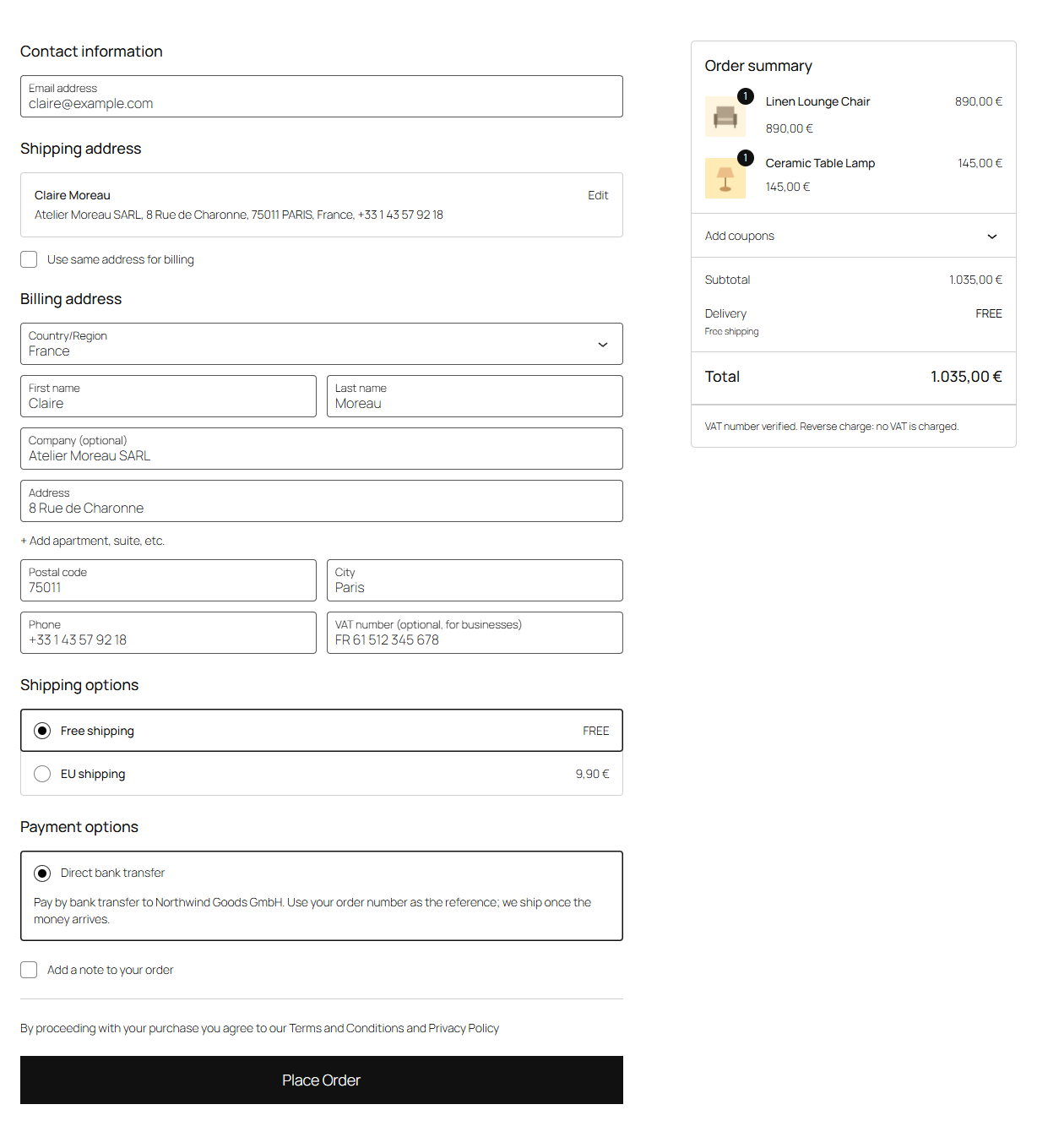
When the order is placed, Folioline asks VIES once more; if the answer changes the totals, the customer sees the new total before paying.
If your prices are entered including VAT, WooCommerce takes the VAT part out of the price for a VAT-exempt customer. A mug priced at 24 euros including French VAT at 20% costs the café 20 euros.
Note
Customers outside the EU can enter a tax number too. It is kept and printed on the invoice, but it doesn't change the tax: WooCommerce charges what you set up for their country.
What the order and invoice show
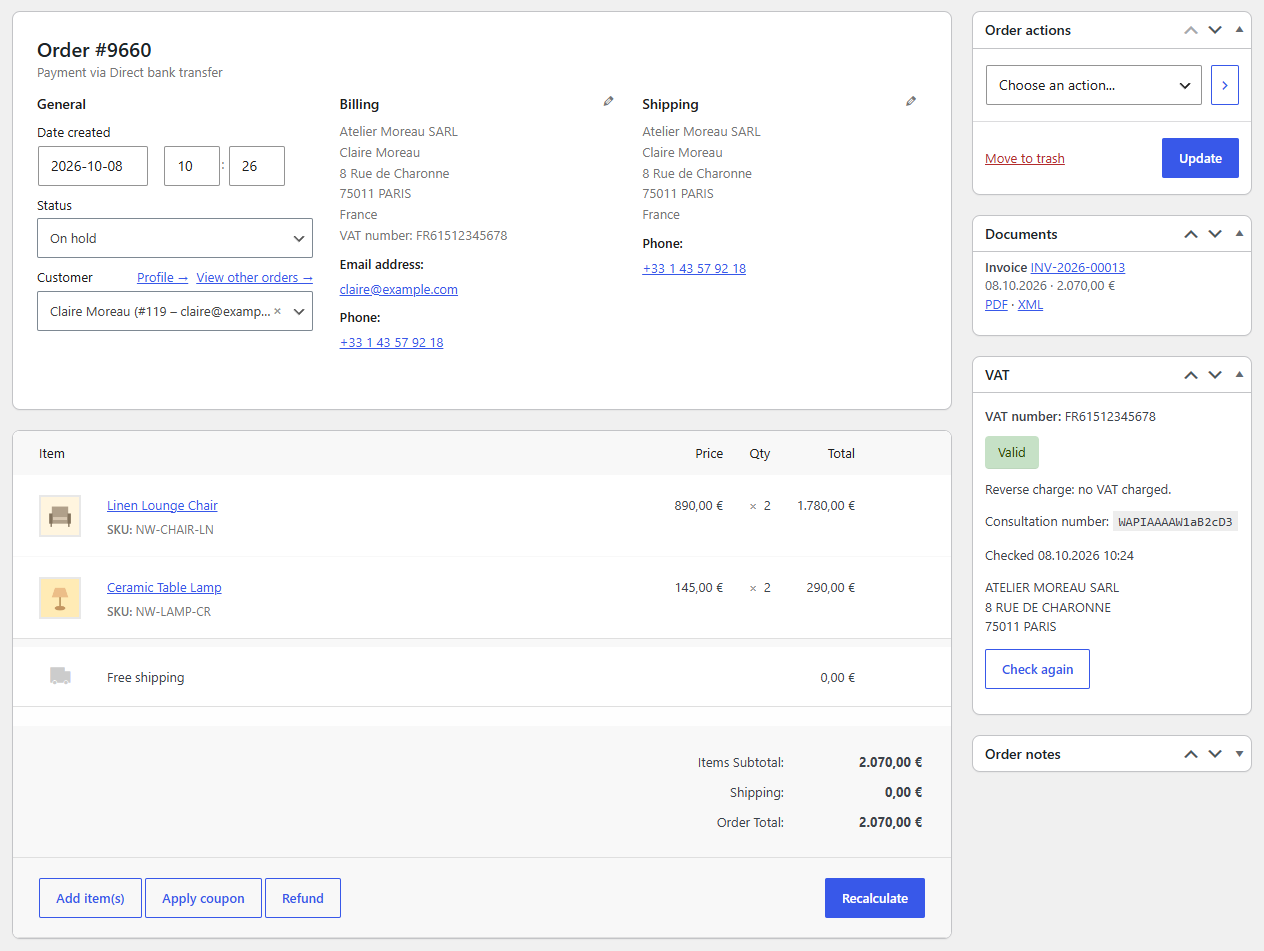
Open the café's order under WooCommerce → Orders. The VAT box on the order screen shows:
- the VAT number and its status: Valid, Invalid, Not checked yet (VIES was down) or Not checked;
- "Reverse charge: no VAT charged." or "VAT charged.";
- the Consultation number, when the number was checked, and the name and address VIES has for it.
Check again asks VIES now and records the answer in a note; the totals stay as they are.
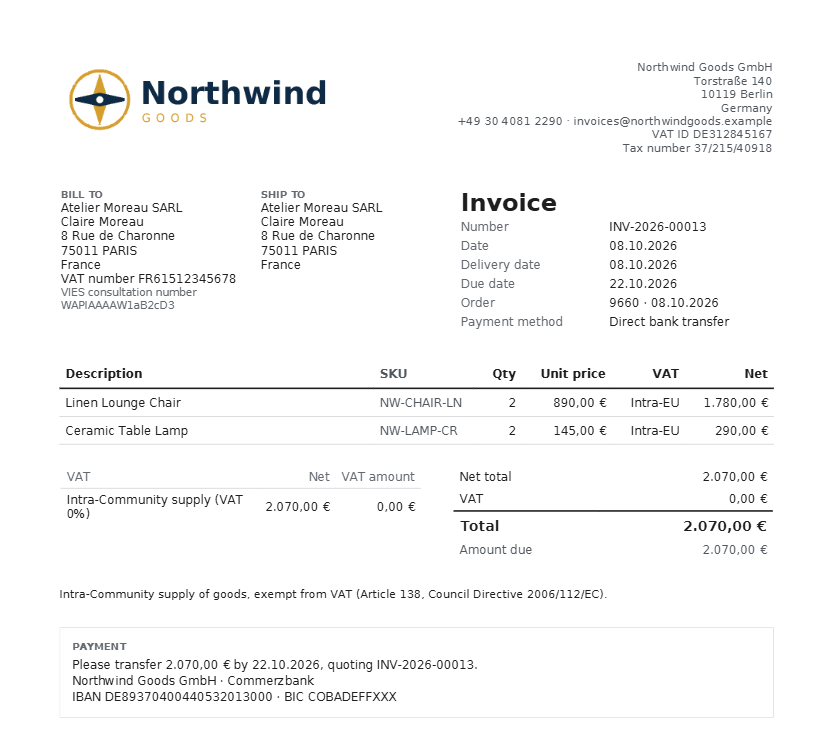
The invoice prints the customer's VAT number under their billing address, the consultation number, and a VAT line at 0% with the reason. Because the mugs are physical goods, the studio's invoice says Intra-Community supply (VAT 0%). Had the café bought the online glazing course, a virtual product, it would say Reverse charge (VAT 0%). Each comes with a short legal note, so your customer knows why there is no VAT.
The VAT number also shows on the order-received page, in the order emails and in the customer's My Account.
Orders you create yourself
For orders taken by phone or email, created under WooCommerce → Orders → Add order:
- Fill in the billing address, including the country.
- Type the number in Customer VAT number in the VAT box, and save the order. Folioline checks it with VIES.
- If the order note says "reverse charge applies", click Recalculate in the order items to take VAT off the totals.
Check it works
- Make sure your store address is in the EU and a product is taxed in WooCommerce.
- In a private browser window, add the product to the cart and go to checkout.
- Choose another EU country as the billing country and enter a business's VAT number from that country (ask a business customer for one you may use, or use your own business's number with a billing address in your own country to see the domestic message).
- Watch the totals and the line under them change.
- Place the order, then open it in the admin: the VAT box shows the result, and the invoice, once issued, shows the VAT number and the 0% line.
Common questions
VAT wasn't taken off, and there's no message under the totals. The billing country is outside the EU, your store address isn't in the EU, or VAT number field is off. Also check that the products are taxed in WooCommerce: Folioline only takes off VAT that WooCommerce charges.
VIES says a customer's number isn't valid, but they say it is. Ask them to check it on the European Commission's VIES website. A newly registered number can take a few days to appear there.
VAT came off while VIES was down, and the number later turned out invalid. The order note tells you; the totals stay as they were. Check the number with the customer, and decide with your accountant whether the invoice needs correcting with a credit note (see Credit notes). To avoid this, choose Charge VAT, then check the number again later.
I already ask for a VAT number with Fieldline. Folioline says so on its settings page. Only Folioline's field checks the number and takes VAT off, so remove the other field to avoid asking customers twice.
Related
You’re set

FoliolineEU invoices and VAT for WooCommerce: gapless numbers, credit notes, VAT number checks, reverse charge, OSS reports and e-invoice files.
See Folioline