
Invoices and numbering
When Folioline issues an invoice, how to issue one by hand or in bulk, how numbers run without gaps, and why an issued invoice never changes.
When an order gets its invoice
Folioline issues an order's invoice when the order first reaches one of the statuses ticked under WooCommerce → Folioline → Documents → Issue invoices at: Processing and Completed to start with. An order note says "Invoice INV-2026-00001 issued.", and the invoice shows in the Documents box on the order screen.
- An order gets one invoice. Reaching another invoice status later, or the same one again, doesn't issue a second.
- Orders with a total of zero get none while Free orders is ticked.
- An order On hold or Pending payment gets its invoice once it's marked Processing, unless you tick those statuses too. Tick On hold if you want invoices for bank transfer orders before the money arrives: the invoice then shows a due date (see Payment terms in Settings) and your bank details.
Tip
Folioline also issues the invoice the moment one of the emails under Attach invoices to is sent for an order at an invoice status, so the invoice is never missing from that email.
Issue an invoice by hand
On the order screen, the Documents box shows "No invoice yet." and an Issue invoice button. Click it: the invoice is issued at once, whatever the order's status or total, and you're back on the order with a notice.
Issue invoices in bulk
- Go to WooCommerce → Orders.
- Tick the orders.
- Choose Issue invoices from Bulk actions and click Apply.
The notice says how many invoices were issued, and how many orders already had one. The Invoice column shows each order's invoice number, linked to its PDF.
Developers can do the same with wp folioline issue <order ID> (see Hooks).
How numbers work
Each document type has its own series: invoices INV-2026-00001, INV-2026-00002…, credit notes CN-2026-00001…. A number is taken only once its document is saved, one document at a time, so there are no gaps and no repeats, even when two orders are paid in the same second.
You set the format under WooCommerce → Folioline → Numbering:
{number}: the next number in the series, padded with zeros to Digits. It must be in the format.{year}and{month}: the issue date's year (2026) and month (04).- Anything else is printed as you type it:
RE-{year}/{number},{year}{month}-{number}.
With Yearly reset on, each year starts again at 1. Keep {year} in the format then, so INV-2026-00001 and INV-2027-00001 are different numbers.
First invoice number and First credit note number set where a series starts. To carry on from another tool, set it to the number after your last invoice there. With Yearly reset on, that number counts for the current year only, and the next year starts at 1 by itself. Switching Yearly reset on or off once documents exist never repeats a number: a number already printed on another document is skipped, and the series carries on after it. You can raise it later, but the numbers in between are skipped for good, and a series never goes back down.
Note
Changing the format changes the numbers of documents issued from then on; documents you already have keep theirs. Change it at the start of a year if you can.
An issued invoice never changes
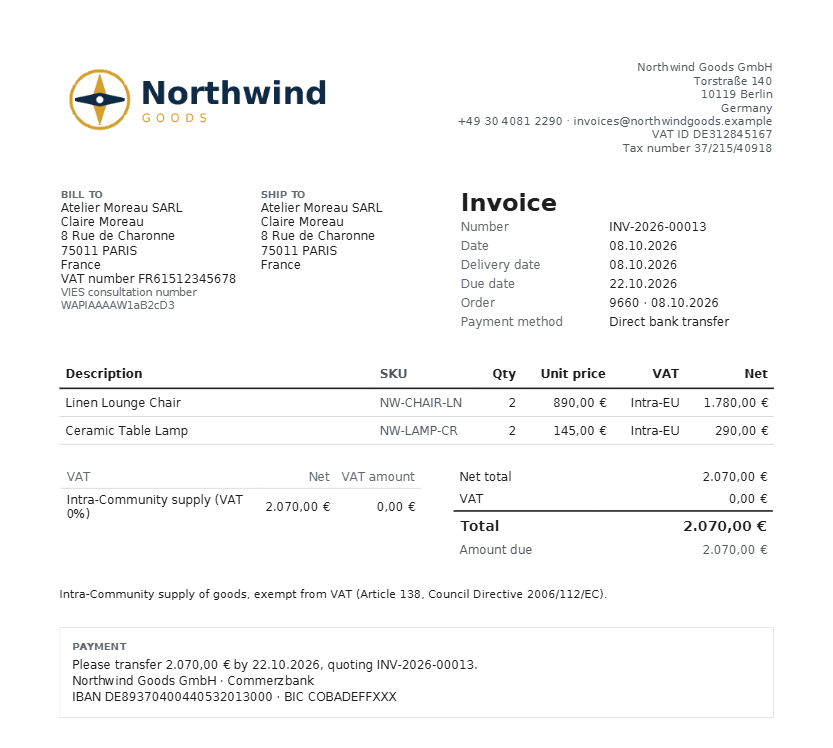
When an invoice gets its number, Folioline keeps a frozen copy of everything it says: your company details and logo, the customer's address and VAT number, every line, the VAT per rate and the totals. Its PDF and e-invoice files are made from that copy.
So editing the order, changing a product's name or price, or changing your settings afterwards never changes an invoice that exists. Invoices can't be edited or deleted in Folioline.
To correct an invoice, refund the order, or the part that was wrong, in WooCommerce: Folioline issues a credit note for the refund. See Credit notes.
What an invoice shows
- Your logo, company name, store address, VAT ID, tax number, email and phone, from Seller settings.
- The customer's billing address, company and VAT number, and the shipping address when there is one.
- The invoice number, date, order number, delivery date, and how and when the order was paid, or the due date and your bank details when it isn't paid yet.
- Every product, shipping and fee line with its quantity, unit price, net amount and VAT rate, then the VAT per rate and the totals.
- For a business customer in another EU country: "Reverse charge" and the legal wording, the VIES consultation number, and VAT at 0%. Exports and intra-EU deliveries of goods get their own wording too. Goods sent outside the EU without VAT are an export wherever the customer is billed: Folioline goes by the shipping address (your store's country for local pickup, the billing address when there's no shipping address). Services without VAT go by the customer's billing country.
- Your footer text, and page numbers.
The invoice is in the language your site was showing when it was issued.
Where to find invoices
- On the order screen, in the Documents box, with links to the PDF and an e-invoice file.
- On WooCommerce → Orders, in the Invoice column.
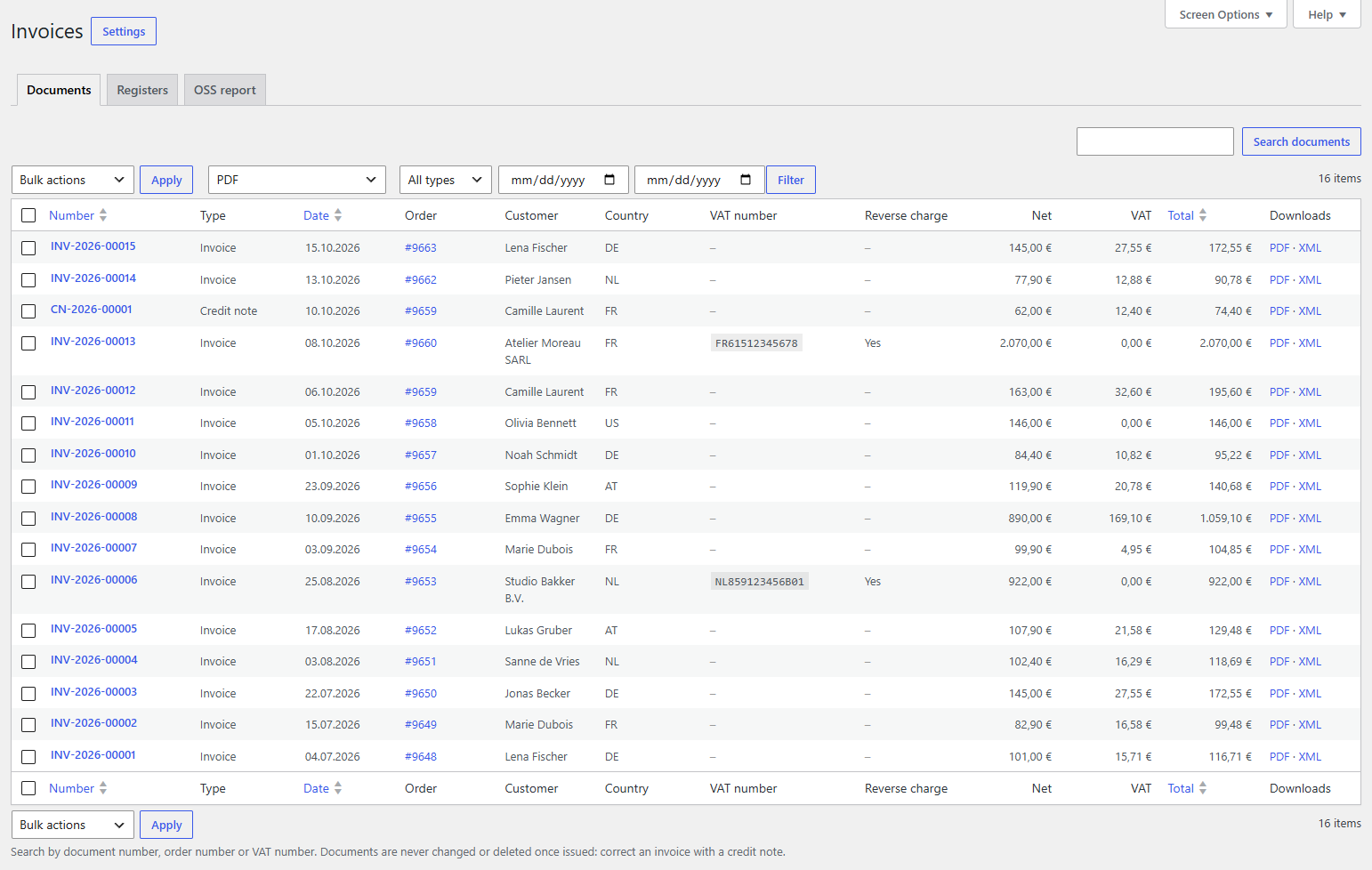
- On WooCommerce → Invoices, with every invoice and credit note: filter by Type and issue dates (Filter), search by document number, order number or VAT number, and sort by number, date or total.
Download several at once
- On WooCommerce → Invoices, filter the list, for example to last month.
- Tick the documents, or the box in the header row for the whole page.
- Choose what goes in the ZIP: PDF, an e-invoice format on its own, or PDF and an e-invoice format.
- Choose Download as ZIP from Bulk actions and click Apply.
If a file can't be made for a document, the ZIP has an errors.txt saying why. Raise Number of items per page under Screen Options to select more at once.