
Settings
Every setting under WooCommerce → Folioline, on its Seller, Numbering, Documents and VAT tabs.
Folioline's settings are under WooCommerce → Folioline, or Settings under Folioline on the Plugins screen. Shop managers and administrators can change them. The four tabs are one form: Save Changes saves all of them.
Note
An invoice copies your settings when it is issued, and never changes afterwards. A change here applies to invoices issued from then on, not to the ones you already have.
Seller
What goes on every invoice about you. Your address isn't here: it comes from WooCommerce → Settings → General.
| Setting | What it does |
|---|---|
| Company name | Your legal name on invoices. Empty: the site title. |
| VAT ID | Your VAT identification number with its country prefix, such as DE123456789. EU invoices must show it, and the VAT number check sends it to VIES to get a consultation number back. While it's empty, Folioline's screens remind you to add it. |
| Tax number | Your national tax number, if your country asks for it on invoices (Steuernummer in Germany). |
| Commercial register | The register court and number, such as "Amtsgericht Berlin HRB 12345". |
| Printed on invoices. Empty: the "From" address of WooCommerce emails. | |
| Phone | Printed on invoices. XRechnung files need it. |
| Bank name, IBAN, BIC | Printed on invoices that are still to be paid, and in e-invoice files. |
| Logo | Printed at the top of invoices. Choose a PNG or JPG from the Media Library; about 600 pixels wide prints sharply. |
| Footer text | Printed at the bottom of every page, such as your managing directors or a thank-you line. |
Numbering
See Invoices and numbering for how the series work.
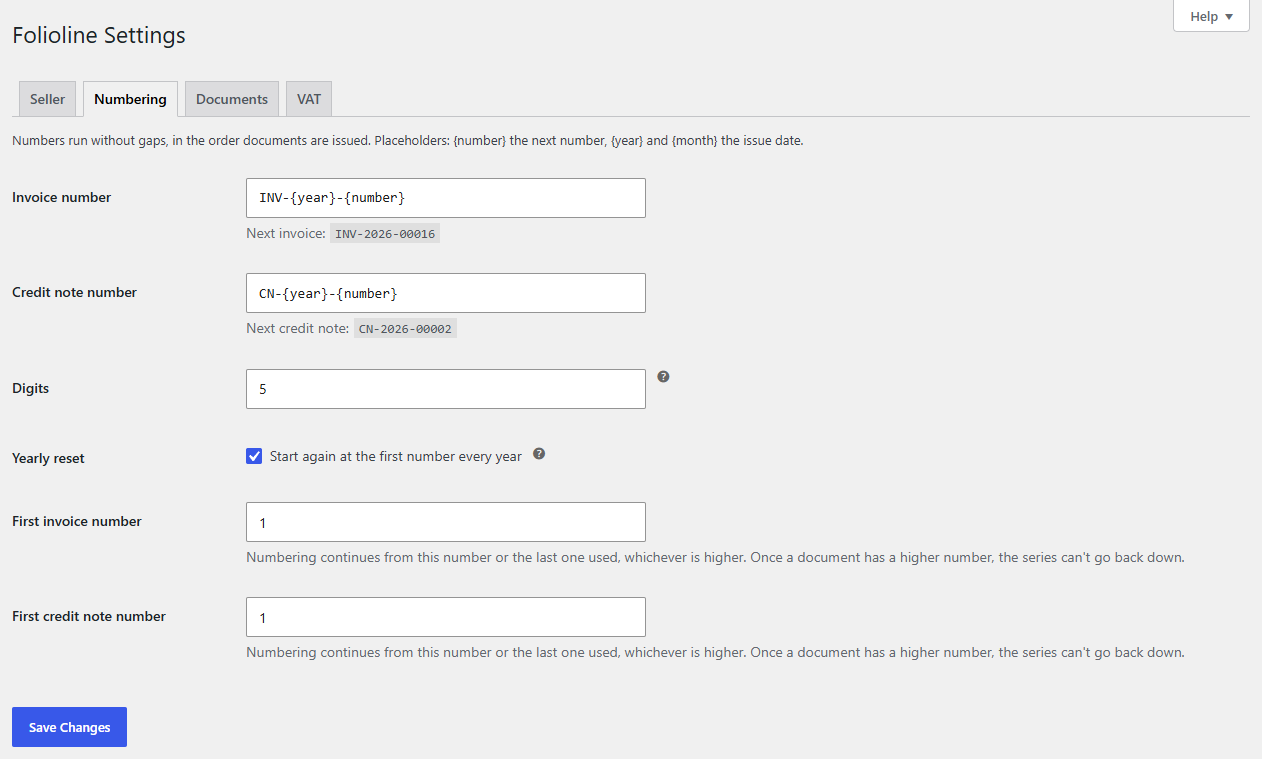
| Setting | Default | What it does |
|---|---|---|
| Invoice number | INV-{year}-{number} |
The invoice number's format. {number} is the next number in the series and must be in it; {year} and {month} are the issue date's. The preview below the field shows the next number as you type. |
| Credit note number | CN-{year}-{number} |
The same for credit notes, which have their own series. |
| Digits | 5 | {number} is padded with zeros to this many digits: 5 gives 00042. 0: no padding. |
| Yearly reset | On | Start again at 1 every year. Keep {year} in the formats when numbers restart, so no number is used twice. |
| First invoice number | 1 | Where invoice numbers start. Numbering continues from this number or the last one used, whichever is higher. With Yearly reset on, it counts for the year you set it in; the next year starts at 1. |
| First credit note number | 1 | The same for credit notes. |
Note
Raising a first number skips the numbers in between for good once the next document is issued, and a series never goes back down. The page warns you when you raise it.
Documents
| Setting | Default | What it does |
|---|---|---|
| Issue invoices at | Processing, Completed | An order gets its invoice when it first reaches one of these statuses. Every order status is listed, including those other plugins add. Untick them all to issue every invoice by hand. |
| Credit notes | On | Issue a credit note for every refund of an invoiced order. Off: you issue credit notes by hand. |
| Free orders | On | Don't issue invoices for orders with a total of zero. You can still issue one by hand. |
| Payment terms | 0 days | For orders that aren't paid yet, the invoice shows a due date this many days after it's issued. Orders on account in Wholesaleline use the customer's own terms (see Working with other plugins). |
| Attach invoices to | Processing order, Completed order, Order details | The customer emails the invoice PDF goes with, once the order has one. Every customer email WooCommerce and your plugins send is listed. |
| Attach credit notes to | Refunded order | The emails a refund's credit note goes with. Refunded order covers full and partial refunds. |
| E-invoice file | None | An e-invoice file to attach next to the PDF: ZUGFeRD / Factur-X, XRechnung (CII), XRechnung (UBL) or Peppol BIS Billing 3.0. It's also offered for download in My Account. See E-invoices. |
| My Account | On | Customers can download their invoices and credit notes under My Account → Orders. |
More in Emails and My Account.
VAT
Tax rates themselves stay in WooCommerce → Settings → Tax. See VAT numbers and reverse charge.
| Setting | Default | What it does |
|---|---|---|
| VAT number field | On | Ask business customers for their VAT number at checkout. Off: no field, no VAT number check and no reverse charge. |
| Required | Off | Make the VAT number required when a company name is entered, for customers billed in the EU. If your checkout hides the Company field, the number is required for every customer billed in the EU. |
| VIES check | On | Check VAT numbers with the EU's VIES service and take VAT off (reverse charge) only for valid ones. Off: a number in the right format for the billing country is enough to take VAT off. |
| When VIES is down | Take VAT off | Accept the number and take VAT off, then check it again later, or Charge VAT, then check the number again later. Taking VAT off keeps business customers happy but leaves you owing the VAT if the number turns out invalid; charging it is safe for you, but the customer has to claim it back. |
| Location evidence | On | Store the customer's IP address, the IP address's country and the billing country on each order. EU rules for digital services ask for two pieces of evidence of the customer's country: the billing country is one, the IP address's country the other. |
More
Plugins that extend Folioline can add their own sections; they show on a More tab.