Gift cards are an easy sale for any shop: someone who doesn't know what to buy still buys from you. WooCommerce has no gift card product of its own, so this guide adds one with Giftline. By the end, shoppers can buy a card for themselves or a friend, it's emailed on the day they choose, and whoever has the code can spend it at your checkout, a bit at a time if they like.
Giftline is a paid plugin, so every step here needs it.
What you need
- WooCommerce with at least one payment method set up.
- Giftline, installed and activated.
- A few minutes to decide your amounts and whether cards are emailed, printed, or both.
Note
What WooCommerce can do on its own: you can make a fixed-amount coupon by hand under Marketing → Coupons and email the code yourself. That works for the odd one-off, but nobody can buy it in your shop, and a coupon is a discount: it comes off before tax, and if an order is smaller than the coupon, the rest is lost. A Giftline card is bought like any product, is a way to pay rather than a discount, and keeps whatever isn't spent.
Step 1: Choose how cards look and when they're sent
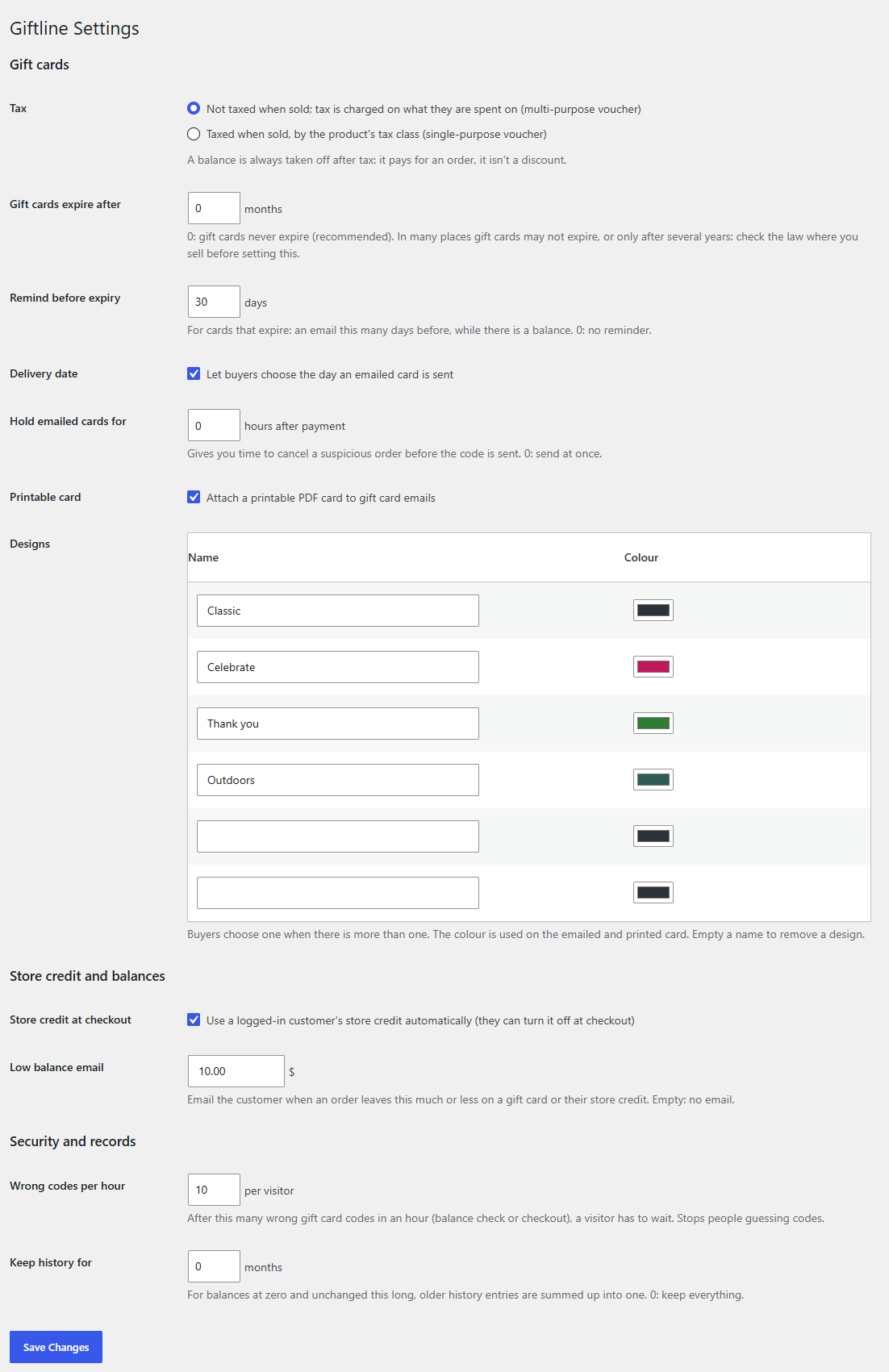
Start with the settings, so the product page offers the right choices. Go to WooCommerce → Giftline.
Our example is a small pottery studio that sells mugs and bowls online and wants an emailed gift card for birthdays and holidays.
Under Gift cards:
- Designs: three come ready (Classic, Celebrate and Thank you). Each has a name and a colour, used on the email and on the printable card. The studio renames Celebrate to "Birthday", picks a terracotta colour for Classic and leaves Thank you as it is. Empty a name to remove a design. With only one design, shoppers aren't asked to choose.
- Delivery date: on by default. Shoppers can pick the day an emailed card is sent, which is what most people want for a birthday.
- Printable card: on by default. A PDF of the card is attached to the gift card email, ready to print or forward.
- Hold emailed cards for: 0 hours by default. Set a few hours if you want time to check a suspicious order and cancel it before the code goes out. The studio sets 2.
- Gift cards expire after: leave it at 0 (never), unless you're sure the law where you sell allows expiry. Many places limit it or forbid it.
- Tax: the default, Not taxed when sold; tax is charged on what they are spent on, suits a card that can buy anything in the shop. Check with your accountant if your cards can only buy goods taxed at one rate; then choose the other option.
Click Save Changes.
Step 2: Add the gift card product
Go to Products → Add New, and give the product a name and an image, as for any product: "Studio gift card", with a photo of a wrapped mug.
In the Product data box, choose Gift card as the product type. A Gift card tab appears:
- Amounts: the amounts shoppers choose from, separated by commas or spaces. The studio enters
25, 50, 100. - Any amount: tick it to let shoppers type their own amount. The studio does, for people who want to cover a particular piece.
- Lowest amount and Highest amount: the limits for an amount of their own. Left empty, they're 1 and 1,000 in your currency. The studio sets 10 and 300.
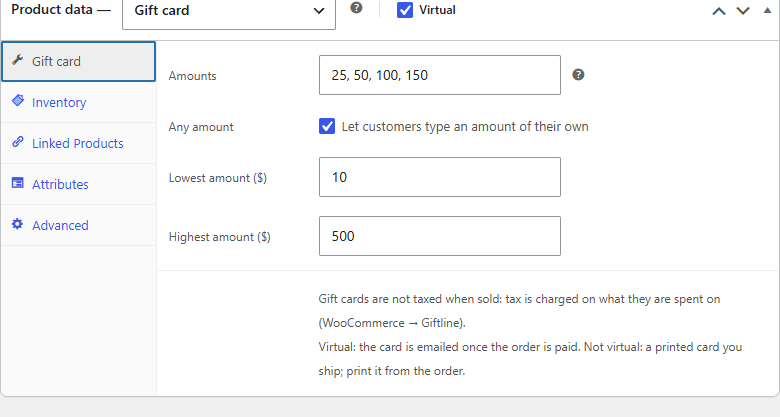
Now Virtual. It decides how the card reaches its owner:
- Virtual ticked: the card is emailed once the order is paid. This is the studio's choice.
- Virtual not ticked: a printed card you post with the order, with shipping charged as usual. See Printed gift cards.
You don't set a price: the amount the shopper picks is the price, and the product's listed price follows your lowest amount, so it sorts and shows like any other product. Click Publish.
Tip
You can have several gift card products: one emailed and one printed, or a seasonal one with its own image for December.
Step 3: What the shopper fills in
On the product page, above Add to cart, the shopper sees:
- Amount: one of yours, or Other amount with their own, between your limits.
- Design: when you have more than one.
- Recipient's name and Recipient's email: left empty, the card is emailed to the buyer.
- From and Message: shown in the email and on the printable card, up to 300 characters.
- Delivery date: left empty, the card is sent as soon as the order is paid. A later day, and it's sent that morning at 9:00 in your store's time.
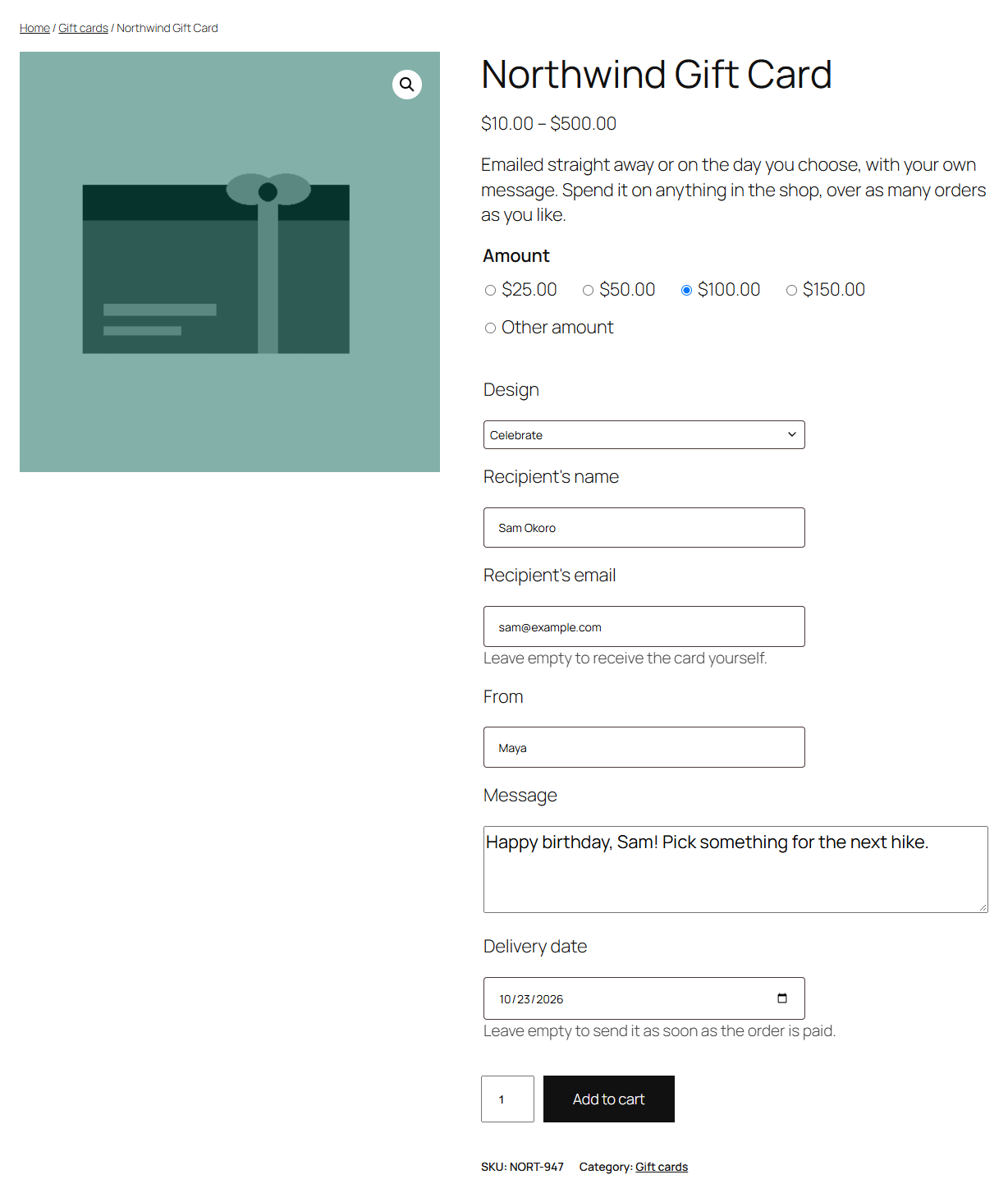
Say Maya buys a 50 card for her brother Sam, Birthday design, "Happy birthday! Pick something for your new kitchen. Maya", to be delivered on the 14th. Her choices show under the item in the cart, at checkout, in the order and in the order emails.
Coupons never discount a gift card product, so nobody can buy a card for less than it's worth.
Step 4: When the order is paid
Giftline makes the cards when the order reaches Processing or Completed, never while it's waiting for payment. Each unit is its own card: two in one order are two cards with their own codes.
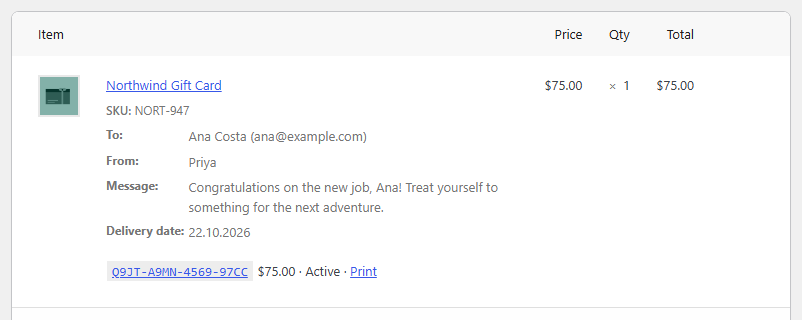
On the order screen, under the gift card line, you see each card's code, balance and status, with links to its screen and to print it. The order notes say when each card was made and when it was emailed.
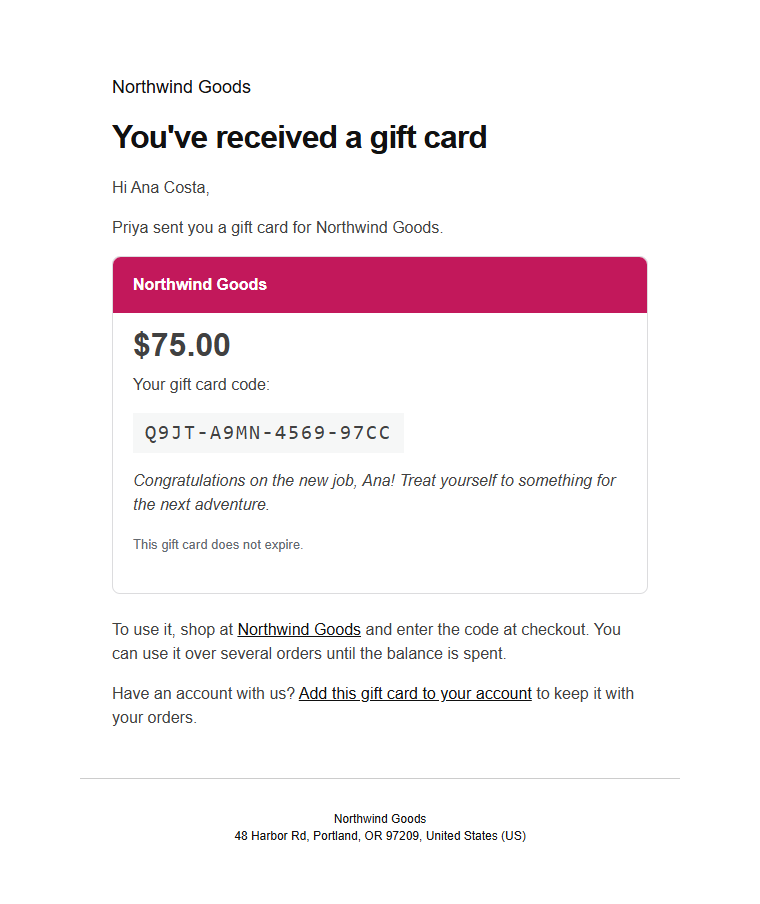
On the 14th at 9:00 (and at least two hours after payment, because of the hold), Sam gets the Gift card email: who it's from, the amount, the code and Maya's message in the Birthday colour, how to use it, the printable PDF, and a link to add the card to his account at your store.
To change that email's subject, heading or extra text, or to turn it off, open Gift card under WooCommerce → Settings → Emails.
Step 5: Spending the card
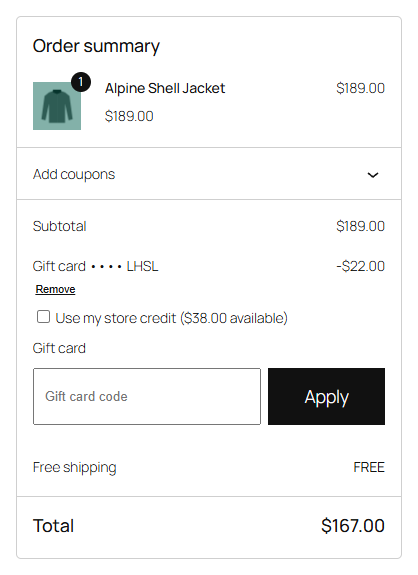
Sam adds a 38.00 bowl to his cart. At checkout he types his code in the Gift card field (on the classic checkout, Have a gift card? and Apply gift card). Codes work in any case, with or without the dashes.
The card shows as its own row above the order total, such as "Gift card •••• 7KAH". It pays after tax and shipping, so the tax on the order is the same as if he'd paid by card. The bowl is covered in full, nothing is left to pay, and the order goes straight through. The remaining 12.00 stays on the card for next time.
If the order were bigger than the card, he'd pay the rest with any of your payment methods. Up to five gift cards can be used on one order, and coupons still work alongside them.
Check it works
-
Add your gift card product to the cart as a shopper, choose an amount, and put your own email address as the recipient.
-
Place the order with a payment method you can mark paid yourself, such as cash on delivery, or set the order to Processing on the order screen.
-
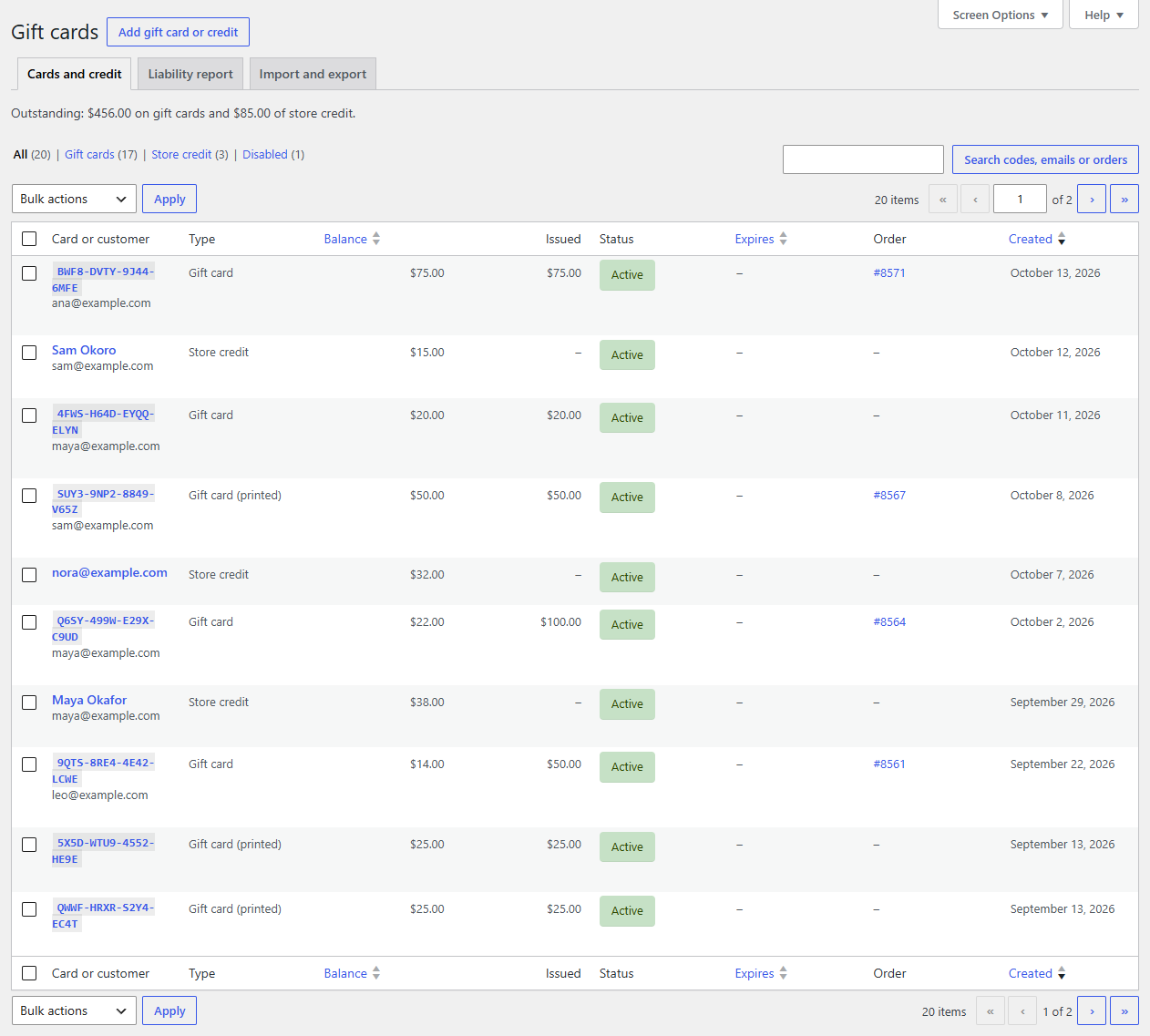
Look under WooCommerce → Gift cards: the new card is in the list with its code, balance and order.
-
Check your inbox for the gift card email (or wait for the delivery date and hold time you set), then apply the code on a second order and see the balance go down on the card's screen.
When you're done, open the test card under WooCommerce → Gift cards and click Disable, so its code can't be spent.
Common questions
The email didn't arrive. Check the delivery date and the Hold emailed cards for setting first: the card may simply be waiting. If it should have gone, open the card under WooCommerce → Gift cards, correct the recipient's email under Details if needed, and click Email again.
How do people check what's left on a card? In My Account → Gift cards & credit, or on any page where you add the balance check shortcode, such as a "Gift cards" page:
[giftline_balance]
What if a gift card order is cancelled or refunded? The cards it made are cancelled too, so their codes stop working, unless someone has already spent from one. A used card is left as it is, with a note on the order, so you can decide what to do.
Related
You’re set

GiftlineGift cards and store credit for WooCommerce on one balance ledger: emailed or printable cards, partial redemption and refunds to credit.
See Giftline