
Using Giftline
Settings and emails
Every setting under WooCommerce → Giftline, and the four emails Giftline sends.
Giftline's settings are under WooCommerce → Giftline, or Settings under Giftline on the Plugins screen.
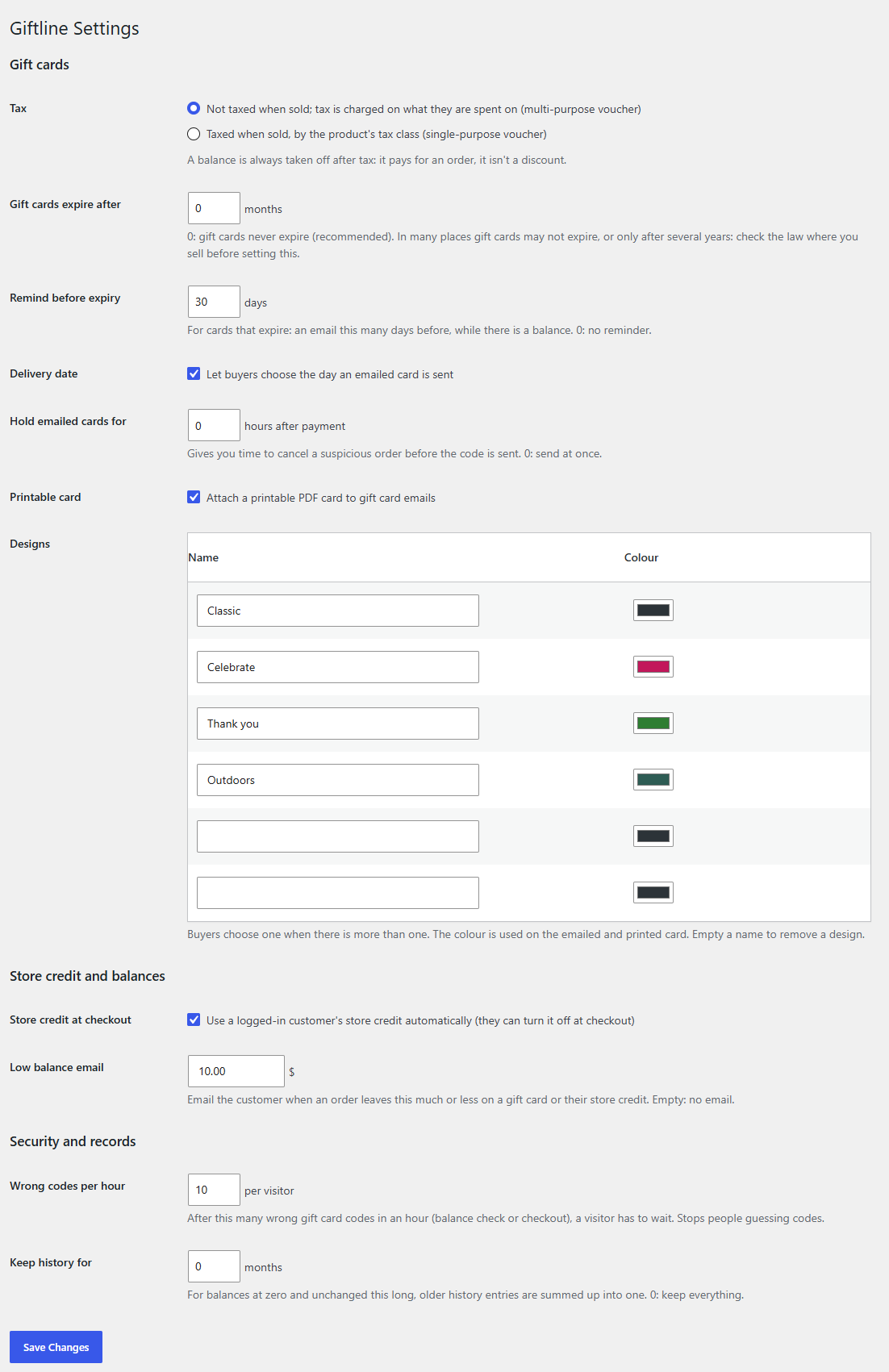
Gift cards
| Setting | Default | What it does |
|---|---|---|
| Tax | Not taxed when sold | Not taxed when sold; tax is charged on what they are spent on suits a card that can be spent on anything (a multi-purpose voucher). Taxed when sold, by the product's tax class suits a card that can only buy goods taxed at one rate (a single-purpose voucher): the product's tax class then applies to the sale. Either way, a balance pays for an order after tax. |
| Gift cards expire after | 0 months (never) | See Expiry and reminders. |
| Remind before expiry | 30 days | For cards that expire, an email this many days before the date, while there's a balance. 0: no reminder. |
| Delivery date | On | Lets customers choose the day an emailed card is sent. |
| Hold emailed cards for | 0 hours | Waits this long after payment before emailing a bought card's code, so you can cancel a suspicious order first. 0: send at once. |
| Printable card | On | Attaches the printable PDF card to gift card emails. |
| Designs | Classic, Celebrate, Thank you | The designs customers choose from on the product page, each with a name and a colour used on the email and the printable card. With one design, there's no choice. Empty a name to remove a design; the table always has two empty rows for new ones. |
Store credit and balances
| Setting | Default | What it does |
|---|---|---|
| Store credit at checkout | On | Uses a logged-in customer's store credit automatically at checkout. They can switch it off for an order. Off: they tick it when they want to use it. |
| Low balance email | Empty (off) | Emails the customer when an order leaves this much or less on a gift card or their store credit. |
Security and records
| Setting | Default | What it does |
|---|---|---|
| Wrong codes per hour | 10 per visitor | See Wrong codes and security. |
| Keep history for | 0 months (everything) | For balances at zero that haven't changed for this long, older history entries of the same kind on the same day are combined into one ("3 entries combined"), so the history is shorter but still adds up, and the report's changes in any earlier period stay the same. 0: keep everything. |
Emails
Giftline's emails are listed with WooCommerce's under WooCommerce → Settings → Emails, where you can turn each one off, change its subject, heading and additional content, and preview it. They use your WooCommerce email template.
| Sent to | When | |
|---|---|---|
| Gift card | The recipient, or the buyer when there's none | A bought card once the order is paid (or on its delivery date), a card staff create with Email it, and Email again. It has the amount, the code, the message, how to use it, a link to add it to an account, and the printable PDF. |
| Store credit received | The customer | Credit is added: by staff with Email it, a refund to store credit, an import with emails on, or another plugin. |
| Gift card expiry reminder | The card's recipient, or the buyer | Remind before expiry days before a card with a balance expires. |
| Low balance | The card's recipient or buyer, or the credit's customer | An order leaves a balance at or below the Low balance email amount. |
To change an email's layout beyond what the settings offer, copy its template from Giftline's templates/emails/ folder into your-theme/woocommerce/emails/ and edit the copy, as for WooCommerce's own emails.