
Printed gift cards
Sell gift cards you print and ship, print any card as a PDF, and print a batch eight to a sheet with cut lines.
Every gift card can be printed: an emailed card as a keepsake, a card a customer ordered to give in person, or a batch for a company or an event.
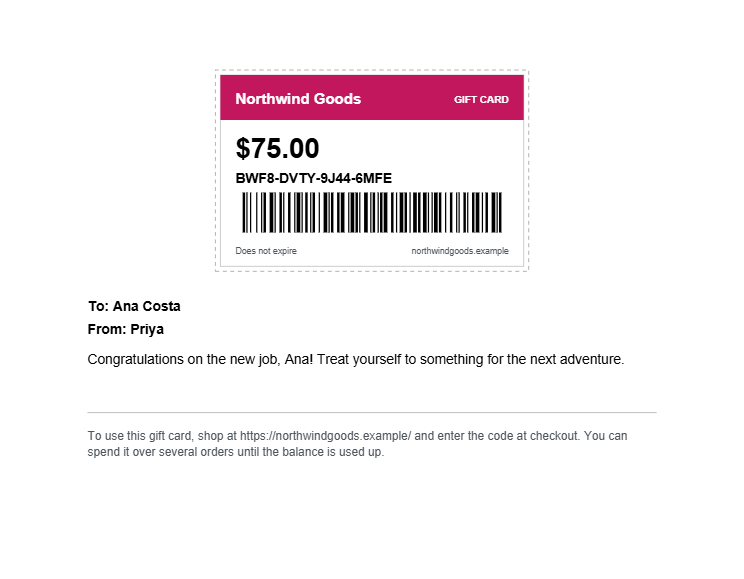
The printable card
The PDF shows your shop's name on the design's colour, the amount, the code as text and as a barcode, and whether or when it expires. Printed on its own it's one card on an A4 page, with the recipient, who it's from, the message and a line on how to use it. Several cards print eight to a page at credit card size, with dashed cut lines.
The barcode is a standard Code 128 barcode of the code, so a scanner can type it into the gift card field.
Selling printed cards
Make a gift card product and leave Virtual unticked (see Selling gift cards). Customers choose the amount, who it's from and a message; there's no recipient email, because the card travels in the parcel.
When the order is paid, Giftline creates the card but doesn't email it. To print it:
- Open the order. Under the gift card line, each card is listed with its code.
- Click Print next to the card, and print the PDF.
- Put it in the parcel and ship the order as usual.
With Packboard, the order's card on the board is tagged "1 gift card to print", so it isn't forgotten.
Printing any card
- One card: Print card on the card's screen, or Print in its row under WooCommerce → Gift cards (hover over the code).
- Several cards: tick them in the list and choose Print cards (PDF) from Bulk actions.
- A batch you just made: after Add gift card or credit with more than one card, the notice has Print them (PDF) and Download the codes (CSV).
A disabled card prints as usual, so you can keep unsold cards disabled until they're sold. Its code is refused at checkout until you enable it, so the card's screen says so under its buttons, and printing several cards that include disabled ones first shows how many are disabled, with the Print them (PDF) link.
Customers can print their own cards too, from My Account → Gift cards & credit. And with Printable card on in the settings, the PDF is attached to every gift card email.
A batch of cards
For a company order, prizes or cards to sell at a counter, go to WooCommerce → Gift cards → Add gift card or credit:
- Choose Gift card, type the Amount and How many cards (up to 500).
- Tick This card is printed and handed over, not emailed.
- Add a Note for your records, such as the company's name.
- Click Create, then Print them (PDF).
Each card has its own code and balance. A card that's lost can be disabled from its screen, and its balance moved to a new card with Change balance.