
Store credit and refunds
Give customers store credit, refund orders to it instead of to their card, and see how credit for a guest reaches their account.
Store credit is a balance that belongs to a customer rather than to a code. Customers spend it at checkout like a gift card (see Paying with gift cards and store credit) and see it in My Account → Gift cards & credit. It doesn't expire.
Refund an order to store credit
Refunding to store credit keeps the money in your shop: the customer gets the amount as credit to spend later, and nothing goes back through the payment gateway.
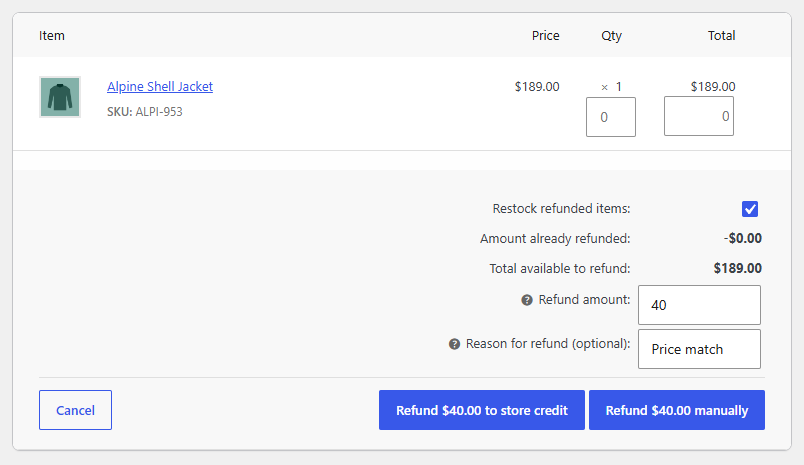
- Open the order and click Refund, as for any refund.
- Choose the items and quantities, or type the Refund amount, and a Reason if you like. Restock refunded items works as usual.
- Click Refund $40.00 to store credit, next to WooCommerce's own refund buttons.
WooCommerce records the refund as usual, so the order's refunded total, its status and Analytics stay right. The same amount is added to the customer's store credit, with the order and the reason in its history, and the customer gets the Store credit received email. WooCommerce's own Refunded order email goes out as for any refund, with a line saying the refund went to their store credit, not back to their payment method. The order notes say "Refunded $40.00 to store credit."
The credit goes to the order's customer account. For an order placed without an account, it's kept for the order's billing email: see Credit for guests below. An order with neither an account nor a billing email can't be refunded to store credit: WooCommerce shows a message and records nothing, so refund it another way or add the email first.
Tip
Returns and support plugins can refund to store credit the same way through Giftline's functions for developers. See Hooks.
Give credit by hand
For a goodwill gesture or a price match:
- Go to WooCommerce → Gift cards → Add gift card or credit.
- Choose Store credit (added to a customer's balance).
- Type the Amount and the customer's Email.
- Leave Email it ticked to tell the customer, add a Note for your records, and click Create.
To take credit away or correct it, open the customer's credit under WooCommerce → Gift cards and use Change balance: a positive amount adds, a negative one (-5) takes away. A reason is required, and it's kept in the history with your name.
Credit for guests
Credit can be given to an email address that has no account, for example when a guest order is refunded to store credit. It's kept for that address and listed under WooCommerce → Gift cards by the email.
Because anyone can register with any email address, the credit isn't moved to an account just because the emails match. Instead, the customer adds it themselves:
- They create an account (or log in) with the same email address, and open My Account → Gift cards & credit.
- The page says how much credit is waiting for their email, with Email me the link.
- They open the link in that email while logged in. The credit is added to their account's balance.
The link works once, for 24 hours, and only for the account that asked for it. Until then the credit stays where it is.
What customers see
In My Account → Gift cards & credit, the Store credit section shows the balance and its last changes: credit given, refunds to credit with the order number, and what was spent on which order. See Gift cards and credit in My Account.