
Gift cards and credit in My Account
What customers see under My Account → Gift cards & credit, how a recipient adds a card to their account, and the balance check for any page.
Giftline adds Gift cards & credit to My Account, just above Log out.
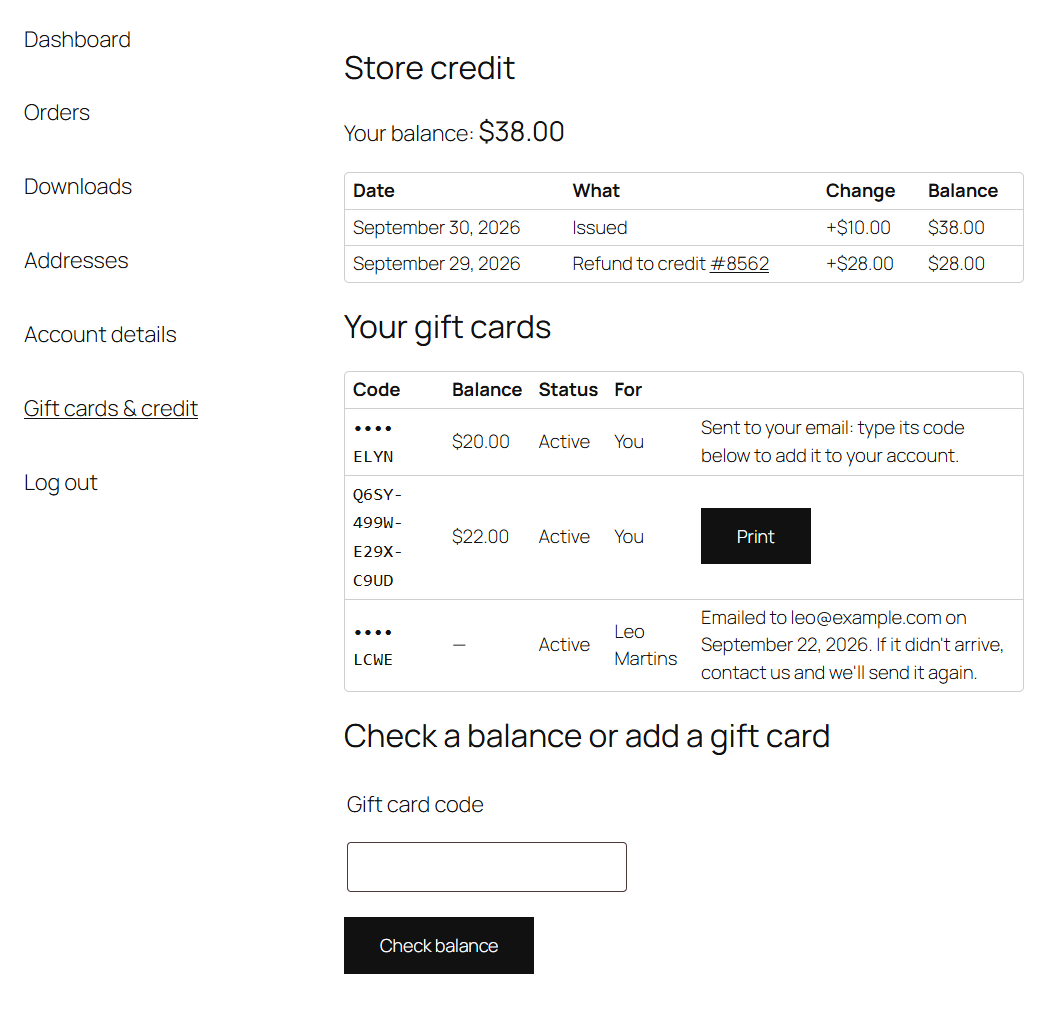
Store credit
The customer's store credit balance and its last 20 changes: the date, what happened (credit given, a refund to credit, spent, returned from a cancelled order) with a link to the order, the change and the balance after it. See Store credit and refunds.
When credit is waiting for the customer's email address from an order they placed without an account, the page says so and offers Email me the link, so they can add it to their account.
Your gift cards
The cards that belong to the customer:
- Cards they bought for themselves, to print and give by hand, or without a recipient's email. They see the code and a Print button for the printable PDF.
- Cards they bought for someone else (the For column says who). Until the card is emailed, the buyer sees it in full, with the code and Print, so a mistake can still be fixed. Once it has been emailed, the card belongs to the recipient: the buyer sees only the last four characters of the code and when and where it was sent, without the balance or Print. If the recipient didn't get it, the buyer asks you to send it again (see Managing gift cards).
- Cards they added to their account, see below. Also with the code and Print.
- Cards sent to their email address that they haven't added yet. These show only the last four characters of the code, with "Sent to your email: type its code below to add it to your account."
Each card shows its balance and whether it's active, disabled or expired.
Adding a gift card to the account
A gift card works for whoever has its code: nobody needs an account to spend one. Adding it to an account keeps it with the customer's orders, with its balance in view and the PDF a click away.
A customer who received a card adds it in either of two ways:
- Typing the code in Check a balance or add a gift card on this page. The balance shows, and the card is added to the account.
- Clicking Add this gift card to your account in the gift card email. If they aren't logged in, they log in first, and the card is added.
A card can be in one account besides the buyer's. If someone else already added it, the customer is told so; they can still spend it with its code. A buyer can't add a card they sent to someone else back to their own account.
Because WooCommerce doesn't check that an account's email address really belongs to the customer, a card sent to an address is never added to the account with that address on its own. Having the code, or the link from the email, is what shows the card is theirs.
Checking a balance
Check a balance or add a gift card on this page shows any card's balance and, when it expires, the date it's valid until.
To let anyone check a balance without logging in, add the [giftline_balance] shortcode to a page, for example a "Gift cards" page linked from your footer. In the block editor, add a Shortcode block and type [giftline_balance]. It shows a Gift card code field and a Check balance button.
Note
Wrong codes count towards each visitor's limit, here and at checkout. See Wrong codes and security.
On orders
On the order's page in My Account and in the order emails, each gift card or store credit used shows as its own row above the total, such as "Gift card •••• 7KAH: −$22.00".