
Liability report, import and export
See what customers can still spend, the changes in any period, and move cards and credit in and out with CSV files.
The liability report
Unspent gift cards and store credit are money you hold for your customers. WooCommerce → Gift cards → Liability report shows how much.
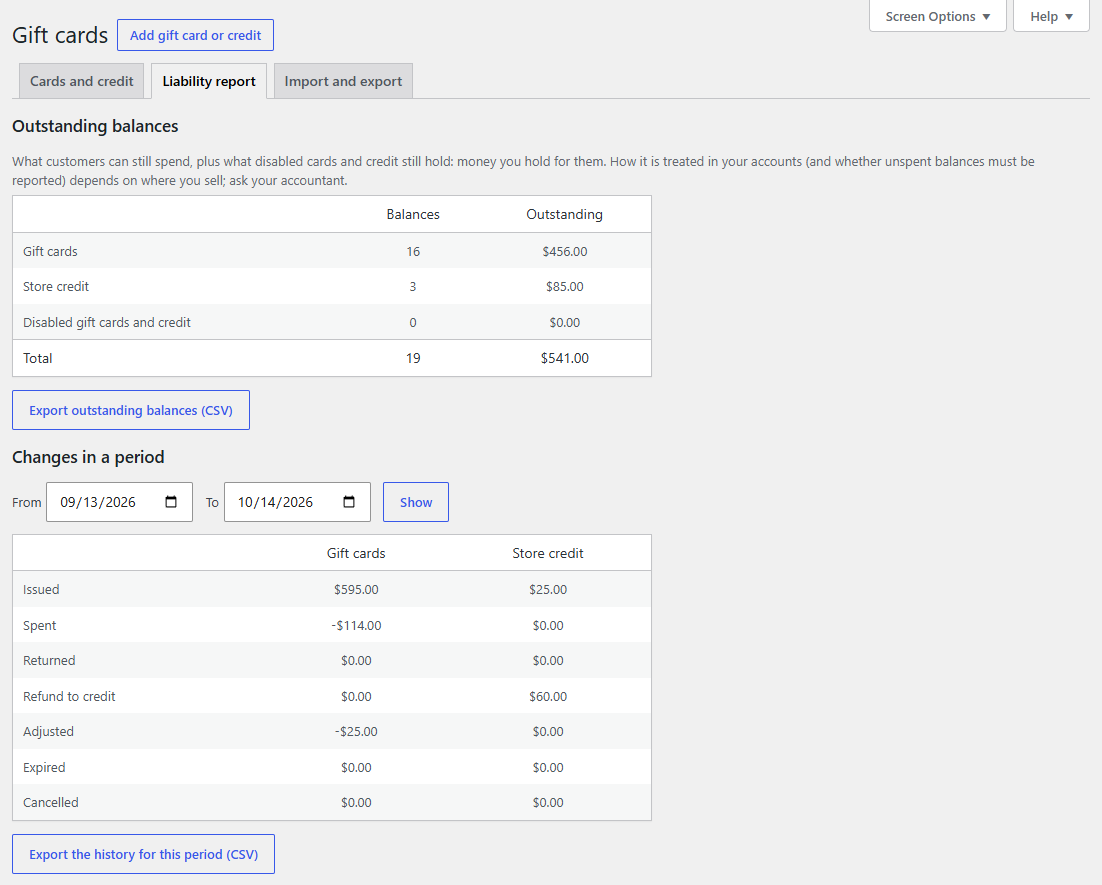
Outstanding balances: how many gift cards and store credit balances have something left to spend, and the total of each. Disabled cards and credit that still hold money have their own line, and count in the total: they can't be spent while disabled, but the money is still owed. Expired balances were written off and don't count, and only balances in your store's currency do. Export outstanding balances (CSV) downloads them one per row, active and disabled, with their status.
Changes in a period: pick From and To dates and click Show. For gift cards and store credit separately, the totals of everything issued, spent, returned from cancelled orders, refunded to credit, adjusted by staff, expired and cancelled with their order. Export the history for this period (CSV) downloads every change in the period, one per row.
How gift card balances are treated in your accounts, and whether unspent balances must be reported after some years, depends on where you sell. Ask your accountant; the exports give them what they need.
Export
WooCommerce → Gift cards → Import and export has:
- Export all cards and credit (CSV): every card and credit balance, with its code, email, customer, recipient, balance, issued amount, currency, status, expiry, order and date.
- Export the full history (CSV): every change to every balance, with its date (UTC), type, code or email, change, balance after it, source, reference, order, note, staff member and currency.
You can also export the rows you tick in the list (Bulk actions → Export (CSV)), or the codes of a batch you just made. The files open in any spreadsheet.
Import
To bring over cards sold with another system, or to load store credit for many customers at once, upload a CSV file under Import. The first row names the columns; only amount is required.
| Column | |
|---|---|
type |
card or credit. Left out: card. |
amount |
The balance, such as 25 or 12.50. |
email |
For a card, who it's for (optional). For credit, the customer (required): credit for an address without an account waits for the customer to add it, see Store credit and refunds. |
code |
Cards: the card's existing code, so it keeps working. Left out: a new code. |
name |
Cards: the recipient's name. |
message |
Cards: the message. |
expires |
Cards: the expiry date as YYYY-MM-DD. Left out or empty: the default expiry from WooCommerce → Giftline → Gift cards expire after, like a new card, or no expiry when that's off. |
note |
For your records, shown in the history. |
For example:
type,amount,email,code,name,expires,note
card,50,[email protected],OLDS-HOP1-2345-6789,Ana Costa,,From the old shop
card,25,,,,2027-12-31,Market stall cards
credit,15,[email protected],,,,Loyalty credit
Tick Email imported gift cards and credit to their customers to send the gift card and store credit emails as rows are imported. Leave it off to import quietly.
After the import, a notice says how many rows were imported, and which lines were skipped and why: a missing amount, a code that's already in use, a credit row without a valid email, or a row with a different number of columns from the first row (often a comma inside a message or name: put that value in double quotes). Importing the same file twice skips the cards with a code, which exist by then, but makes the cards without one and adds the credit again, so check before you import a file a second time.