
Emails
Which emails Bookline sends and when, how to change their text with placeholders, and the calendar file customers get.
Bookline sends emails with WordPress's own mail function, so an SMTP plugin delivers them like every other email from your site.
Which emails go when
| To | When | |
|---|---|---|
| Booking request received | Customer | They book, and the booking waits for your approval. |
| Booking confirmed | Customer | They book and it's confirmed straight away, or you approve it. |
| Booking cancelled | Customer | It's cancelled, by them or you. |
| Booking rescheduled | Customer | It moves to another time, by them or you. |
| New booking | You | A customer books. |
| Booking confirmed | You | Something other than you confirms a booking (off by default). |
| Booking cancelled | You | A customer cancels. |
| Booking rescheduled | You | A customer moves their booking. |
"You" is the address under Settings → General → Send booking emails to (several, separated by commas), or the site's admin email. Your own changes don't email you. When you change a booking yourself, Email the customer about changes on its screen decides whether the customer hears about it.
Each email sent is noted in the booking's history.
Change an email
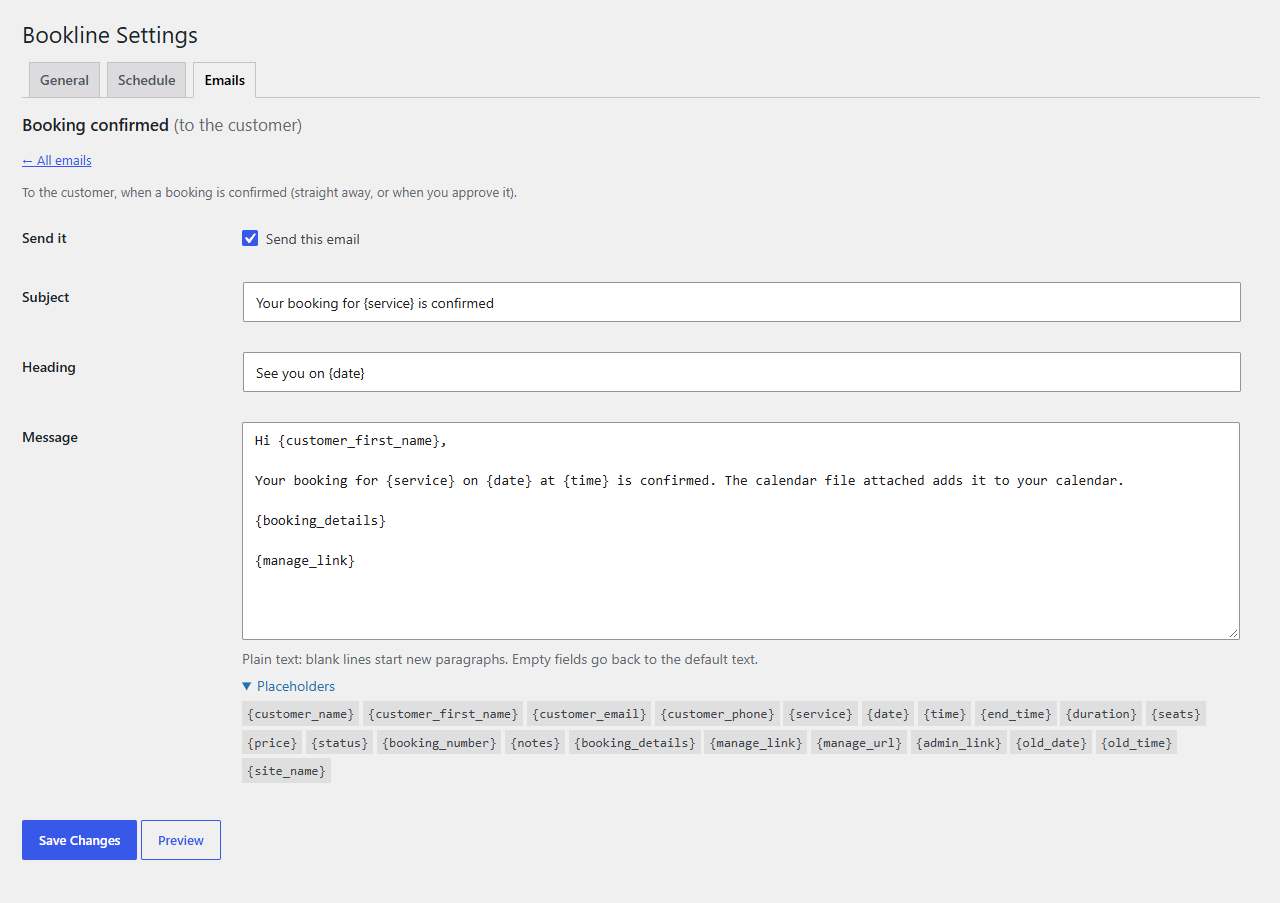
Go to Bookline → Settings → Emails, click an email, and edit:
- Send this email: switch it off.
- Subject and Heading.
- Message: plain text, with blank lines between paragraphs. Basic HTML (bold, links) works.
Leave a field empty to go back to the default text. Preview shows the email with an example booking. Email colour (on the list) colours the header and buttons.
Placeholders
| Placeholder | Becomes |
|---|---|
{customer_name}, {customer_first_name}, {customer_email}, {customer_phone} |
The customer's details |
{service}, {date}, {time}, {end_time}, {duration} |
The booking |
{seats}, {price}, {status}, {booking_number}, {notes} |
More about it |
{old_date}, {old_time} |
The time before it moved |
{booking_details} |
A table of all the details |
{manage_link}, {manage_url} |
The customer's own booking page (a button, or the address) |
{admin_link} |
The booking's screen (for your emails) |
{site_name} |
Your site's name |
The calendar file
Customers' emails carry the booking as a calendar file (booking-123.ics), which adds it to Google Calendar, Outlook or Apple Calendar. When the booking moves or is cancelled, the new file updates the same event. Their booking page has Add to my calendar too.
Sender name (Settings → General) sets the name emails come from; replies to customers' emails go to your booking address.