
Managing bookings and the calendar
See your bookings by day, week or month, find them in the list, change them, and add bookings yourself.
The calendar
Bookline → Calendar shows your bookings by Day, Week or Month, in your services' colours. Today and the arrows move through time; your last view is remembered.
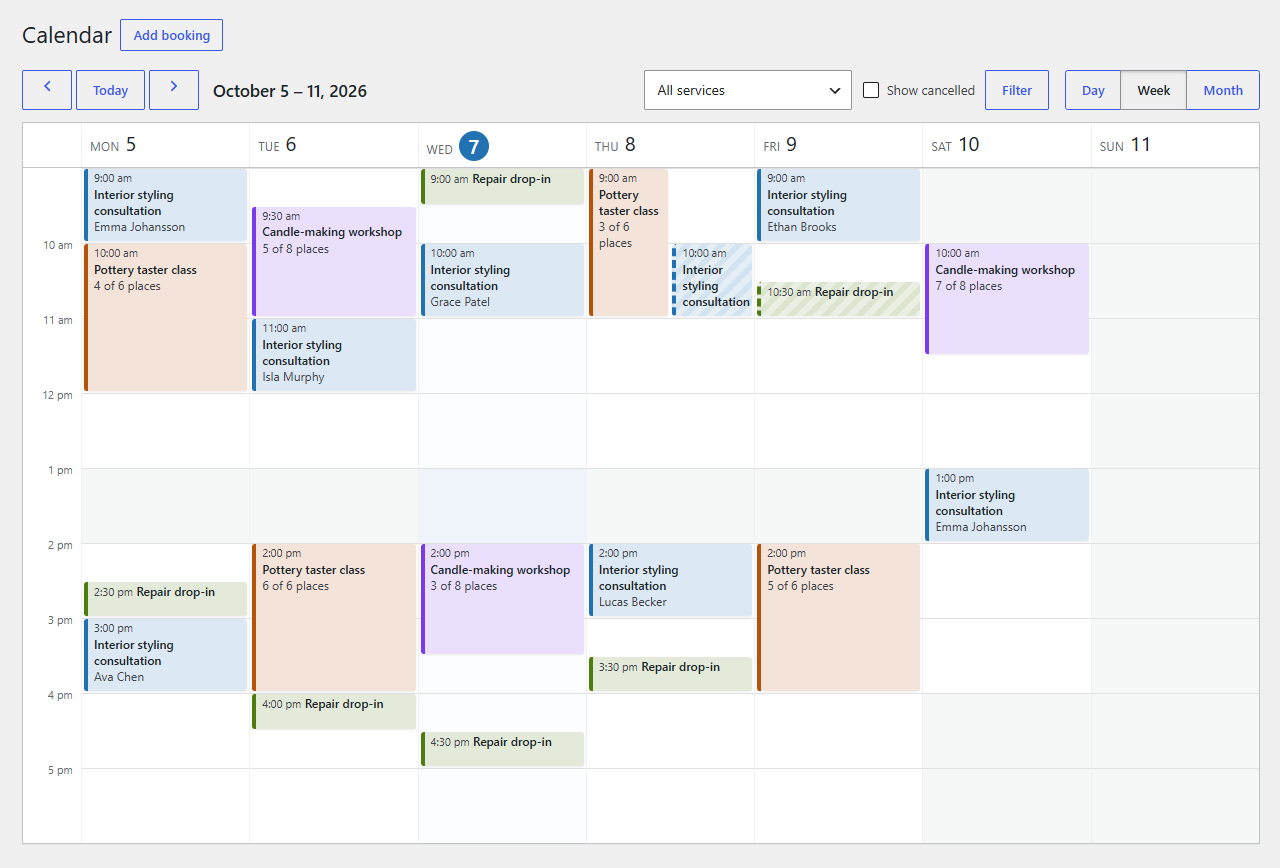
- In the day and week views, each booking is a block at its time. Bookings at the same time sit side by side. Closed hours are shaded and days off are labelled.
- A group class is one block with how many places are taken ("4 of 6 places"); in the day view it lists everyone booked.
- Pending bookings have a dashed edge. Tick Show cancelled to see cancelled ones too.
- Filter by service at the top. Click a booking to open it.
The bookings list
Bookline → Bookings lists every booking, with a tab per status and its count.
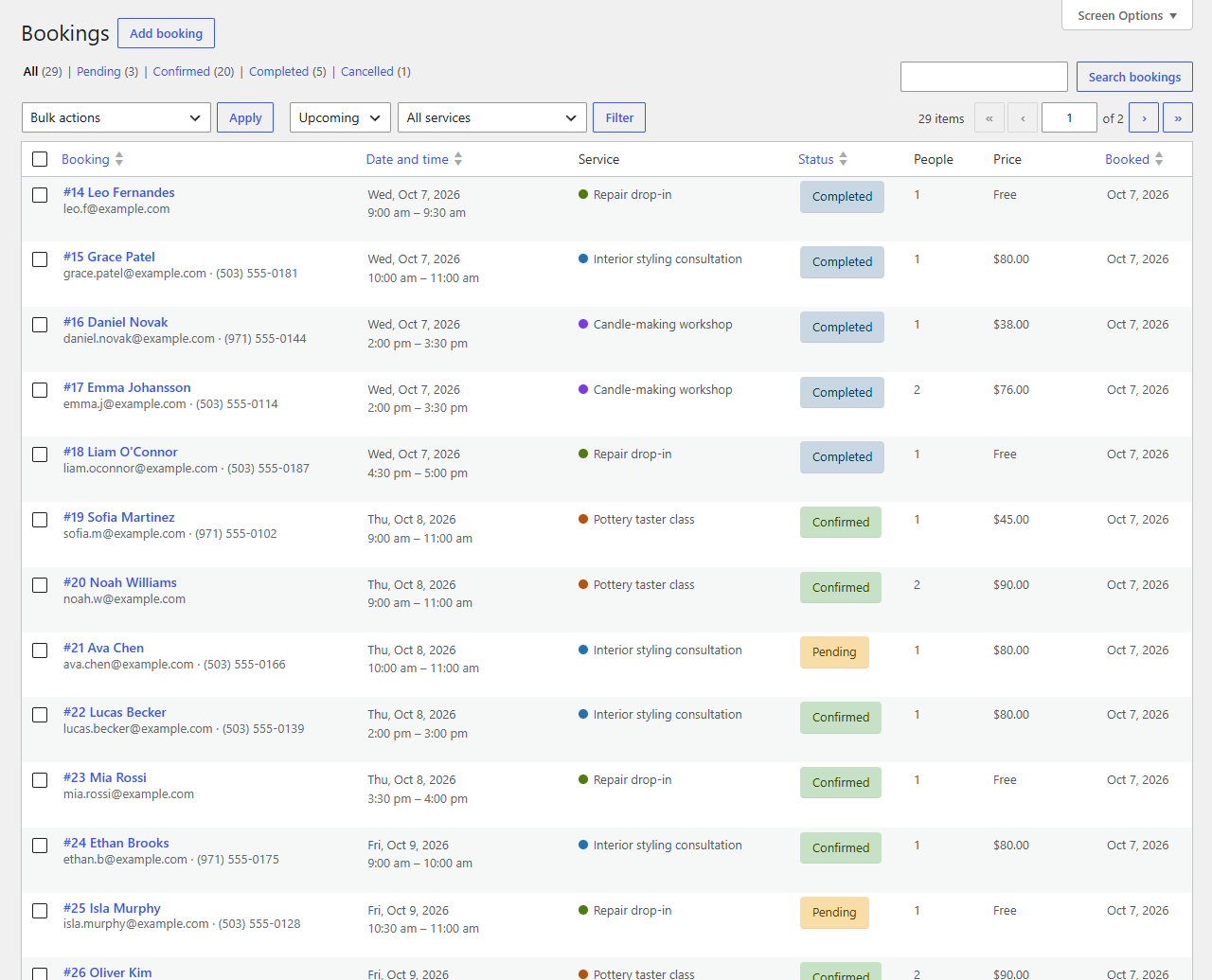
- Dates: Upcoming (the default), Today, Tomorrow, Next 7 days, Past, All dates, or On a date.
- Search by name, email, phone or booking number (#123).
- Sort by date and time, customer, status or when it was booked.
- Row actions: Open, Confirm (pending bookings), Cancel, and Completed or No-show for past ones.
- Bulk actions: tick bookings and change their status together, or delete them for good.
- Screen Options sets how many bookings show per page.
One booking
Open a booking to see and change everything about it.
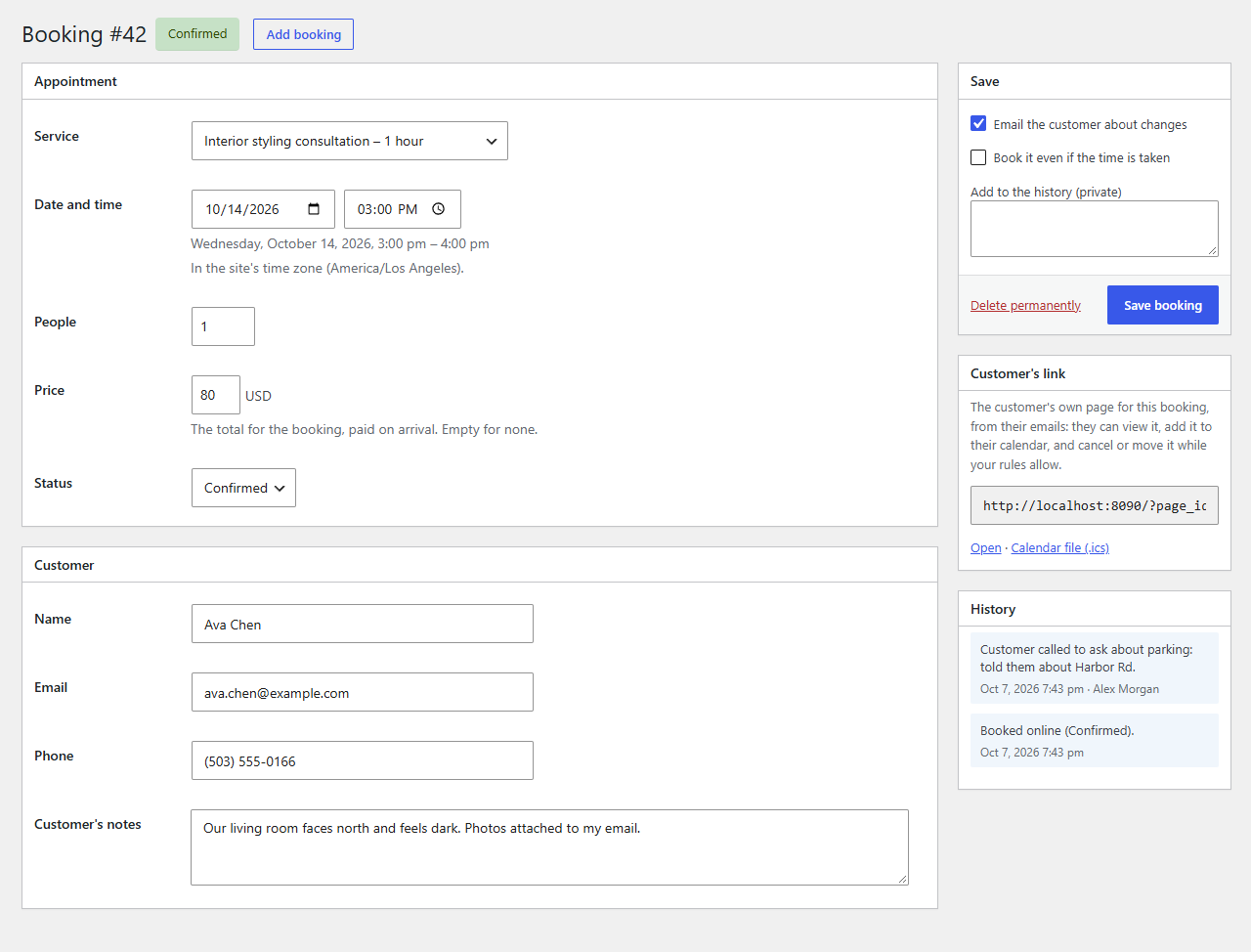
- Appointment: the service, date and time, people, price and status.
- Customer: name, email, phone and their notes.
- Save: Email the customer about changes (on by default) sends them the confirmed, moved or cancelled email. Book it even if the time is taken lets you double-book on purpose. Add to the history keeps a private note.
- Customer's link: the address of their own booking page, to send them again.
- History: when it was booked, every change and every email sent.
When you change the time, Bookline checks it's free (unless you tick the override) and tells the customer. Delete permanently removes a booking for good; cancelling keeps it in the list.
Adding a booking yourself
Add booking (on the calendar and the list) books for a phone call or a walk-in. You can book any time, also outside your opening hours; only clashes with other bookings are checked. The email is optional: without one, the customer gets no emails.
Who can see bookings
Administrators can see and change everything. To let others in, give their role these capabilities with a role editor plugin: bookline_manage_bookings (see and change bookings) and manage_bookline (services and settings).