
Payments
Take payment online with Stripe or PayPal, in full or a deposit, with held times, webhooks and refunds.
Note
This is part of Bookline Pro.
Bookline Pro takes payment in the booking form, with Stripe Checkout (cards, Apple Pay, Google Pay and whatever else your Stripe account offers) or PayPal Checkout. No WooCommerce needed.
How it works
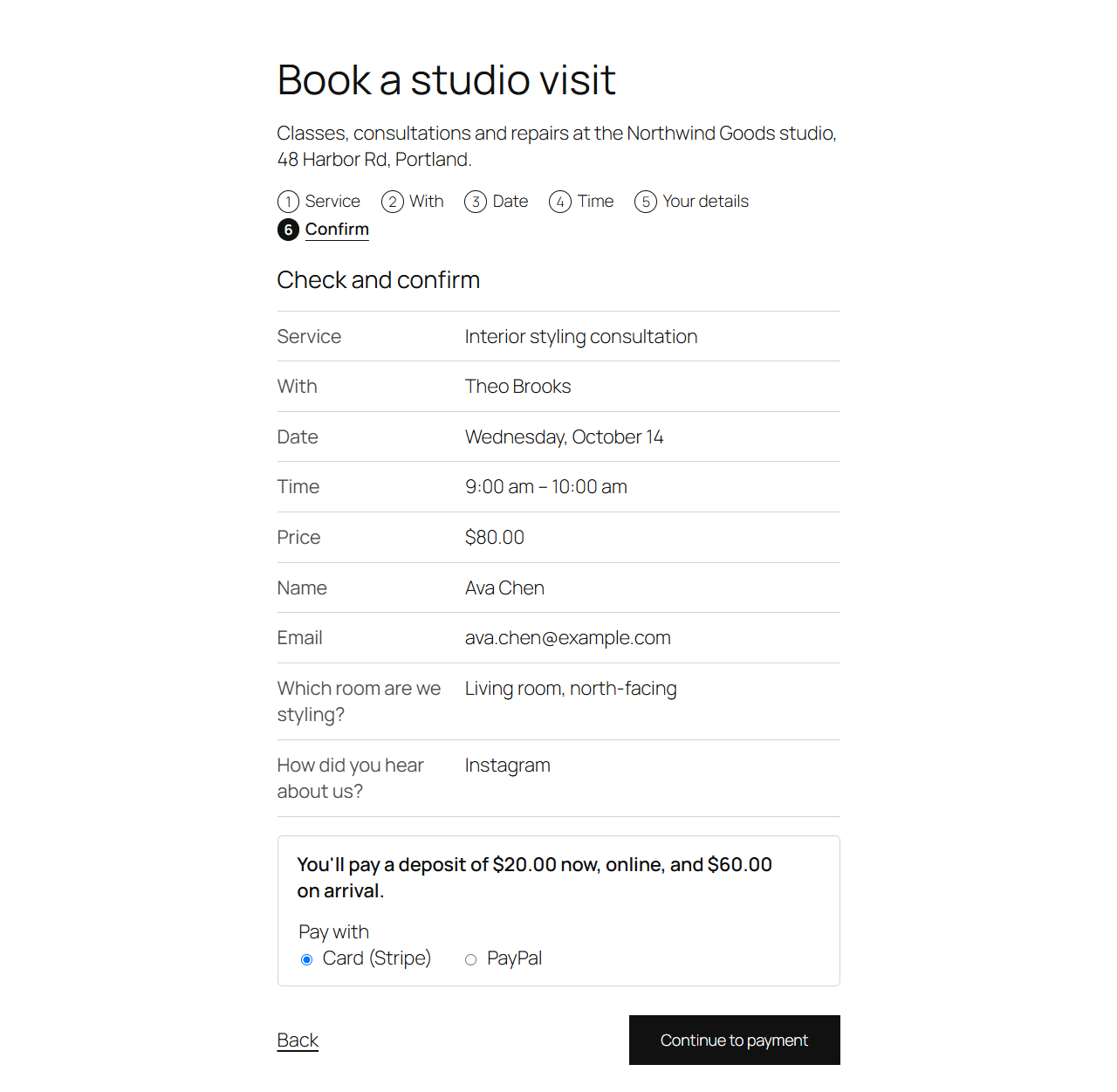
- The customer books as usual. On the confirm step they see what they'll pay now and choose Stripe or PayPal (when you offer both).
- Continue to payment makes the booking as Pending payment and holds its time, then takes them to Stripe's or PayPal's page.
- When they've paid, the booking is confirmed (or waits for you, with "Approve each one yourself") and the emails go.
- If they don't pay within the time to pay (30 minutes by default), the booking is cancelled quietly and the time is free again. Meanwhile, their booking page has Pay with card and Pay with PayPal buttons.
- If a payment arrives after the time to pay ran out and someone else has booked that time since, the payment is kept and the booking waits for you as Pending, with a note in its history: move it to another time, or refund the payment. If the booking had already been cancelled as unpaid, it stays cancelled, the payment is kept, and the booking's admin email gets a message: refund the payment, or restore the booking if its time is still free.
Choose what customers pay
Under Bookline → Settings → Payments → When customers pay:
- On arrival (no online payment), In full, or A deposit: a percentage of the price or a fixed amount, with the rest paid on arrival.
- Time to pay: how long a booking's time is held (30 minutes at least).
Each service can differ: Online payment on the service's page (as in the settings, pay on arrival, in full, or a deposit). Services without a price, or free, are never paid online. Bookings you add yourself aren't either.
Stripe
- In your Stripe dashboard, under Developers → API keys, copy the secret key (test and live).
- Under Developers → Webhooks, add an endpoint with the Webhook address shown on the Payments tab, for the events
checkout.session.completed,checkout.session.async_payment_succeededandcheckout.session.expired. Copy its signing secret. - On the Payments tab, tick Take card payments with Stripe Checkout, paste the keys and secrets, and keep Test mode on until you've tried a test card (4242 4242 4242 4242).
Payments are confirmed by Stripe's signed webhook, or, if the customer comes back first, by asking Stripe.
PayPal
- In the PayPal Developer Dashboard, create a REST API app (sandbox and live apps are separate) and copy its Client ID and Secret.
- On the Payments tab, tick Take payments with PayPal Checkout, paste them, and keep Sandbox on until you've tried a sandbox account.
The payment is taken when the customer comes back from PayPal.
Refunds
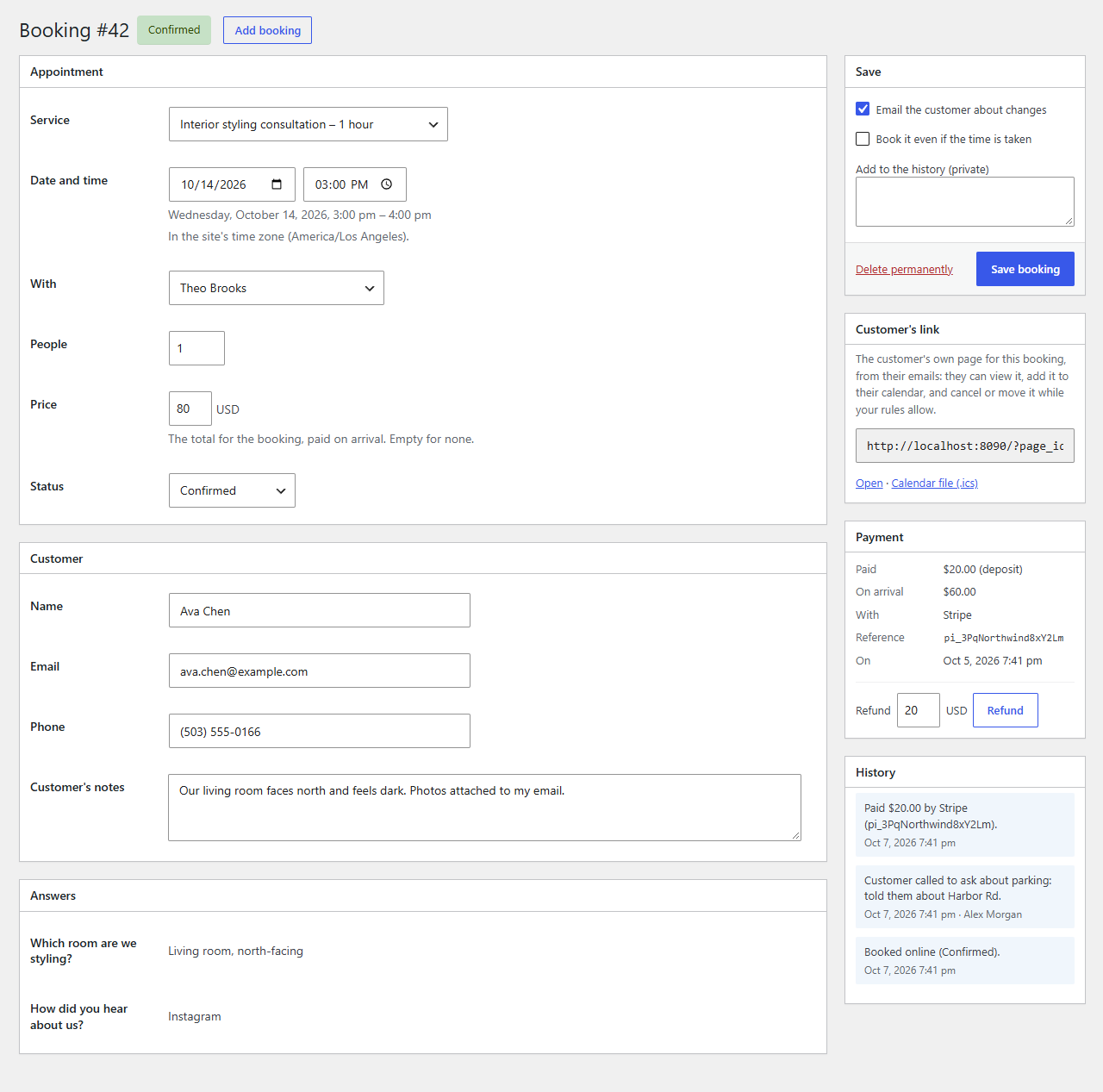
A paid booking's screen has a Payment box: what was paid, by whom, the reference, and any refunds. Enter an amount (the rest of the payment by default) and click Refund; the money goes back through Stripe or PayPal and the refund is noted in the history. Refunding doesn't cancel the booking: change its status yourself if needed.
Recurring bookings
A series is paid at once: the price of every date in it.