
The folder tree
The folder panel beside the Media Library, what each part does, resizing and hiding it, and its keyboard shortcuts.
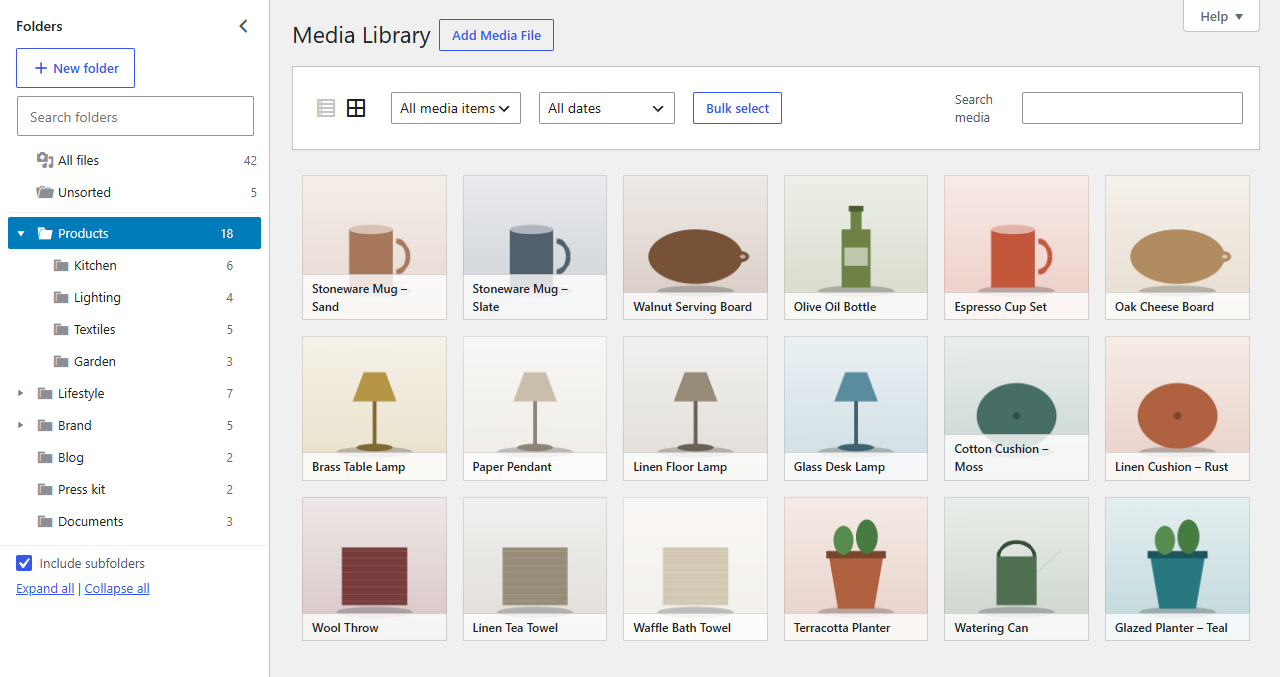
The folder panel sits on the left of Media → Library, in both the grid and the list view.
What's in the tree
- All files: every file in the library, whatever folder it's in.
- Unsorted: files that aren't in any folder yet.
- Your folders, nested as you made them. The arrow before a folder opens and closes its subfolders.
The number after each item is how many files it holds. The numbers match what opening a folder shows: with Include subfolders ticked, a folder's number includes the files in its subfolders; without it, only its own files. You can hide the numbers under Media → Folder Settings.
Click an item to see its files. The open folder is highlighted, and the library shows only its files. Folderline remembers which folder you had open, so it's still open next time you come to the Media Library.
Include subfolders
Tick Include subfolders at the bottom of the panel to see a folder's files together with everything in its subfolders. The folder counts follow: each includes its subfolders' files. Folderline remembers your choice. Administrators can set the starting choice for everyone under Media → Folder Settings.
Searching folders
Type in Search folders to narrow the tree to the folders whose names match, with the folders they're in. Clear the box to see the whole tree again. Press the down arrow in the box to jump into the results.
Opening and closing folders
Click the arrow before a folder, or use Expand all and Collapse all at the bottom of the panel. Folderline remembers which folders you closed.
Resizing and hiding the panel
- Drag the panel's right edge to make it wider or narrower. With the keyboard, Tab to the edge and use the left and right arrow keys (hold Shift for bigger steps).
- Click the arrow at the top right of the panel to hide it. A Folders button appears next to the page title to bring it back.
- On a phone or a narrow window, the panel folds away: the Folders button opens it above your files.
Your width and whether the panel is hidden are remembered for you.
Keyboard shortcuts
Tab into the tree, then:
| Key | What it does |
|---|---|
| ↑ ↓ | Move to the previous or next item |
| → | Open a folder's subfolders, or move into them |
| ← | Close a folder, or move to the folder it's in |
| Home, End | First or last item |
| Enter, Space | Open the folder (show its files) |
| F2 | Rename the folder |
| Delete | Delete the folder (asks first) |
| Shift+F10 or the Menu key | The folder's menu |
The tree is announced as a tree by screen readers, with each folder's name and file count, and changes (a folder created, files moved) are announced too.