Creating and organising folders
Make folders and subfolders, rename them, put them in order or inside each other by dragging, and delete them safely.
There's no limit on how many folders you make or how deep you nest them.
Create a folder
Click New folder at the top of the panel, type a name and press Enter (or click away). Press Esc to cancel.
If a folder is open when you click New folder, the new folder goes inside it. Click All files first to make a top-level folder.
Names must be different from the other folders in the same place ("Products" can exist both at the top and inside "Archive"), and can be up to 200 characters long.
Create a subfolder
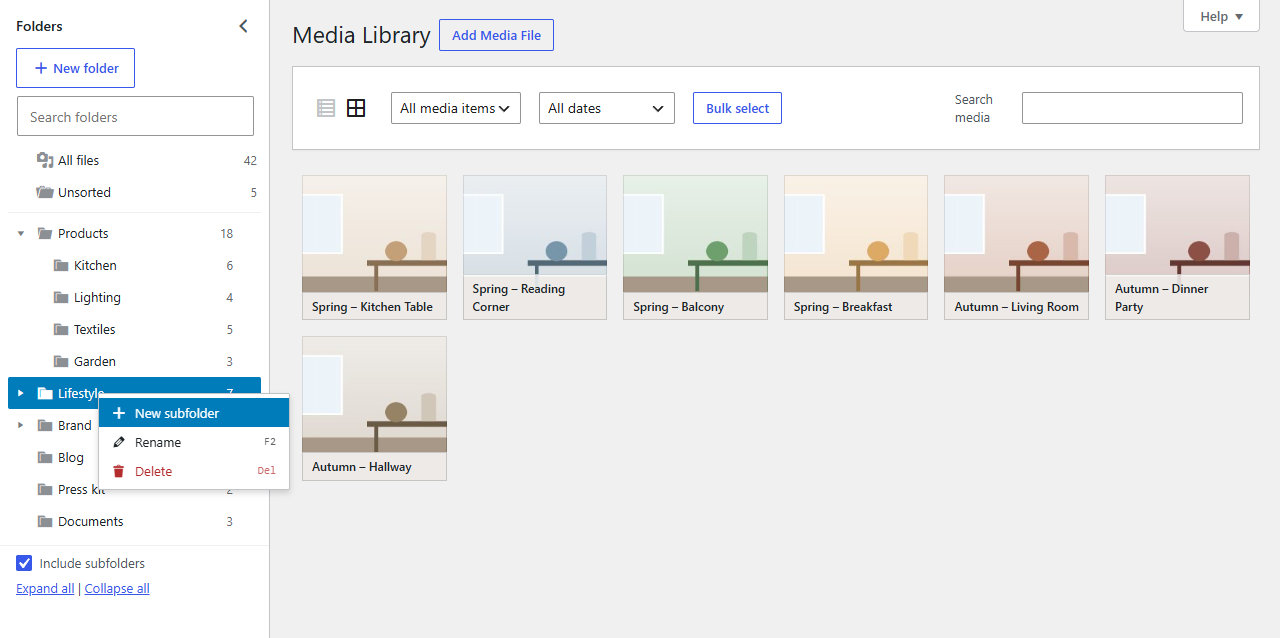
Open the folder's menu by right-clicking it (or with the … button that appears when you point at it, or Shift+F10 on the keyboard) and choose New subfolder.
Rename a folder
Choose Rename in the folder's menu, or select the folder and press F2. Type the new name and press Enter.
Reorder and nest folders
Drag a folder in the tree:
- Drop it on the top or bottom edge of another folder to put it before or after that folder. A line shows where it will go.
- Drop it on the middle of another folder to put it inside. The folder is outlined.
Hovering over a closed folder while you drag opens it, so you can drop into its subfolders. A folder can't go inside itself or one of its own subfolders. Moving a folder takes its files and subfolders with it.
Delete a folder
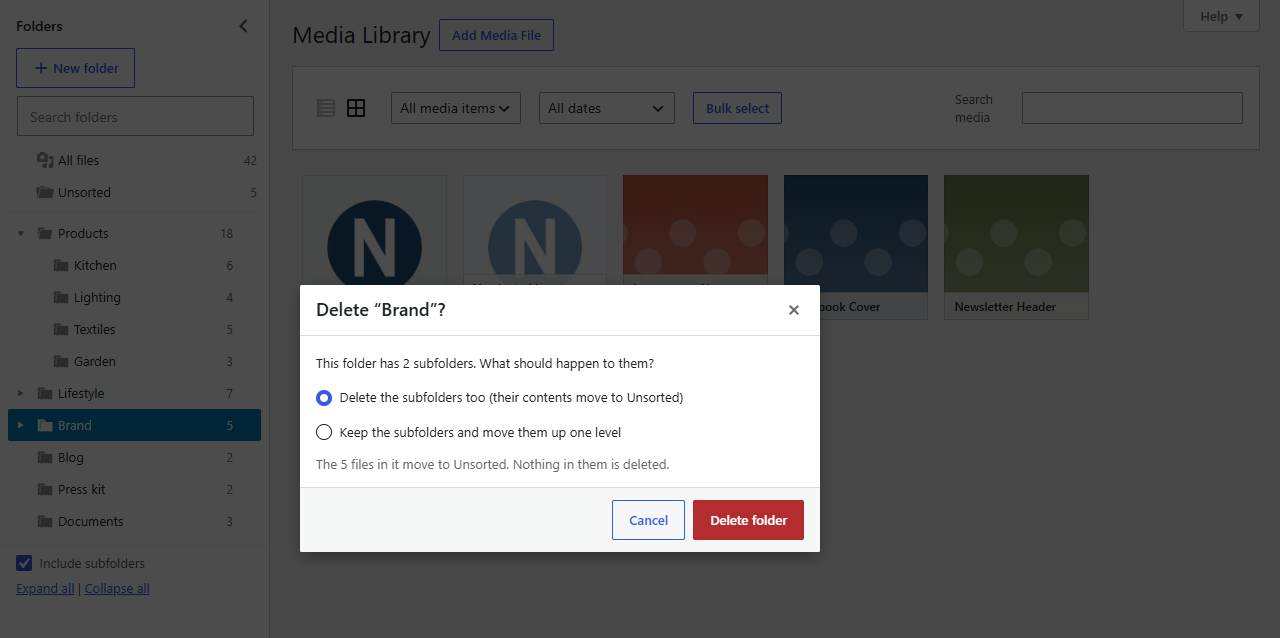
Choose Delete in the folder's menu, or select it and press Delete. Folderline asks first, and tells you how many files are in it.
Note
Deleting a folder never deletes files. They move to Unsorted, where you can put them in another folder.
If the folder has subfolders, you choose what happens to them:
- Delete the subfolders too: they're deleted as well, and their files also move to Unsorted.
- Keep the subfolders and move them up one level: they take the deleted folder's place, with their files still in them.
Folderline won't delete a folder, and says why, when:
- it holds files you aren't allowed to edit, such as another author's files when your role can only edit your own. Someone who can edit them can delete it, or you can keep the subfolders that hold them;
- keeping the subfolders would put one next to a folder with the same name. Rename one of them first.