
Importing from other plugins
Bring folders and file assignments over from FileBird, Real Media Library, Enhanced Media Library and WP Media Folder.
Note
This is part of Folderline Pro.
Switching from another folder plugin doesn't mean sorting your library again. Folderline Pro reads the other plugin's folders straight from your database, so it works even after you've deactivated or deleted that plugin (as long as you didn't tell it to delete its data).
Supported plugins
| Plugin | What comes over |
|---|---|
| FileBird | Folders, their order and nesting, and which files are in them |
| Real Media Library | Folders, collections and galleries (as folders), their order and nesting, and which files are in them. Shortcuts are skipped: a file goes into its real folder |
| Enhanced Media Library | Media categories and their nesting, and which files are in them |
| WP Media Folder | Folders and their nesting (under its root folder), and which files are in them |
Importing
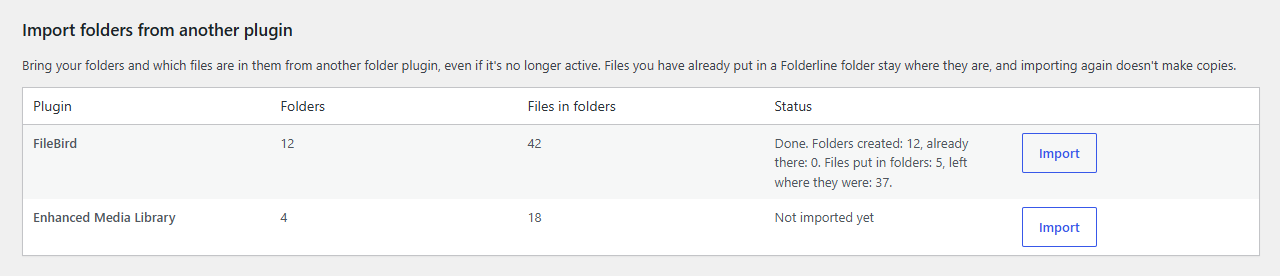
- Go to Media → Folder Settings and scroll to Import folders from another plugin.
- Each plugin found on your site is listed with how many folders and files it has.
- Click Import next to it.
Folders come first, then files in batches of 500, with progress shown in the row. When it's done, the row says how many folders were created and how many files were put in folders.
Only administrators can import.
What the import does
- Keeps the structure: nested folders stay nested, in the same order.
- Never moves a file you've already organised: a file that's in a Folderline folder stays there. Only files in no folder are moved.
- Doesn't make copies: each imported folder remembers where it came from, so importing again finds it instead of making a new one. A folder you'd already made with the same name in the same place is used too. Running the import twice changes nothing; run it again after adding folders in the other plugin to bring over just what's new.
- A file that the other plugin had in several folders goes into the first.
- Imported folders are shared, even with per-user folders on.
If the import stops
If the page is closed or the connection drops, run the import again: what's done stays done, and it carries on with the rest.
After importing
Check the result in Media → Library, then deactivate and delete the old plugin if you like. Folderline Pro doesn't change or delete the other plugin's data.