
Folderline Pro
Folder colours
Give folders a colour from their menu to find them at a glance.
Note
This is part of Folderline Pro.
A colour makes a folder easy to spot in a long tree: red for "To check", green for "Approved", the brand colour for brand assets.
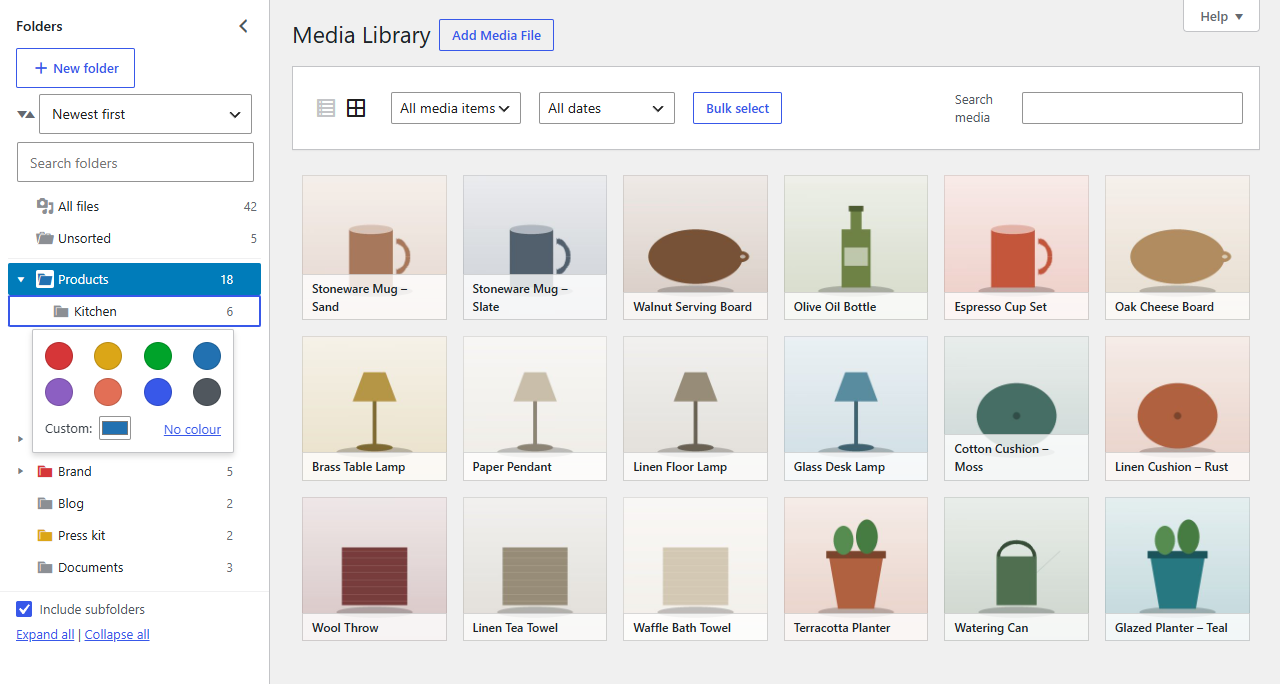
Choosing a colour
- Open the folder's menu: right-click the folder, use the … button, or press Shift+F10.
- Choose Colour….
- Click one of the eight colours, or choose any colour with Custom.
The folder's icon takes the colour straight away. No colour takes it off again.
With the keyboard: the left and right arrow keys move between the colours, Enter picks one and Esc closes the picker.
Good to know
- Colours work in every folder tree: the Media Library, posts, pages and other post types.
- Everyone sees the same colours.
- You can change the colour of folders you're allowed to change (with per-user folders on, your own and the shared ones).
- Colours aren't shown while Folderline Pro is inactive; they come back with it.