
Getting started
Installation
Install Folderline from WordPress.org and make your first folder in a minute.
Folderline is free and listed on WordPress.org, so you can install it straight from your dashboard. It works on any WordPress site: it doesn't need WooCommerce or any other plugin.
Install the plugin
- Go to Plugins → Add New Plugin and search for Folderline.
- Click Install Now on "Folderline – Media Library Folders", then Activate.
If you have the zip file instead, use Plugins → Add New Plugin → Upload Plugin, choose the file, then Install Now and Activate.
Nothing changes on your site's front end, and your files stay exactly where they are: folders are a way of organising the Media Library, not folders on the server, so no file URL ever changes.
Make your first folder
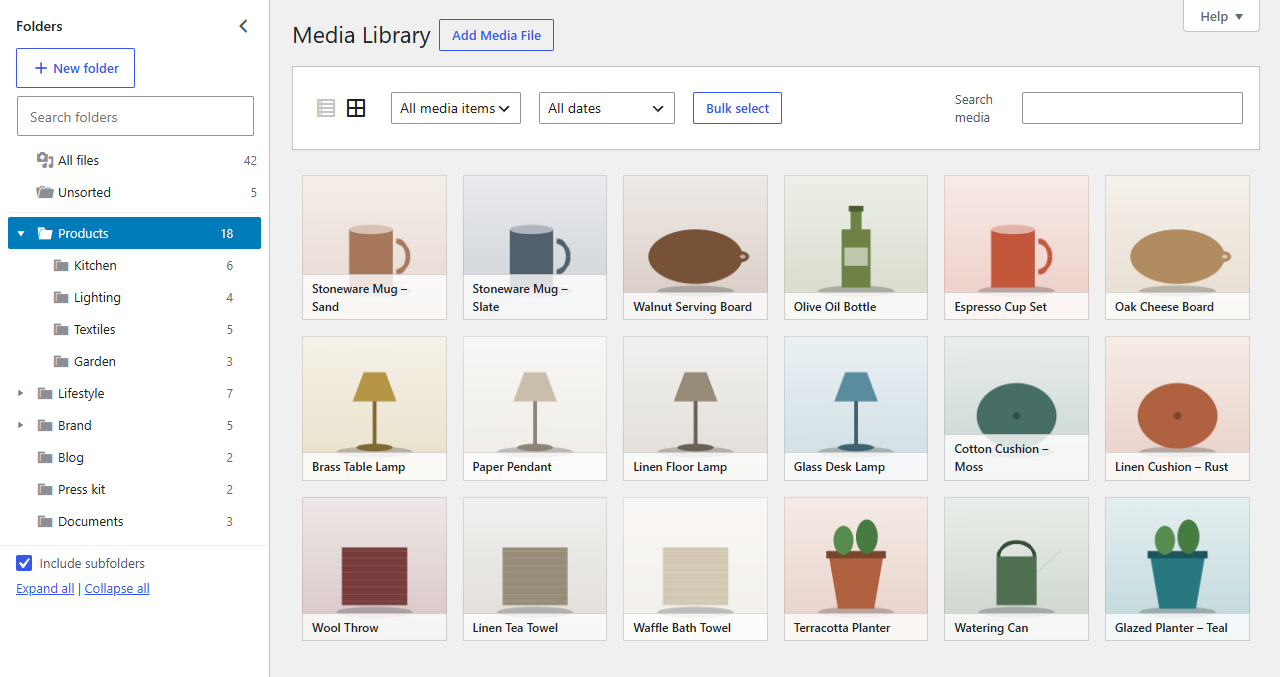
- Go to Media → Library. The folder panel is on the left, beside your files.
- Click New folder, type a name such as "Products" and press Enter.
- Drag a few files from the library onto the new folder.
- Click the folder: the library now shows just those files.
Tip
Click All files to see everything again, or Unsorted to see the files you haven't put in a folder yet. That's a quick way to work through an existing library.
What's next
- The folder tree explains the panel and its keyboard shortcuts.
- Creating and organising folders covers subfolders, renaming, reordering and deleting.
- Moving files shows every way to put files in folders.