
Moving files
Drag files onto folders in the grid or the list, move a selection at once, use the bulk action or a file's Folder field.
A file is in one folder at a time. Putting it in a folder takes it out of the one it was in; putting it in Unsorted takes it out of every folder.
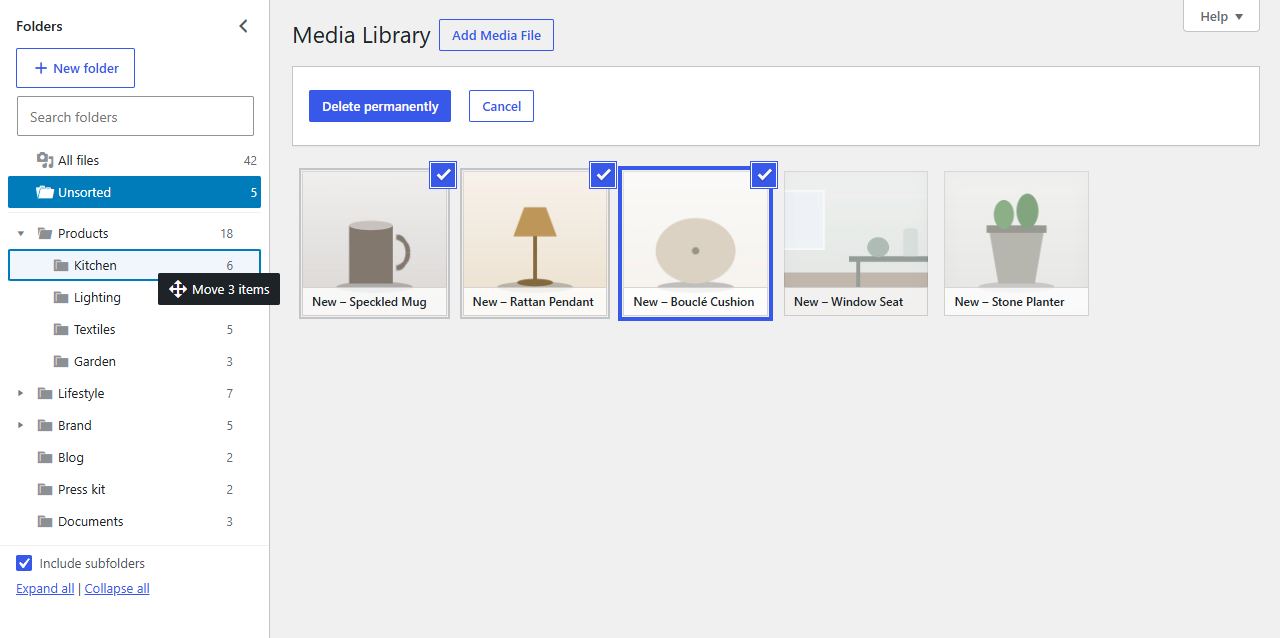
Drag files in the grid
In the grid view, drag a file's thumbnail onto a folder in the tree. The folder is outlined while you're over it; let go to move the file.
To move several files at once:
- Click Bulk select above the grid.
- Click the files you want.
- Drag any of the selected files onto a folder. All the selected files go together.
Drag files in the list
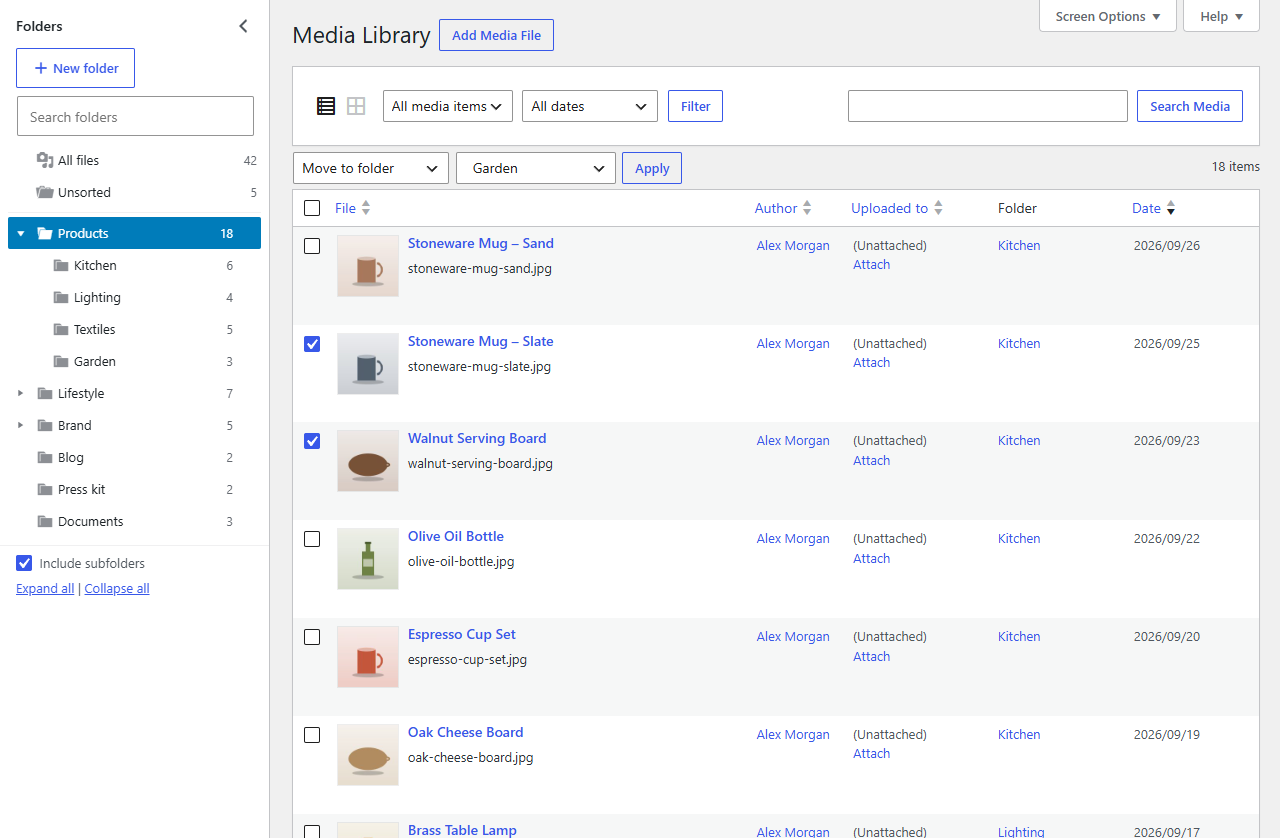
In the list view, drag a row onto a folder. Tick the checkboxes of several rows and drag one of them to move them all.
The list has a Folder column showing where each file is. Click a folder's name there to open it.
Move to folder (bulk action)
In the list view:
- Tick the files to move.
- Choose Move to folder in the Bulk actions dropdown. A second dropdown appears next to it.
- Choose the folder (or Unsorted (no folder)) and click Apply.
A file's Folder field
Every file's details have a Folder field: in the Media Library (click a file in the grid), in media pickers, and on the Edit Media screen. Choose a folder there to move the file. In the Media Library and media pickers it's saved as soon as you choose; on the Edit Media screen, click Update.
This works everywhere, without dragging, so it's handy on touch screens.
What you can move
You can move files you're allowed to edit. Administrators and editors can move any file; authors their own uploads. If you drag a mix, the files you can't edit stay where they are and Folderline tells you how many were skipped.