
Folders for posts and pages
The folder tree beside Posts, Pages, products and any custom post type, with drag and drop, the bulk action and a Folder column.
Note
This is part of Folderline Pro.
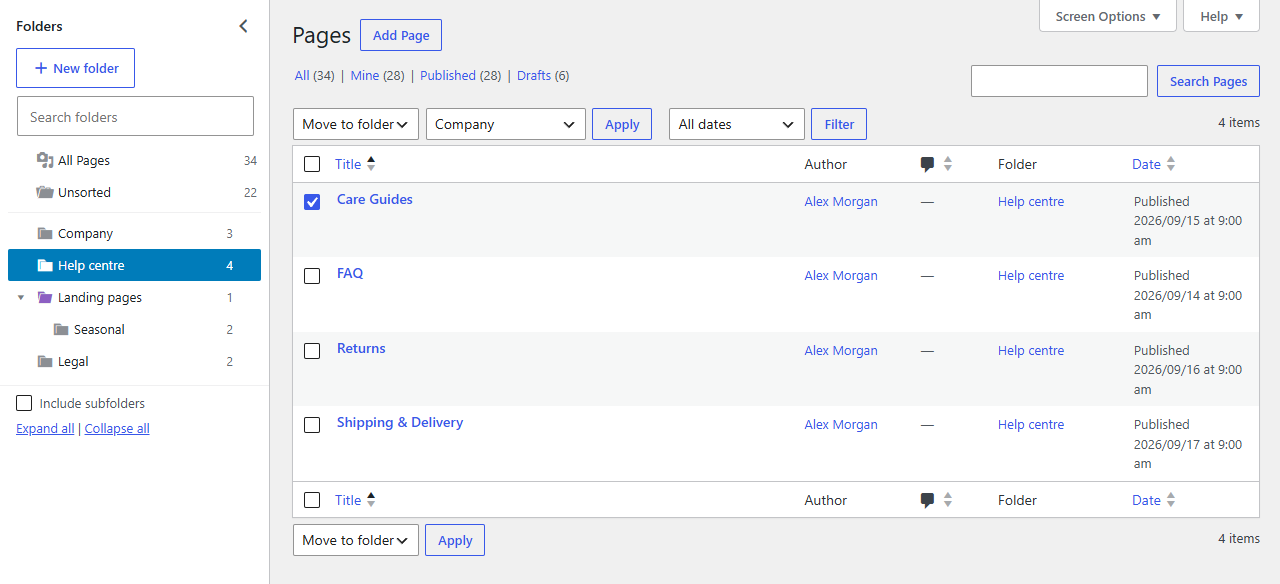
With Folderline Pro, the folder tree you know from the Media Library also sits beside the lists of posts, pages and the custom post types you choose. Each post type has its own folders: the Posts tree and the Pages tree are separate, and neither shares folders with the Media Library.
Choosing the post types
Go to Media → Folder Settings and, under Folderline Pro, tick the post types under Folders for. Posts and Pages are on to start with. Any post type with a list in the admin can be chosen: WooCommerce products, portfolio items, events, and so on.
Unticking a post type hides its folder tree but keeps its folders and which posts are in them, ready for when you tick it again.
Using the tree
Everything works as in the Media Library (see The folder tree and Creating and organising folders): create, rename, nest, reorder, delete, search, collapse, keyboard shortcuts, and the remembered folder and panel width.
- All posts (or All pages, All products…) shows everything that isn't in the trash: published, drafts, scheduled and private.
- Unsorted shows what's in no folder yet.
- A folder's number counts everything in it except trashed items.
WordPress's own filters, the status links (All, Published, Drafts…) and search all work inside the open folder.
Putting posts in folders
- Drag a row onto a folder. Tick several rows and drag one of them to move them all.
- Tick rows, choose Move to folder in Bulk actions, pick the folder in the dropdown that appears, and click Apply.
The Folder column shows where each post is; click a folder's name to open it.
A post is in one folder at a time. Deleting a folder never deletes posts: they move to Unsorted.
Who can use them
Anyone who can edit that post type: for posts, that's contributors and up; for pages, editors and administrators. People can only move posts they're allowed to edit.
Without Folderline Pro
If Folderline Pro is deactivated, the folder trees beside Posts and Pages go away, but nothing is lost: every folder and every post's place in it is kept and comes back when Folderline Pro is active again. Folders are only for organising things in the admin; they don't change your site, its URLs or its categories.