
Per-user folders
Give everyone their own folders, while administrators keep an overview.
Note
This is part of Folderline Pro.
On a site with several authors, one shared folder tree can get crowded. With per-user folders, each person sees and manages their own folders.
Turning it on
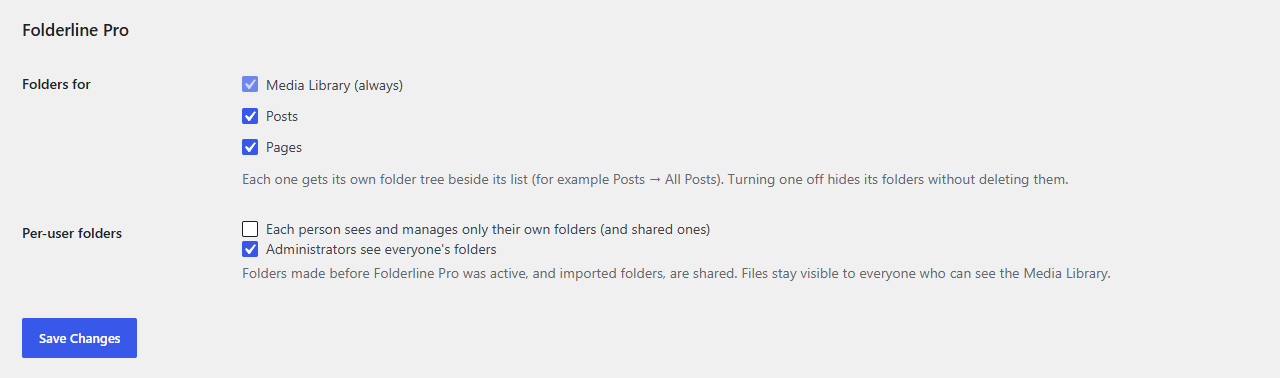
Go to Media → Folder Settings and, under Folderline Pro, tick Each person sees and manages only their own folders. Click Save Changes.
How it works
- Every folder made while Folderline Pro is active belongs to the person who made it.
- Each person sees their own folders and shared folders: those made before Folderline Pro was active, and folders imported from other plugins.
- People can only rename, move or delete their own folders and the shared ones, and only put files (or posts) into those.
- Two people can each have a folder with the same name.
- Administrators see everyone's folders, with the owner's name next to other people's, and can manage them all. Untick Administrators see everyone's folders to give administrators only their own too.
Files stay shared
Per-user folders organise the library; they don't hide files. Everyone who can see the Media Library still sees every file under All files, as in WordPress. Unsorted shows the files in nobody's folder.
Turning it off
Untick the setting and everyone sees every folder again. Who owns which folder is kept, so turning it back on later restores everyone's own view. If Folderline Pro is deactivated while per-user folders are on, Folderline keeps them private: each person still sees only their own and the shared folders, and other people's folders (with the folders in them) stay out of sight and unchanged until Folderline Pro is back. Administrators see them all, as before, unless Administrators see everyone's folders was unticked.