
Showing discounts
Sale prices and badges
The store-wide display settings, badge text, and how discounts show in the shop, cart and orders.
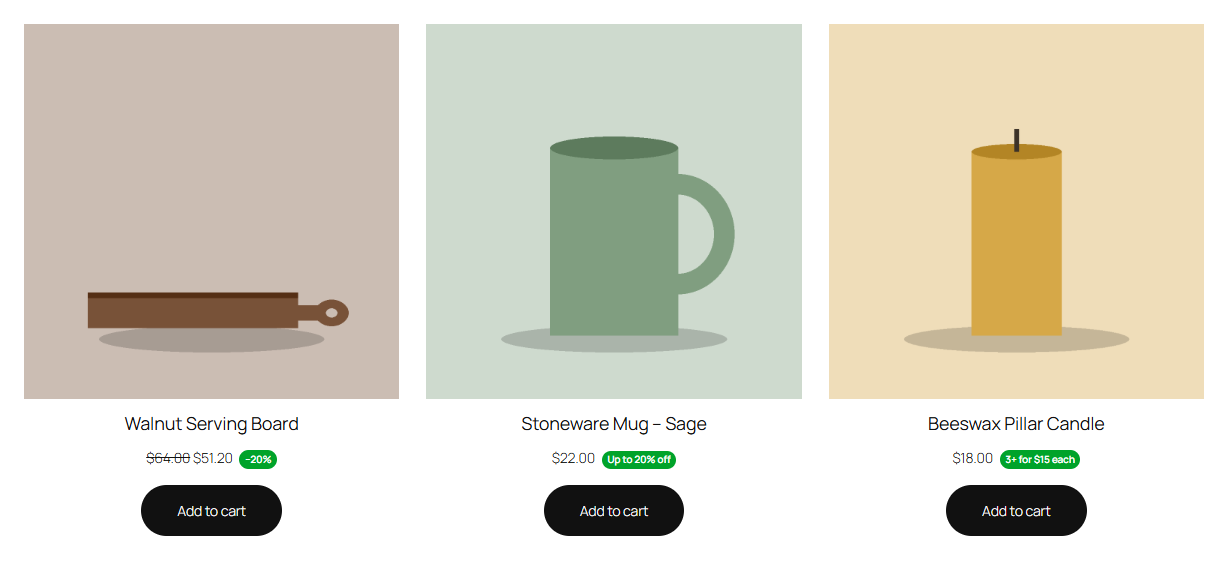
Display settings
Under WooCommerce → Settings → Products → Discount rules:
| Setting | Does |
|---|---|
| When rules overlap | Biggest discount, or the rule with the highest priority. See How discount rules work. |
| Sale prices | Show product discounts as sale prices in the shop and on product pages. Turned off, the shop shows regular prices and the discount appears in the cart. |
| Quantity price table | Show quantity discounts as a price table on product pages. |
| Badges | Show discount badges next to prices. |
Badges
Product and quantity discounts can show a badge next to the price of the products they cover, in the shop and on product pages:
| Rule | Automatic badge |
|---|---|
| Percentage off | "−20%" |
| Amount off | "Save $8.00" |
| Fixed price | "Special price" |
| Quantity tiers | "Up to 20% off" (the biggest percentage), or "Bulk savings" |
Each rule's Badge setting (in its Discount box) can replace the text, e.g. "3+ for $15 each", or turn the badge off for that rule. A product shows one badge: from the first rule, by priority, that has one. A variable product shows the badge of a rule for any of its variations.
The badge is a <span class="discountline-badge">; restyle it in your theme's CSS if you like.
In the cart and on orders
- Each discounted item shows its original price struck through and a Discount line with the rule's display name, in the classic cart and the Cart and Checkout blocks.
- Order discounts are listed by name, without a remove button.
- On the order, each discounted line keeps the Discount name the customer saw. Behind the scenes it also records the rule and the price before the discount.