
Installation
Install Discountline from WordPress.org and publish your first discount rule in a few minutes.
Discountline is free and listed on WordPress.org, so you can install it straight from your dashboard.
Install the plugin
- Make sure WooCommerce is installed and active. Discountline won't activate without it.
- Go to Plugins → Add New Plugin and search for Discountline.
- Click Install Now on "Discountline – Discount Rules for WooCommerce", then Activate.
If you have the zip file instead, use Plugins → Add New Plugin → Upload Plugin, choose the file, then Install Now and Activate.
Nothing changes on your store yet: Discountline only gives discounts through rules you publish.
Create your first rule
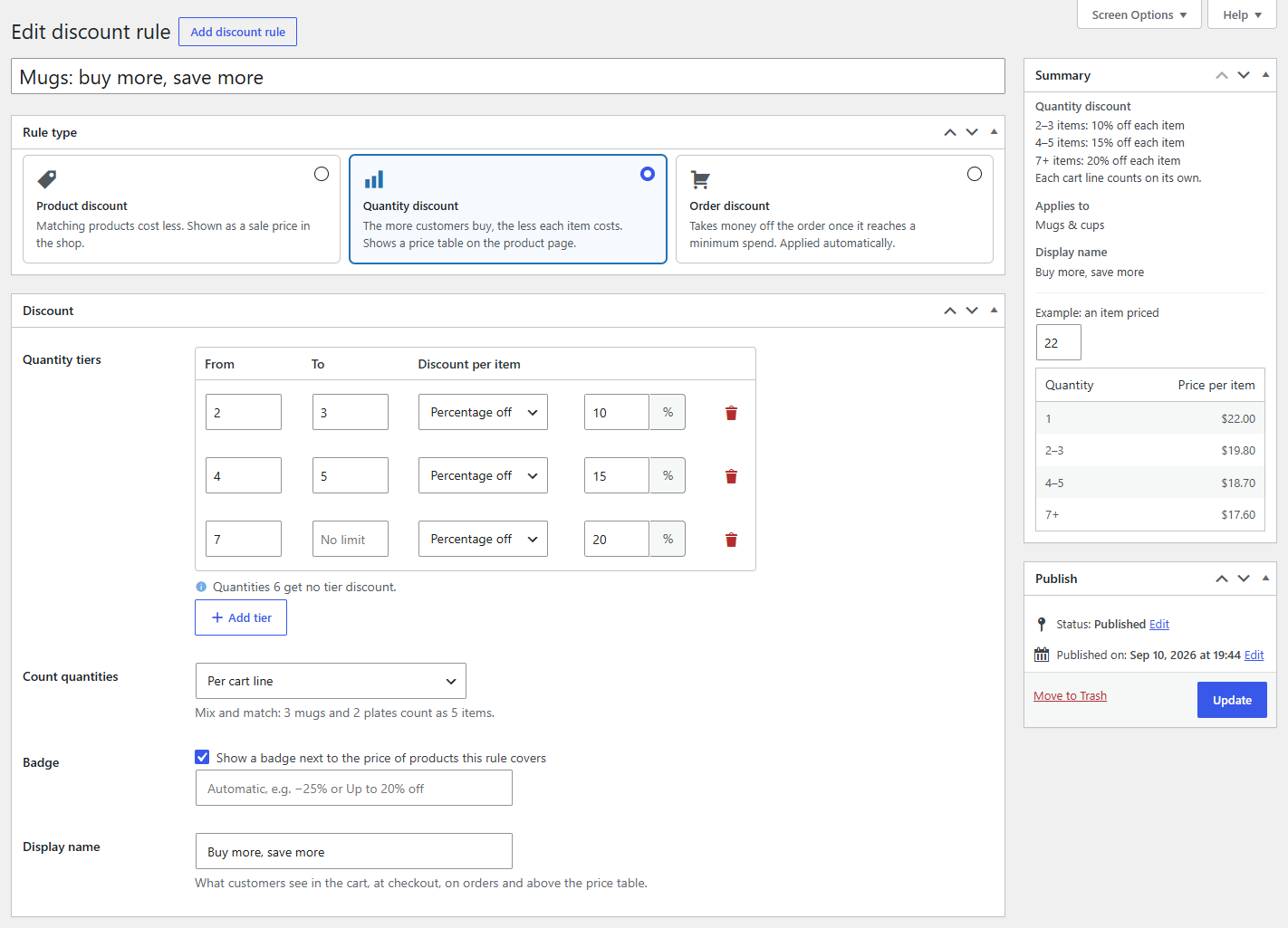
- Go to Marketing → Discount rules and click Add discount rule. There's also a Rules link under Discountline on the Plugins screen.
- Give the rule a name, such as "Autumn sale". Customers see it in the cart unless you set a different Display name.
- Pick a Rule type: Product discount, Quantity discount or Order discount.
- Set the discount in the Discount box, and choose what the rule covers in Applies to. Leave Applies to empty to cover every product.
- Check the Summary box on the right: it describes the rule in plain words as you type.
- Click Publish.
Open a product the rule covers: a product discount shows as a sale price, a quantity discount as a price table above the Add to cart button. Add it to the cart to see the discount applied.
Tip
Not ready to go live? Click Save Draft instead of Publish. Drafts never apply; publish the rule when you are ready, or use Turn on in the rule list.
Next steps
- How discount rules work explains what happens when several rules apply to the same product or order.
- Sale prices and badges covers the store-wide display settings under WooCommerce → Settings → Products → Discount rules.