
Discount rules
Product discounts
Take a percentage or an amount off, or set a fixed price, for any products or categories.
A product discount lowers the price of every item it covers. It's the rule for a sale: "20% off serveware", "$8 off the pour-over set", "everything in Textiles for $19".
Set it up
- Add a rule and choose Product discount.
- In Discount, choose how the price changes:
- Percentage off: e.g. 20 for 20% off.
- Fixed amount off: e.g. 8 for $8 off each item.
- Fixed price: every covered item costs this much, e.g. $19. A fixed price never raises a price: items that already cost less keep their price.
- In Applies to, choose the products or categories. See Choosing products.
- Publish.
A discount never takes a price below zero.
What shoppers see
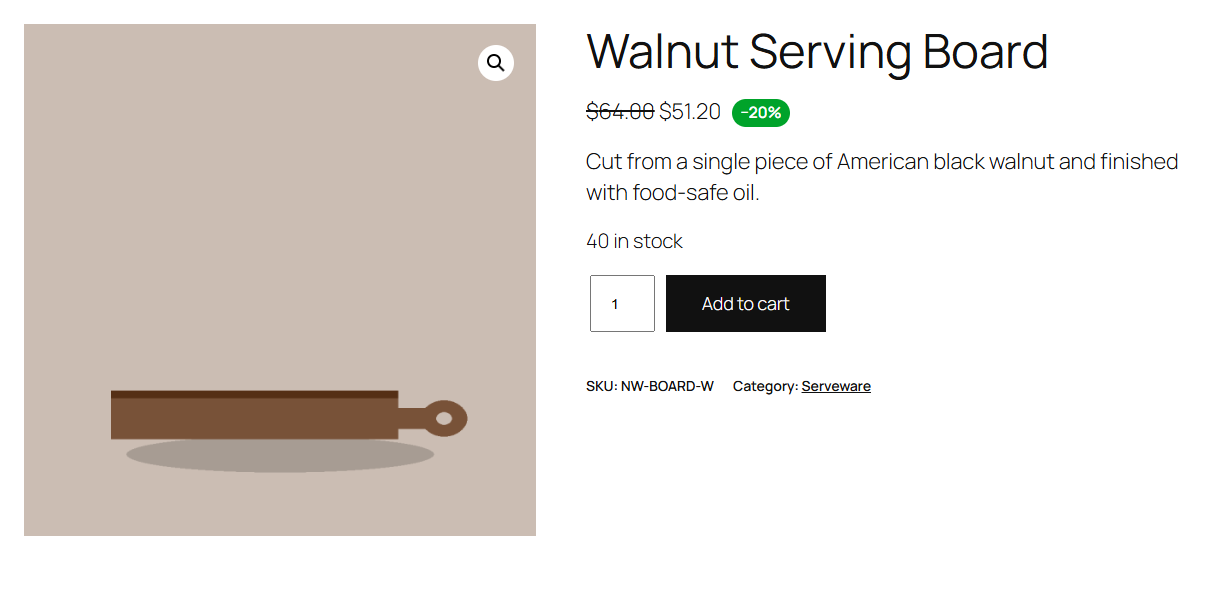
- In the shop and on product pages, the price shows as a sale price: the regular price struck through, the discounted price next to it. Variable products show the discounted price range.
- A badge next to the price, such as "−20%" or "Save $8.00". You can change its text, or turn it off for this rule, under Badge.
- In the cart, the original price struck through and the rule's name under the item.
Sale prices in the shop can be turned off store-wide; see Sale prices and badges.
Rules that depend on the cart
A product discount with a Minimum items condition can only be judged once the customer has a cart, so it doesn't show as a sale price in the shop. It applies in the cart once the condition is met.