
Discount rules
Quantity discounts
Tiered prices by quantity, with a price table on the product page and mix-and-match counting.
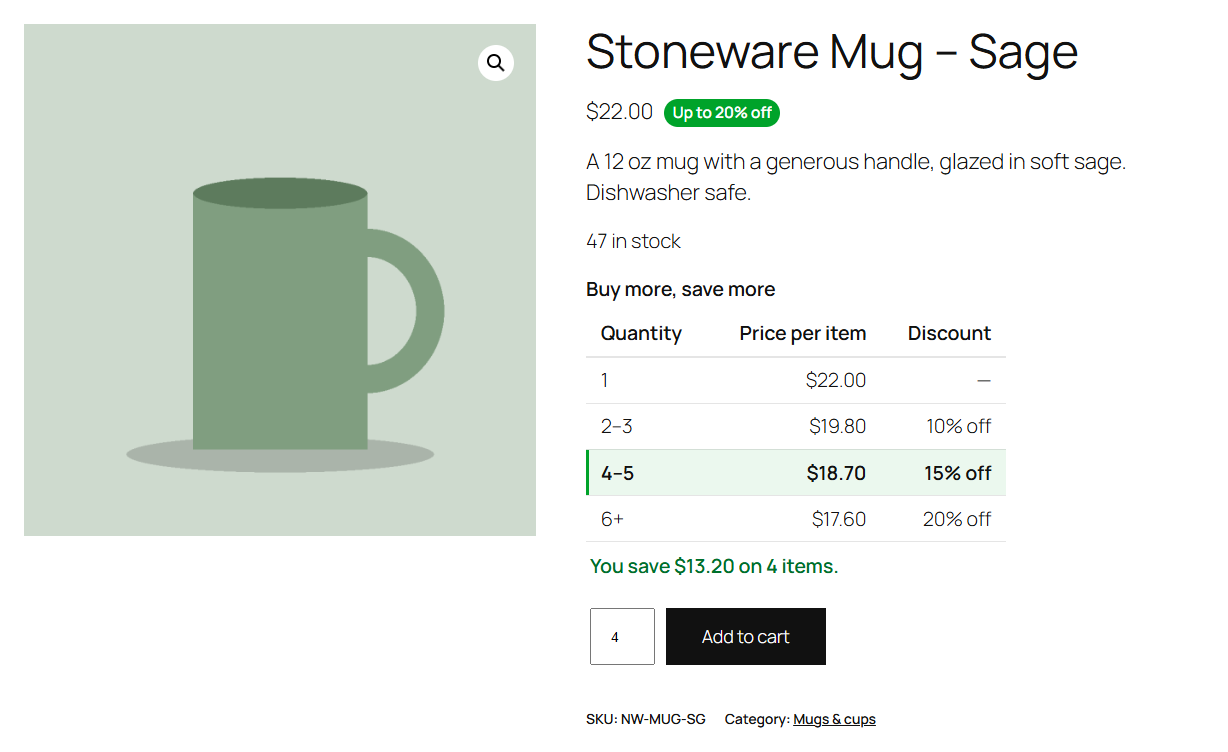
A quantity discount makes each item cheaper the more the customer buys: "2–3 mugs 10% off each, 4–5 for 15% off, 6 or more for 20% off".
Set up the tiers
- Add a rule and choose Quantity discount.
- In Quantity tiers, fill in the first row: From and To quantities, and the discount per item (percentage off, amount off or a fixed price per item). Leave To empty for "and more".
- Click Add tier for the next one. It starts where the last tier ends, so you only type the discount.
- Publish.
As you type, the editor checks the tiers. It warns when two tiers overlap ("Tiers 1 and 2 overlap.") or when quantities between tiers get no discount ("Quantities 4–5 get no tier discount."). The Summary box lists the tiers and shows an example price table; change the example price to match one of your products.
How quantities are counted
Count quantities decides which items count towards a tier:
| Setting | Counts | Example |
|---|---|---|
| Per cart line | Each line on its own. | 4 sage mugs get the 4–5 tier; 2 sand mugs on another line get the 2–3 tier. |
| Per product, with all its variations | All variations of one product together. | 3 small + 3 large T-shirts count as 6. |
| Across all matching items (mix and match) | Every item the rule covers. | 3 mugs and 2 plates count as 5 items. |
What shoppers see
- A price table above the Add to cart button: each quantity range, the price per item and the discount. As the customer changes the quantity, the matching tier is highlighted and a line shows what they save ("You save $6.00 on 6 items."). The highlight follows the quantity box only for Per cart line counting, since the other modes depend on the rest of the cart.
- A badge such as "Up to 20% off".
- In the cart, each item at its tier price, with the original price struck through and the rule's name under it.
The price table can be turned off store-wide; see Sale prices and badges. Only the first quantity rule that covers a product shows a table.