
Undo and history
Every save in the Bulk Editor is kept, with who saved what and when, and can be undone in one click.
Note
This is part of Sheetline Pro.
Sheetline Pro keeps the last 500 saves made with the Bulk Editor: edits in the grid, bulk changes and CSV imports. Any of them can be undone.
Undo straight away
After every save, the notice at the top has an Undo link. Click it to put back everything that save changed.
History
Click History next to the screen's title.
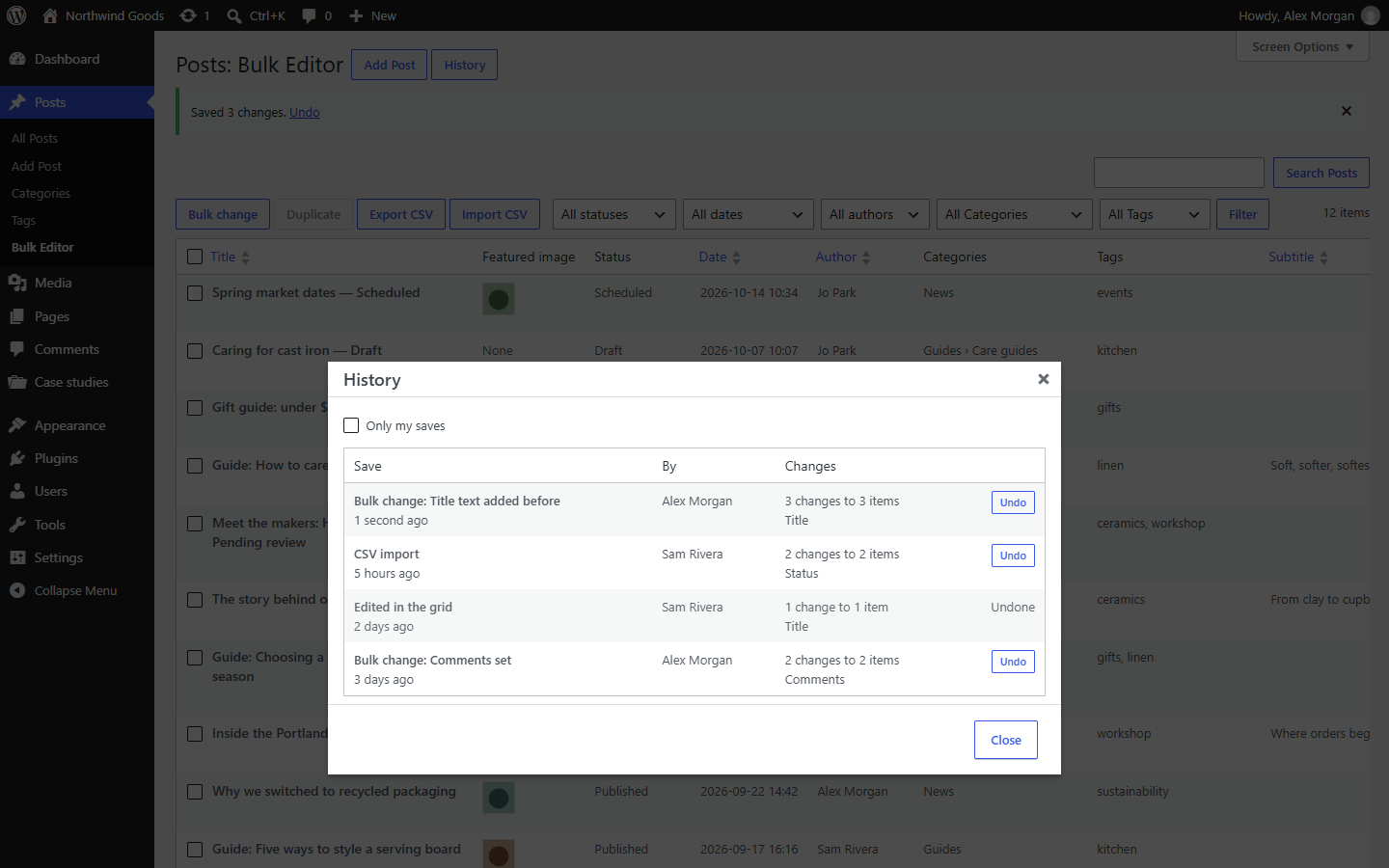
Each save shows:
- what it was ("Edited in the grid", "Bulk change: Status set", "CSV import") and when,
- who saved it,
- how many changes to how many items, and which fields.
Tick Only my saves to see yours alone. Newer and Older page through them, 20 at a time. Each Bulk Editor (posts, pages, each custom post type) has its own history.
Click Undo on a save to put back what it changed. A save that has been undone says so.
What undo does
Undo puts back each cell's value from before the save, through the same save as the grid, so the same checks apply and revisions are kept as usual.
A cell that has changed again since the save, in the grid, on the edit screen or anywhere else, is left as it is: undo never overwrites newer work. The notice says how many cells were put back and how many were left.
Undoing isn't a save of its own in History. Large saves (a bulk change of thousands of posts) are undone in parts, with the progress shown.
What isn't in the history
- Adding and duplicating posts: move unwanted ones to the trash from the Posts screen instead.
- Changes made outside the Bulk Editor, such as on the edit screen.
- Saves older than the last 500.
Titles and excerpts also keep their own revisions on each post, as always.