
Saving changes
How changes are saved together, what happens when one can't be saved, revisions, locked posts, and why a post is never half saved.
Edits in the grid aren't saved as you type. They're collected, highlighted in yellow, and saved together when you click Save changes.
Save or discard
The bar at the bottom of the grid shows how many changes are waiting:
- Save changes saves them all. A notice at the top says how many changes were saved to how many posts.
- Discard throws them all away, and the cells go back to their saved values.
If you try to leave the screen, change page, filter, sort or search with unsaved changes, Sheetline asks first.
How each post is saved
Sheetline saves post by post. For each post, it:
- checks that you may edit it, and that nobody else has it open in the editor,
- applies all of its changed cells and checks them,
- saves the post once, through WordPress.
Because it goes through WordPress, everything that happens when you click Update in the editor happens here too: a revision is kept when the title or excerpt changes, the modified date is updated, a date ahead schedules the post, and other plugins that react to saves (caches, search indexes, SEO plugins) are told about the change.
When a change can't be saved
Some changes aren't allowed, for example:
- publishing, scheduling or making private when your role can only submit for review,
- a page made the parent of its own parent,
- a category or author that no longer exists,
- a template your theme doesn't have.
Such a cell turns red and shows the reason underneath. That post isn't saved at all, so it's never left half changed; its other changed cells stay yellow, waiting. Every other post is saved as usual.
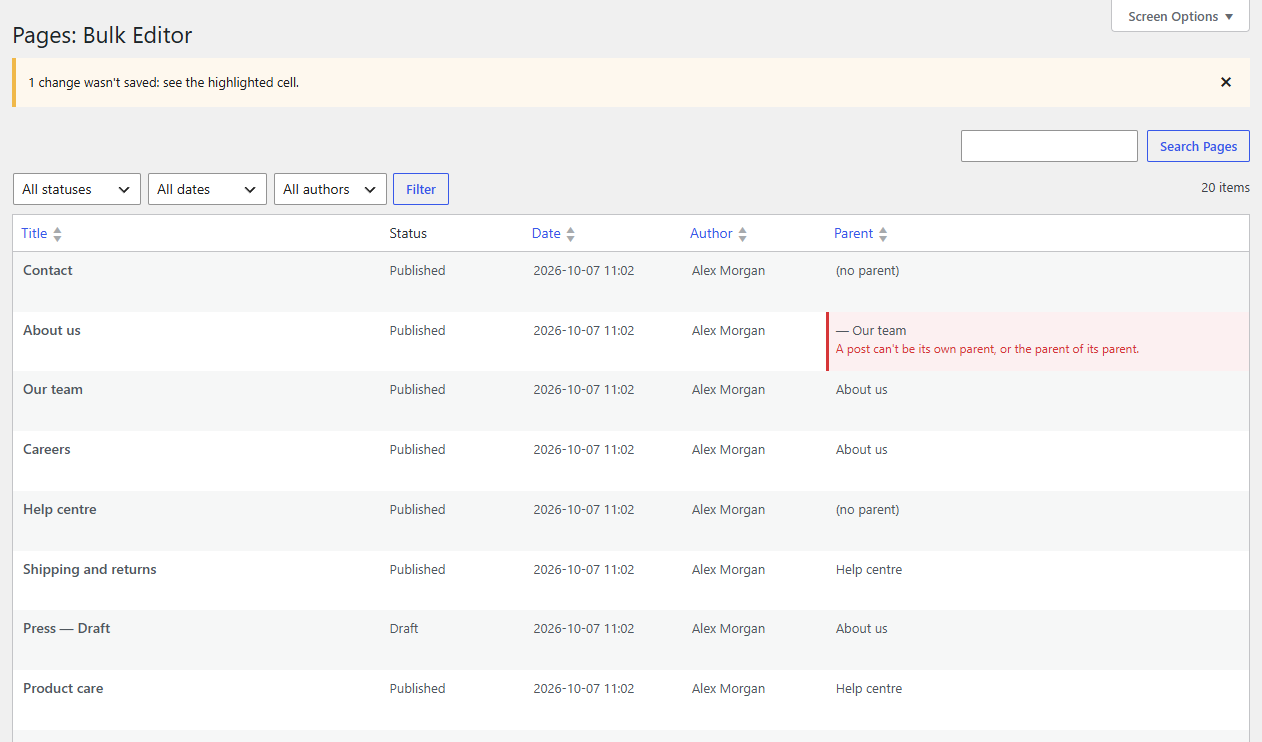
Fix the red cell (or press Discard) and click Save changes again.
Posts open in the editor
WordPress marks a post as locked while someone has it open in the editor. The grid shows the lock and their name under the title, and its cells are read-only. If someone opens a post after you loaded the grid, its changes are refused with "(name) is editing this post right now." Save again once they're done.
Who can save what
Each post and each field is checked against your role when you save. If you aren't allowed to edit a particular post, its changes are refused with "You can't edit this post."
Undo
Sheetline itself doesn't keep a history of saves, but the post's own Revisions (on its edit screen) hold earlier titles and excerpts. To put back another field, edit the cell again. Sheetline Pro keeps the last 500 saves and can undo any of them in one click.