
Editing cells
Edit any cell with the mouse or keyboard, move around with Tab, Enter and the arrow keys, and how each kind of field is edited.
Every white cell in the grid can be edited. Changed cells turn yellow and stay that way until you save them or discard them.
Start editing
- Click a cell, or
- move to it with the arrow keys or Tab and press Enter or F2.
Moving around
When no cell is open:
| Key | What it does |
|---|---|
| Arrow keys | Move to the cell above, below, left or right |
| Enter or F2 | Opens the cell |
| Tab / Shift+Tab | Moves to the next or previous cell you can edit |
While a cell is open:
| Key | What it does |
|---|---|
| Enter | Keeps the value and moves down to the same column of the next row |
| Tab | Keeps the value and moves to the next cell on the right |
| Shift+Tab | Keeps the value and moves to the previous cell on the left |
| Up / Down | In a one-line text box: keeps the value and moves up or down |
| Esc | Stops editing and puts the cell back as it was |
| Click elsewhere | Keeps the value |
Hidden columns, read-only cells and fields a post doesn't have are skipped, so Tab and Enter always land on something you can edit.
Each kind of field
Text (title, slug): type, then Enter or Tab. A title can be empty, as in WordPress ("(no title)" is shown). A slug is turned into a valid one when saved, and WordPress makes it unique.
Choices (status, author, parent, format, template): a dropdown opens in the cell. Pick an option and the cell is done.
Yes or no (comments, sticky): a Yes/No dropdown.
Date (date): your browser's date and time picker. A published post with a date ahead becomes Scheduled; a scheduled post with a date gone by is published, as on the edit screen.
Numbers (order): a whole number.
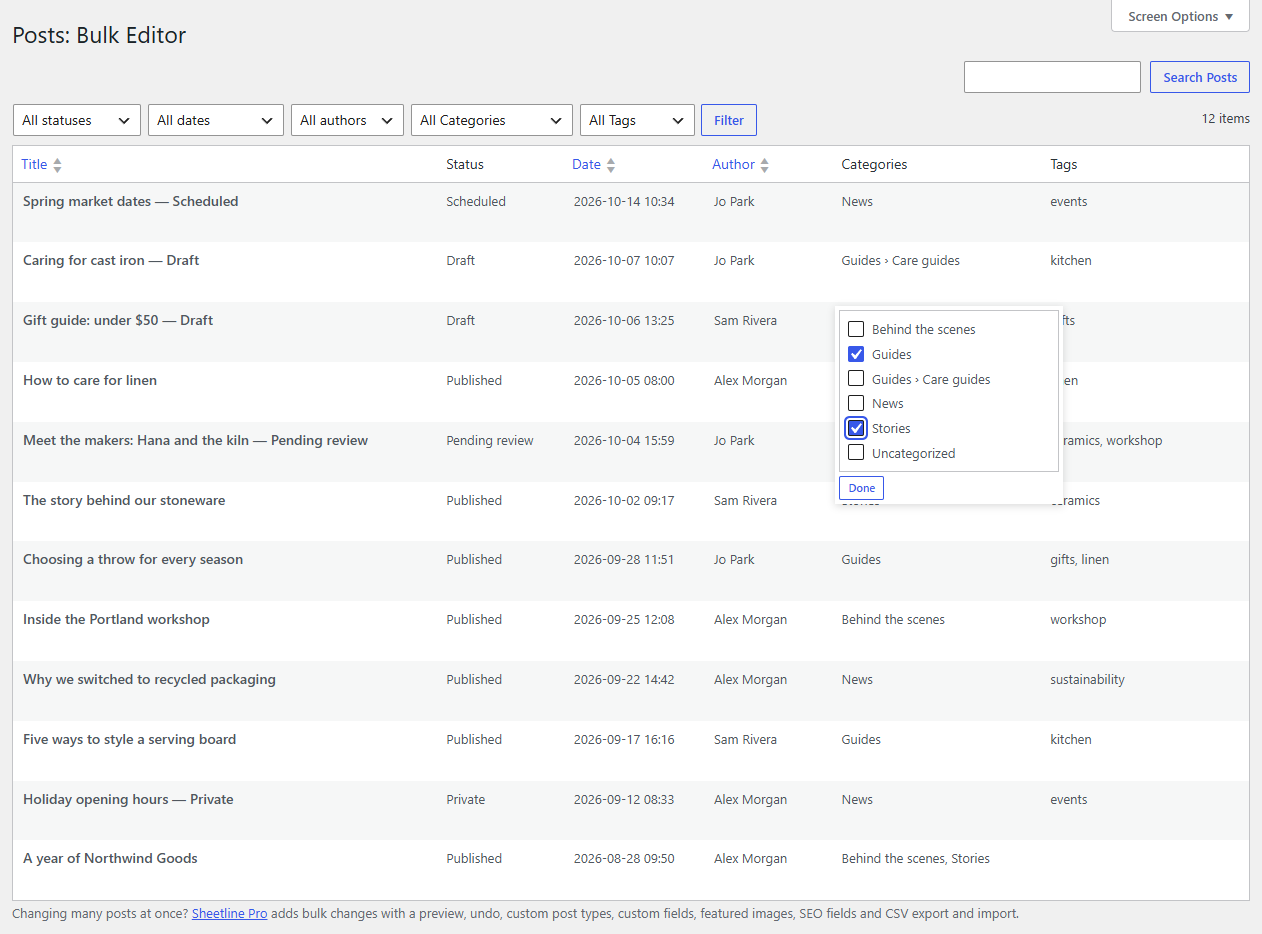
Categories and tags: a list of checkboxes opens over the cell, with child categories shown as "Parent › Child". A long list has a Filter box at the top: type part of a name to narrow it down. Tick and untick what you need, then click Done (or click anywhere else). Esc closes the list without changing anything.
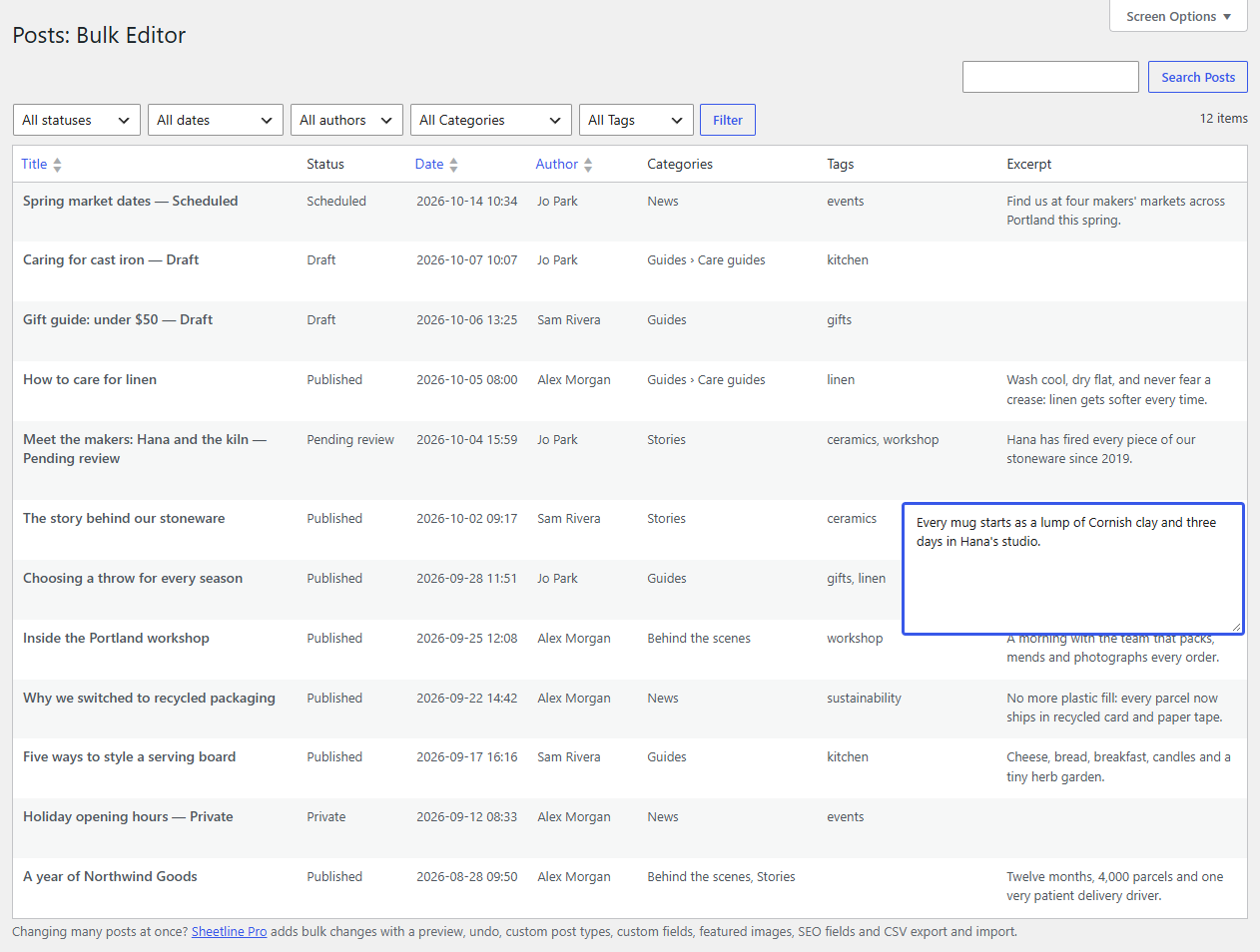
Excerpt: a larger text box opens over the cell. Enter adds a new line; Ctrl+Enter (Cmd+Enter on a Mac), Tab or a click elsewhere finishes. The cell shows the excerpt as plain text. People who can't post unfiltered HTML (everyone but administrators, usually) have unsafe markup removed, as on the edit screen.
Columns that other plugins add are edited the same ways; image columns (such as Sheetline Pro's featured image) open your media library.
Greyed-out cells
- A dash means the post doesn't have that field.
- A greyed value means you can't change it: the post belongs to someone else and your role can't edit it, someone has it open in the editor, or your role can't change that field (for example the author, if you can't edit other people's posts).
Changing your mind
- Esc while editing puts that cell back.
- Typing the original value back into a cell un-yellows it: it's no longer a change.
- Discard in the bar at the bottom throws away every unsaved change.
Changing the page, the filters, the sorting or the search, or leaving the screen, asks before throwing away unsaved changes.