
The Bulk Editor
A tour of Posts → Bulk Editor and Pages → Bulk Editor: the search box, filters, columns, the grid and the save bar.
Posts → Bulk Editor shows your posts as a grid, one row per post and one column per field. Pages → Bulk Editor does the same for pages. Both are built from the same list table as WordPress's own Posts screen, so most of it will look familiar.
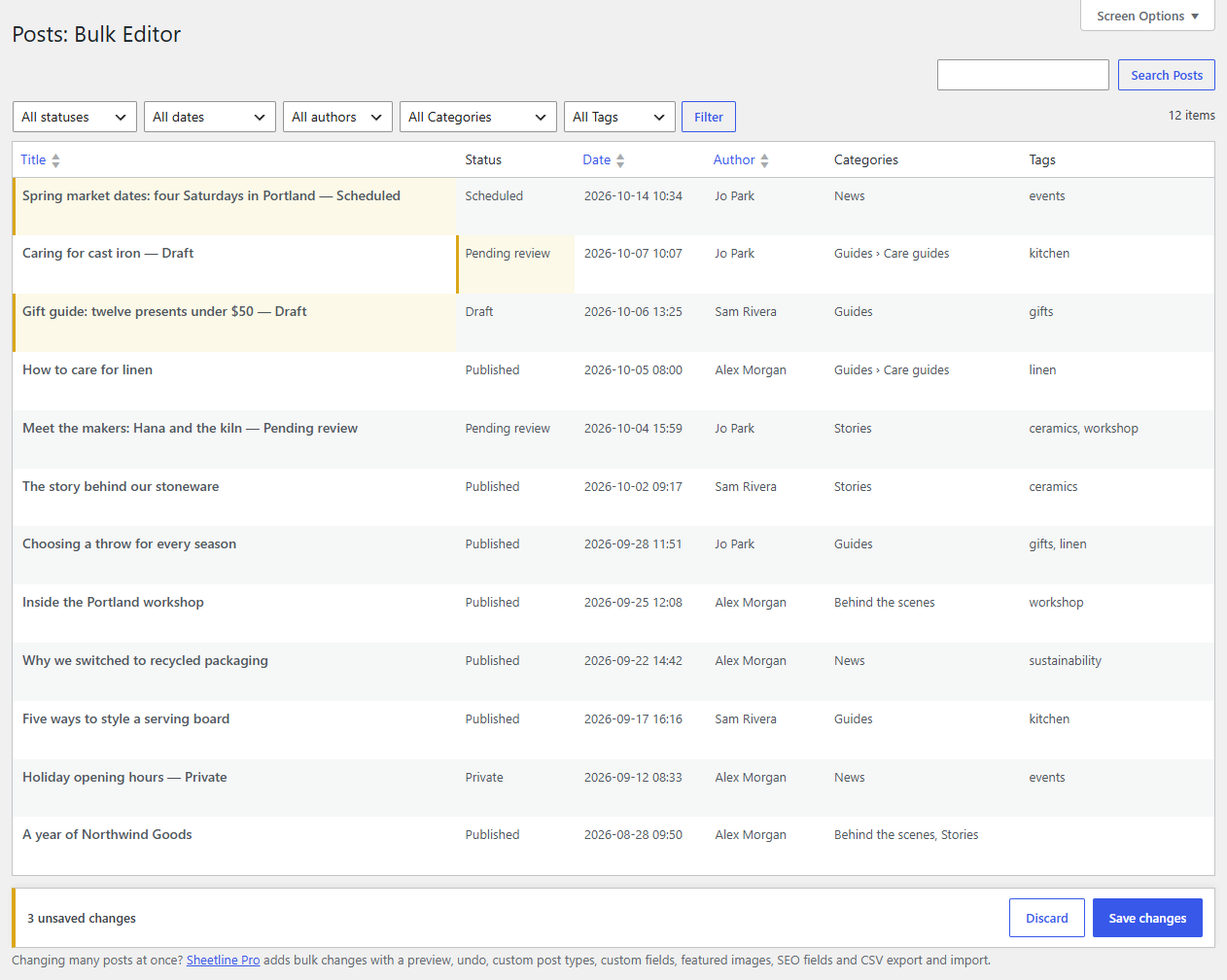
From top to bottom
- Search (top right): searches titles, excerpts and content. See Finding posts.
- Filters: status, month, author, category and tag (pages have status, month and author), applied with the Filter button.
- Pagination (right): the number of posts found and the pages. Choose how many posts a page shows in Screen Options.
- The grid: the title stays on the left while you scroll sideways through the other columns. Under each title are its ID and Edit and View links, which open the post's own screen or the post on your site.
- The save bar appears at the bottom as soon as something has changed, with the number of unsaved changes, Discard and Save changes. It stays in view as you scroll.
A post's status is shown after its title when it isn't published ("— Draft", "— Scheduled"), as on the Posts screen. A lock and a name under the title mean someone has that post open in the editor right now; its cells are read-only until they're done.
The columns
| Column | Posts | Pages | What it is |
|---|---|---|---|
| Title | ✓ | ✓ | Always shown |
| Slug | ✓ | ✓ | The address part, e.g. care-for-linen. Hidden until you switch it on |
| Status | ✓ | ✓ | Published, Scheduled, Pending review, Draft or Private |
| Date | ✓ | ✓ | The publish date and time; a date ahead schedules a published post |
| Author | ✓ | ✓ | Anyone who can write posts |
| Parent | ✓ | Another page, or none | |
| Order | ✓ | The page order. Hidden until you switch it on | |
| Categories | ✓ | Picked from a list | |
| Tags | ✓ | Picked from a list | |
| Excerpt | ✓ | Edited in a larger box. Hidden until you switch it on | |
| Comments | ✓ | ✓ | Open (Yes) or closed (No). Hidden until you switch it on |
| Sticky | ✓ | Shown first on your blog. Hidden until you switch it on | |
| Format | ✓ | Only if your theme supports post formats. Hidden until you switch it on | |
| Template | ✓ | Only if your theme has page templates. Hidden until you switch it on |
Plugins can add columns of their own; they appear after these, and work the same way. Sheetline Pro adds featured images, custom fields and SEO fields, and a Bulk Editor for each custom post type you choose.
Click a column's heading to sort by it, where it can be sorted. Hide the columns you don't need in Screen Options; see Columns and Screen Options.
How saving works
Your changes stay in the grid, highlighted, until you click Save changes. Then Sheetline saves each changed post once, through WordPress, exactly as the editor would. See Saving changes.