
Bulk changes
Change one field for many posts at once: set a value, add text, find and replace, add or remove terms, change the status, author or date, with a preview before saving.
Note
This is part of Sheetline Pro.
When the same change applies to many posts, there's no need to edit each cell. Describe the change once, see every post's new value, and save.
Which posts
Each row has a checkbox at its start. Then click Bulk change above the grid and choose:
- The selected rows: tick the posts first (the box in the header ticks the whole page). The button shows how many are selected.
- All the items the search and filters find: every page of them, not just the one shown. Search and filter first to bring the right posts together, for example drafts in "Guides", or everything by one author last year.
Describe the change
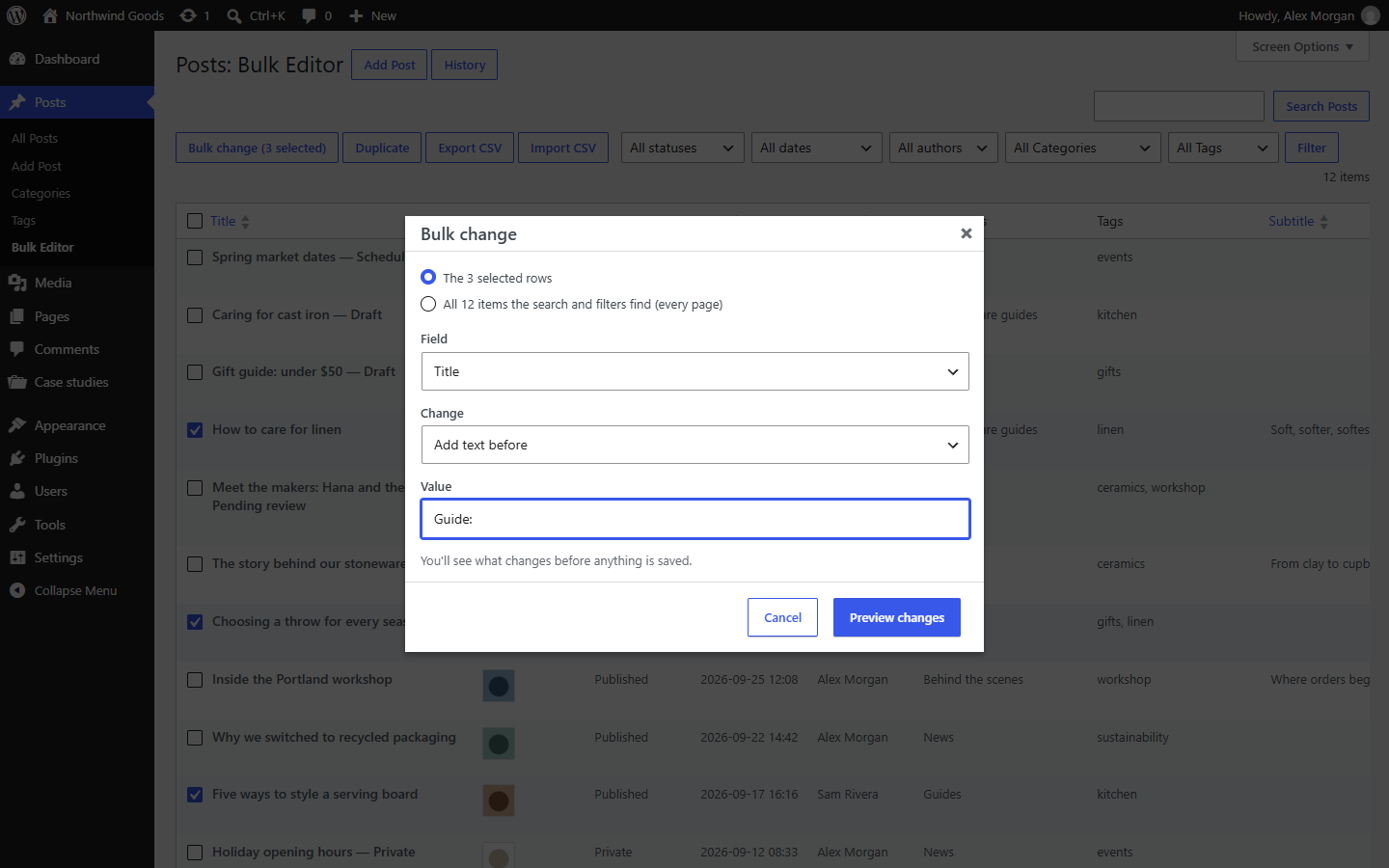
- Field: any column, grouped as in the grid.
- Change: what to do with it.
- Value: what to set, add or remove.
| Change | Fields | What it does |
|---|---|---|
| Set to | any | Every post gets the value: a status, an author, a date, a category list, a featured image, a text |
| Add text before / after | text and long text | Adds the text, e.g. "Guide: " before titles or " (archive)" after them. Spaces count |
| Find and replace | text and long text | Replaces every match. Case doesn't matter unless you tick Match case. The text is taken as it is, not as a pattern |
| Increase / Decrease by | numbers | Adds or takes away an amount |
| Add / Remove | categories, tags and other terms | Adds the ticked terms to each post's own, or takes them away |
| Clear | text, numbers, dates, images | Empties the field |
Changing the Status, Author or Date is Set to on that column.
Preview
Click Preview changes. Nothing is saved yet: Sheetline Pro works out each post's new value and checks it exactly as a save would.
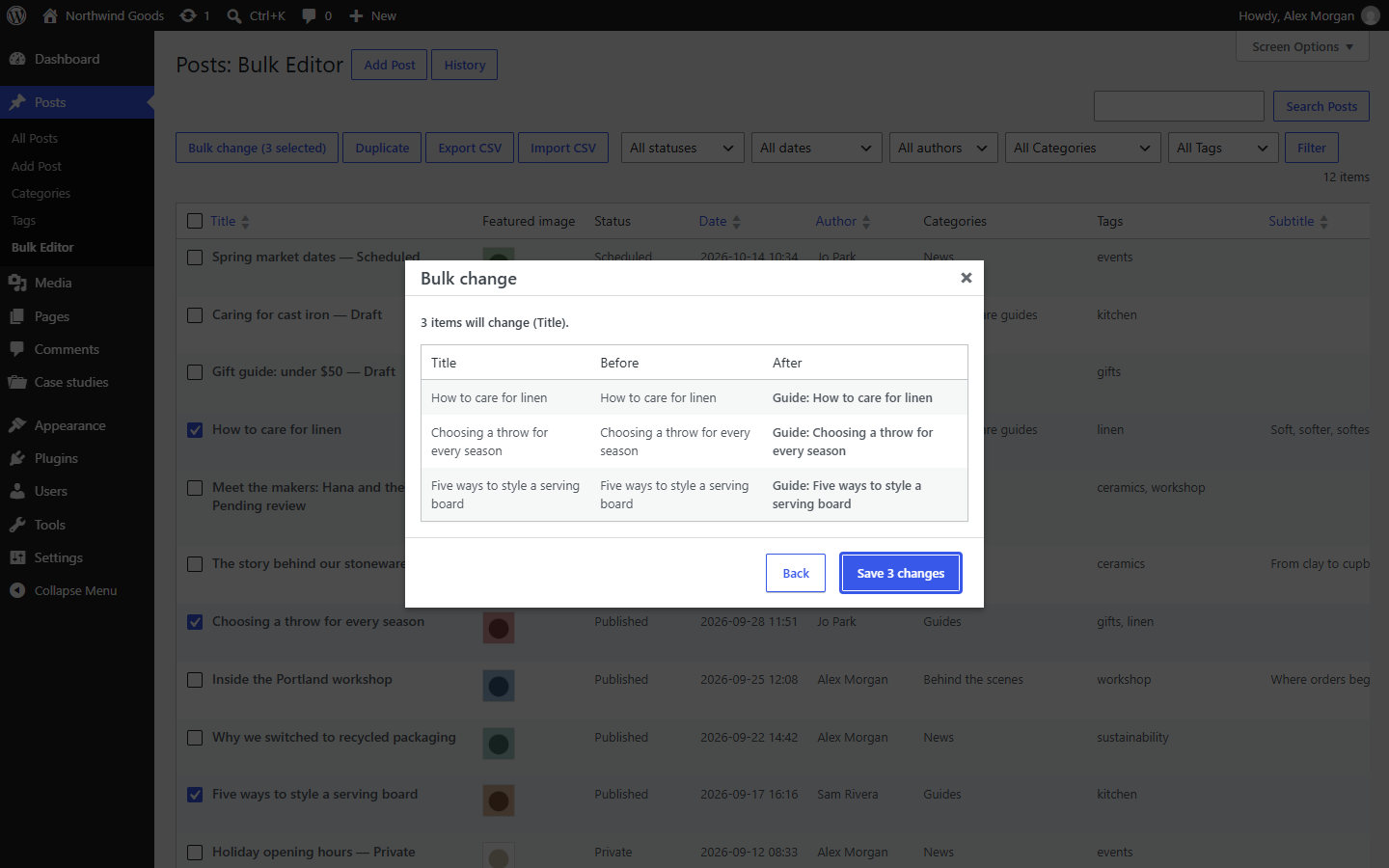
- The table shows each post's value before and after (the first 50).
- Posts that already have that value are counted, and left alone.
- Posts that can't change are listed with the reason: you can't edit the post, someone has it open in the editor, your role can't publish, the post doesn't have that field, and so on.
Back returns to the form to adjust the change.
Save
Click Save N changes. The changes are saved through WordPress, post by post, as edits in the grid are, in parts of 25 with the progress shown, so even thousands of posts are fine. The grid reloads and a notice says how many changes were saved, with an Undo link.
The whole bulk change is one entry in History, so one click undoes all of it; see Undo and history.
Note
A bulk change reloads the grid, so Sheetline Pro asks first if you have unsaved edits in it.