
Installing Sheetline Pro
Upload the Sheetline Pro zip, activate it next to Sheetline, and enter your license key.
Note
This is part of Sheetline Pro.
Sheetline Pro is an add-on: it adds custom post types, custom fields, featured images, SEO fields, bulk changes, undo, CSV export and import, and adding and duplicating posts to Sheetline, which stays installed and keeps doing everything else. You need both.
Before you start
- Sheetline 1.0.0 or later, installed and active. If you don't have it yet, install it from Plugins → Add New Plugin (search for "Sheetline"); see Installation.
- The sheetline-pro.zip file and the license key from your purchase email. Both are in the email Lemon Squeezy sent after you bought Sheetline Pro.
No WooCommerce or other plugin is needed.
Install and activate
- Go to Plugins → Add New Plugin and click Upload Plugin at the top.
- Choose
sheetline-pro.zipand click Install Now. - Click Activate Plugin.
WordPress won't activate Sheetline Pro while Sheetline is inactive; it says Sheetline is needed instead. Activate it first.
Enter your license key
Back on the Plugins screen, there's a box under Sheetline Pro:
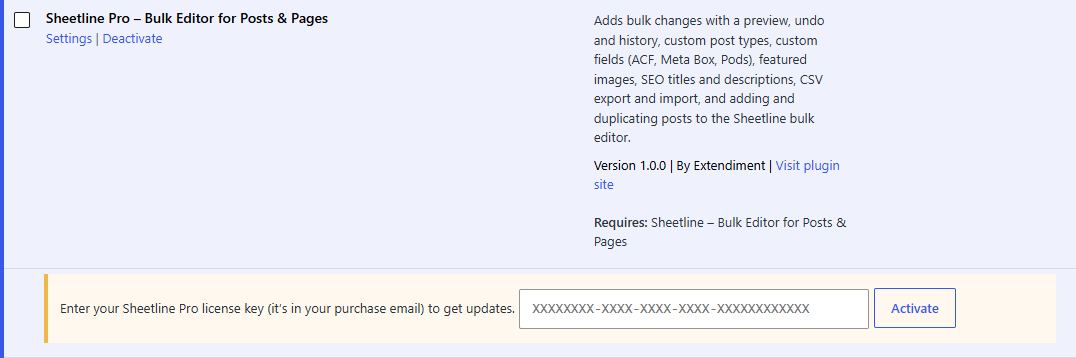
- Paste the license key from your purchase email.
- Click Activate.
The box turns green and shows the end of your key and, for a yearly license, the date your updates run until. The key activates Sheetline Pro on this site only; see Licenses and updates for moving it to another site.
Note
The features work as soon as the plugin is active, with or without a license. The license is what lets WordPress download updates.
Check it works
Go to Posts → Bulk Editor. With Sheetline Pro active you'll see:
- Add Post and History buttons next to the title,
- a checkbox at the start of each row, with Bulk change, Duplicate, Export CSV and Import CSV above the grid,
- a Featured image column after the title.
The sentence about Sheetline Pro under the grid is gone.
Set it up
Go to Settings → Bulk Editor to:
- choose the custom post types that get a Bulk Editor of their own (see Custom post types),
- choose the custom fields shown as columns (see Custom fields).
The SEO title and description columns appear by themselves while Yoast SEO, Rank Math or All in One SEO is active; switch them on in Screen Options (see Featured images and SEO).