
Custom post types
Give any public custom post type a Bulk Editor of its own, with its taxonomies, in Settings → Bulk Editor.
Note
This is part of Sheetline Pro.
Posts and pages always have a Bulk Editor. With Sheetline Pro, so can your custom post types: case studies, events, recipes, team members, portfolio items, whatever your theme or plugins add.
Choose the post types
- Go to Settings → Bulk Editor.
- Under Post types, tick the ones you want.
- Click Save Changes.
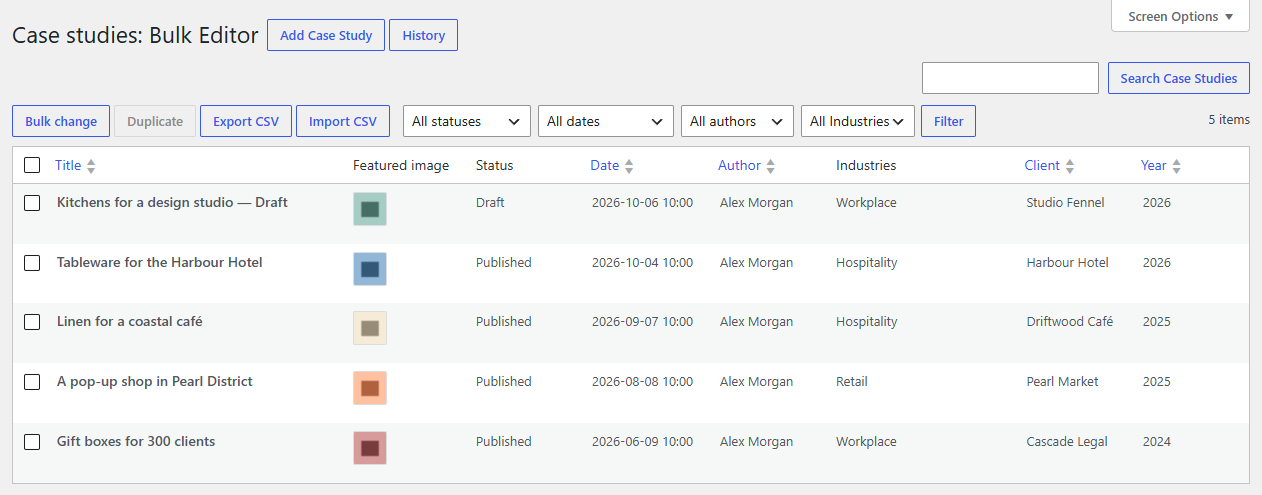
Each one gets a Bulk Editor under its own menu (for example Case studies → Bulk Editor), and a Bulk Editor button next to "Add" on its list.
Only public post types with an admin screen are offered. Posts, pages and media aren't listed (posts and pages always have theirs).
Note
WooCommerce products aren't offered. Our Gridline plugin is the bulk editor for products: it saves them through WooCommerce, with prices, stock and variations handled properly.What their Bulk Editor has
The same grid as posts, with the columns the post type supports:
- Title, Slug, Status, Date, and Author if it has authors,
- Parent and Order for hierarchical types,
- a column for each of its taxonomies (for example "Industries"), picked from a list, and a filter for each above the grid,
- Excerpt, Comments and Featured image where the post type supports them,
- the custom fields you choose for it (see Custom fields), and SEO fields when an SEO plugin is active.
Everything else works the same: search, filters, sorting, Screen Options, bulk changes, history and undo, CSV export and import, adding and duplicating. Each Bulk Editor keeps its own columns in Screen Options and its own history.
Who can use it
Whoever can edit that post type's posts, following its own capabilities, as on its list screen.
If you switch one off
Untick it and its Bulk Editor goes away. Its history and its custom field choices are kept, and come back if you tick it again.