
Editing capabilities
The role editor's groups, search and filters, custom capabilities, and the review and safety checks before every save.
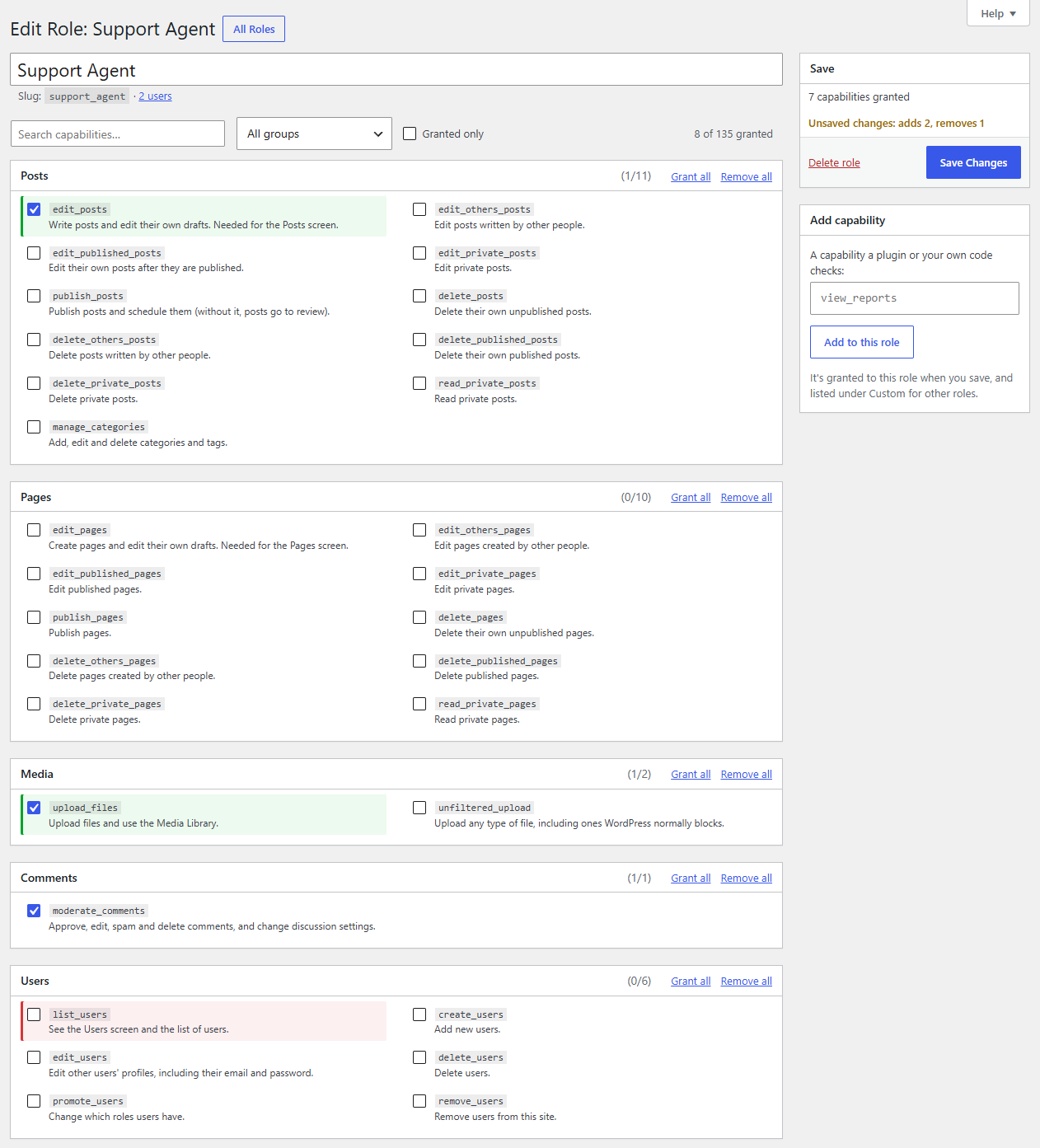
Click a role on Users → Roles to open the role editor. Every capability on the site is listed, ticked when the role has it.
Groups
Capabilities are grouped as you'd look for them:
- Posts, Pages, Media, Comments, Users, Plugins, Themes and appearance, Settings and core: WordPress's own, each with a short description.
- Multisite: network capabilities, shown on multisite (or when a role has one).
- Legacy user levels:
level_0tolevel_10, from very old WordPress versions. Some old plugins still check them. - Roleline, WooCommerce, and one group per plugin or post type that adds capabilities. WooCommerce's are recognised even while WooCommerce is inactive; other plugins' are grouped under the plugin's name, or the post type's name ("Books").
- Other: capabilities a role has that Roleline can't place.
- Custom: capabilities you added yourself.
Each group's header shows how many of its capabilities the role has, and Grant all / Remove all tick or untick every capability shown in the group.
Find a capability
- Search capabilities filters by name and description ("upload", "users").
- All groups shows one group only.
- Granted only hides what the role doesn't have.
Changed, not saved
A capability you tick turns green, one you untick turns red, and the Save box says what's unsaved ("adds 2, removes 1"). Leaving the page with unsaved changes asks first.
A capability marked denied is explicitly taken away from the role (some plugins do this). It stays denied unless you tick it.
Review before saving
Save Changes first shows what the save will do: the capabilities it adds and removes, and a new name.
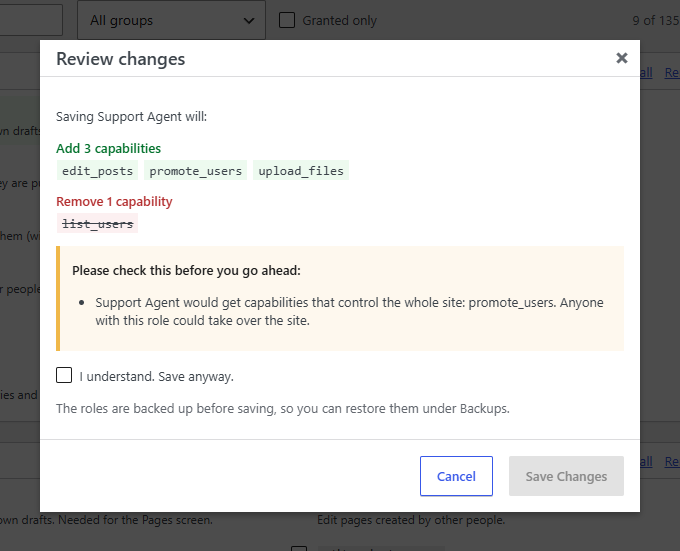
Some changes need you to tick I understand before saving:
- taking one of WordPress's capabilities away from the Administrator role;
- giving a role a capability that controls the whole site, such as
manage_options,promote_users,edit_users,activate_plugins,edit_plugins,unfiltered_htmlormanage_woocommerce; - taking
readaway from a role; - making a role with such capabilities the default role.
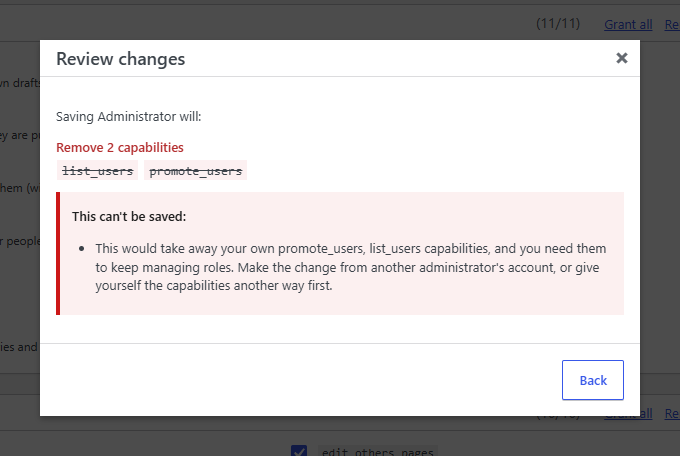
Some changes are refused outright, with the reason:
- taking away your own
roleline_manage_roles,promote_users,edit_usersorlist_users(you'd lock yourself out); - taking away your own
manage_options: without it you could only grant capabilities you have, so you couldn't undo the change; - for people who manage roles but aren't administrators: taking away any capability they have, since they couldn't give it back;
- deleting the Administrator role;
- for people who manage roles but aren't administrators: granting a capability they don't have, or changing a role that has capabilities they don't have.
Every save is backed up first. See Backups and restore.
Add a custom capability
Plugins and your own code can check capabilities that no role has yet (current_user_can( 'view_reports' )). Type the name in Add capability and click Add to this role: it's ticked in the Custom group and granted when you save. Other roles see it under Custom too.
New names use lowercase letters, numbers, underscores and hyphens. Capabilities other plugins already gave a role keep their names exactly as they are, capitals and spaces included. WordPress's meta capabilities (edit_post, edit_user…) can't be added: WordPress works them out from other capabilities.
Delete a capability
A custom capability that no role and no user has shows a Delete link in the Custom group. WordPress's own capabilities can't be deleted, and a capability still in use can't either: remove it from its roles first.
Roles you can't change
If a role has capabilities you don't have, you see it read-only. An administrator can change it.