
Block visibility
Show any block only to logged-in users, logged-out visitors or chosen roles, in posts, pages, templates and navigation menus.
Note
This is part of Roleline Pro.
Every block in the block editor gets a Visibility panel in its settings (the Block tab of the sidebar).
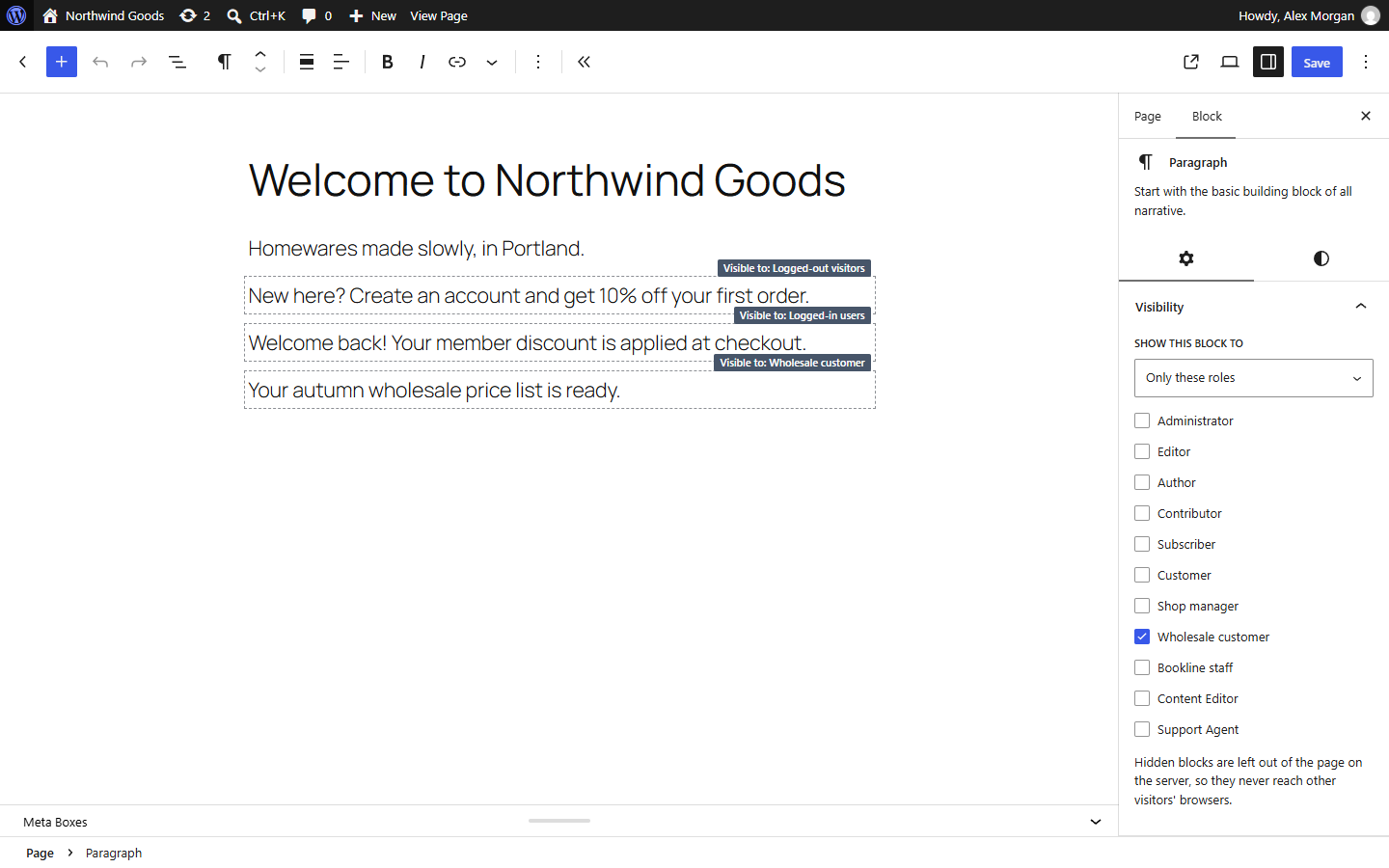
- Select the block.
- Open Visibility in the sidebar.
- Under Show this block to, choose Everyone, Logged-in users, Logged-out visitors only, or Only these roles (and tick them).
In the editor, a block with a rule gets a dashed outline and a label saying who sees it ("Visible to: Wholesale customer"). The editor always shows every block, so you can edit them.
How it works
Blocks are filtered on the server, while the page is built. A hidden block, and every block inside it, never reaches the page's HTML, a feed or the REST API: there's nothing to find in the page source.
It works wherever blocks are rendered: posts and pages, reusable blocks (patterns), and in block themes the templates, template parts (header, footer) and the Navigation block, so you can show "Log in" to visitors and "My account" to members.
Unlike content access, block visibility applies to administrators too: a block for logged-out visitors is hidden from you while you're logged in. To check, open the page in a private window.
Ideas
- A "Create an account" banner for visitors, a "Welcome back" one for members.
- Wholesale prices in a group block for the Wholesale customer role.
- Staff-only notes on a public page.
Caching
Pages for logged-out visitors are often cached; logged-in visitors usually aren't. If your cache serves the same page to everyone, blocks for one group may show to another: make sure logged-in users bypass the cache.
For developers
The rule is the block attribute rolelineVisibility ({"mode":"roles","roles":["editor"]}), added to every block type. roleline_pro_block_visible ($visible, $block, $rule) filters the decision.