
Content access
Restrict posts, pages and other content (or whole categories) to roles, logged-in users or visitors, and choose what everyone else sees.
Note
This is part of Roleline Pro.
Roleline Pro decides who can read each post, page or other public item: everyone (the default), logged-in users, logged-out visitors only, or chosen roles.
Restrict one item
Open the post or page and find the Access box in the editor's sidebar (Post or Page tab).
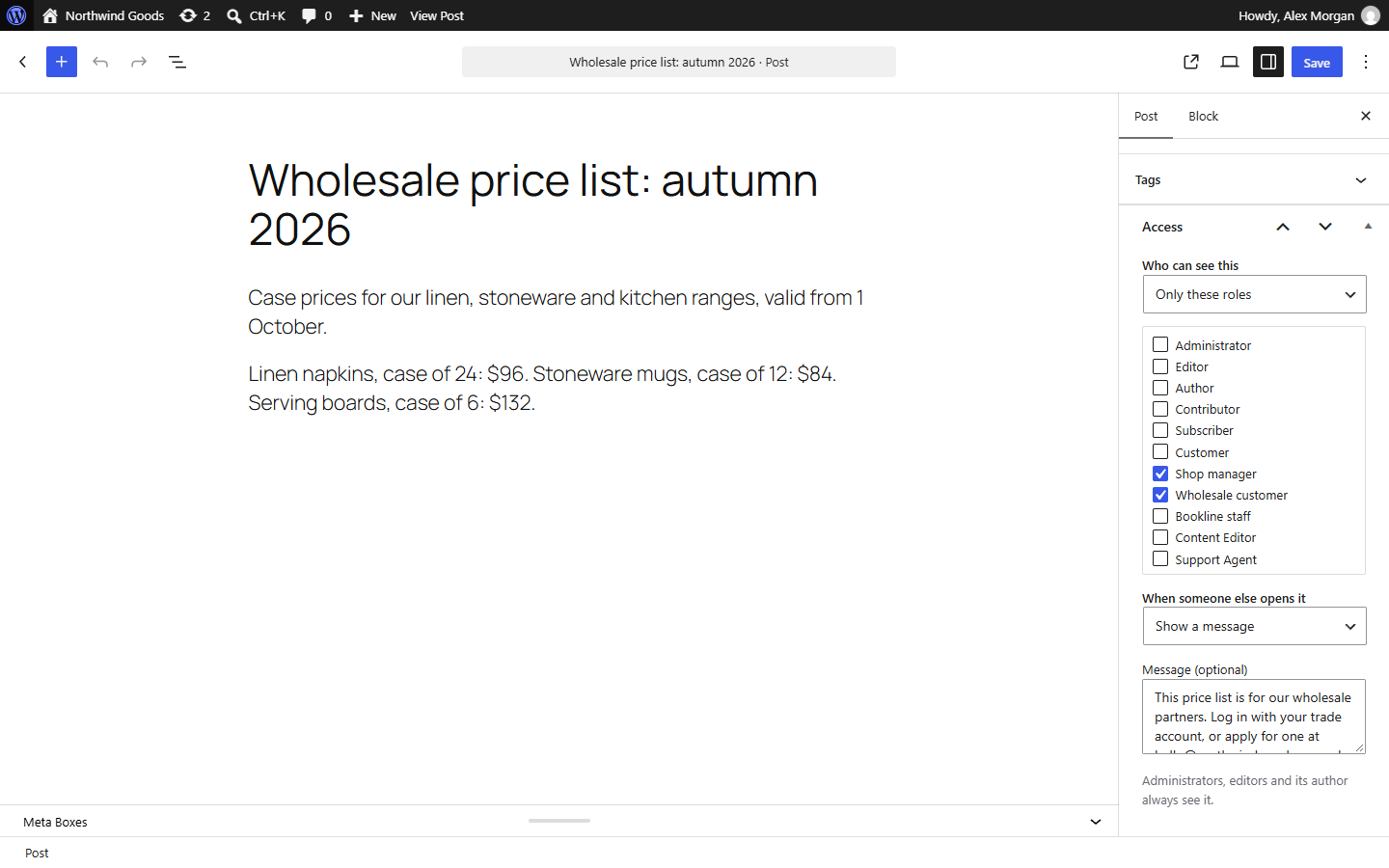
- Who can see this: Everyone, Logged-in users, Logged-out visitors only, or Only these roles (then tick the roles).
- When someone else opens it:
- Show a message: the item's page shows the teaser (its excerpt, or the first 40 words) and your message, with a Log in button for visitors.
- Send them to log in: visitors go to the login page and come back afterwards. Logged-in people who still may not see it get the message.
- Redirect to a page: a path on your site (
/join/) or a full address. - Show "Page not found": as if it didn't exist.
- Default uses the choice under Users → Roles → Content access.
- Message (optional): replaces the default message for this item.
Save the post as usual.
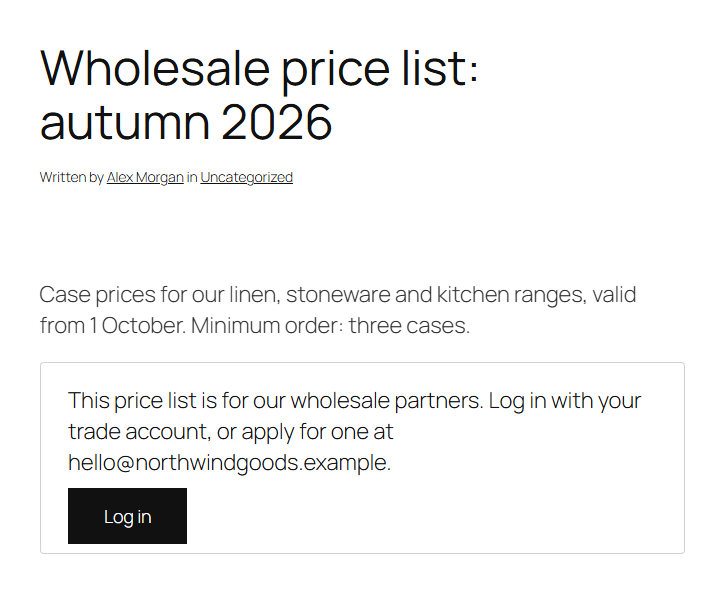
Administrators, editors and the item's author always see it, so they can manage it. Only people who can edit the item and others' items of its type (editors and administrators by default) see the Access box.
Restrict a whole category or tag
On Posts → Categories (or Tags, or any public taxonomy of content that can be restricted) the add and edit screens have the same Access fields. Every post in a restricted category is restricted the same way. A post's own rule wins over its categories'; a post in several restricted categories must pass all of them.
Where restricted content is left out
For anyone who may not see it, restricted content is left out of:
- the blog, archives and search (unless you choose to list them with the teaser, see below);
- feeds, the XML sitemap, widgets and query blocks (Latest Posts, Query Loop);
- next and previous post links;
- comments lists and the comments feed;
- the REST API:
/wp-json/wp/v2/postsdoesn't list it,/wp-json/wp/v2/posts/123answers 401 (logged out) or 403, and any other response that includes it has its content and excerpt emptied.
A restricted item's own page shown with the message isn't indexed by search engines (noindex) and isn't cached by the browser.
Settings
Users → Roles → Content access lists everything that's restricted (with the category it comes from) and has the defaults:
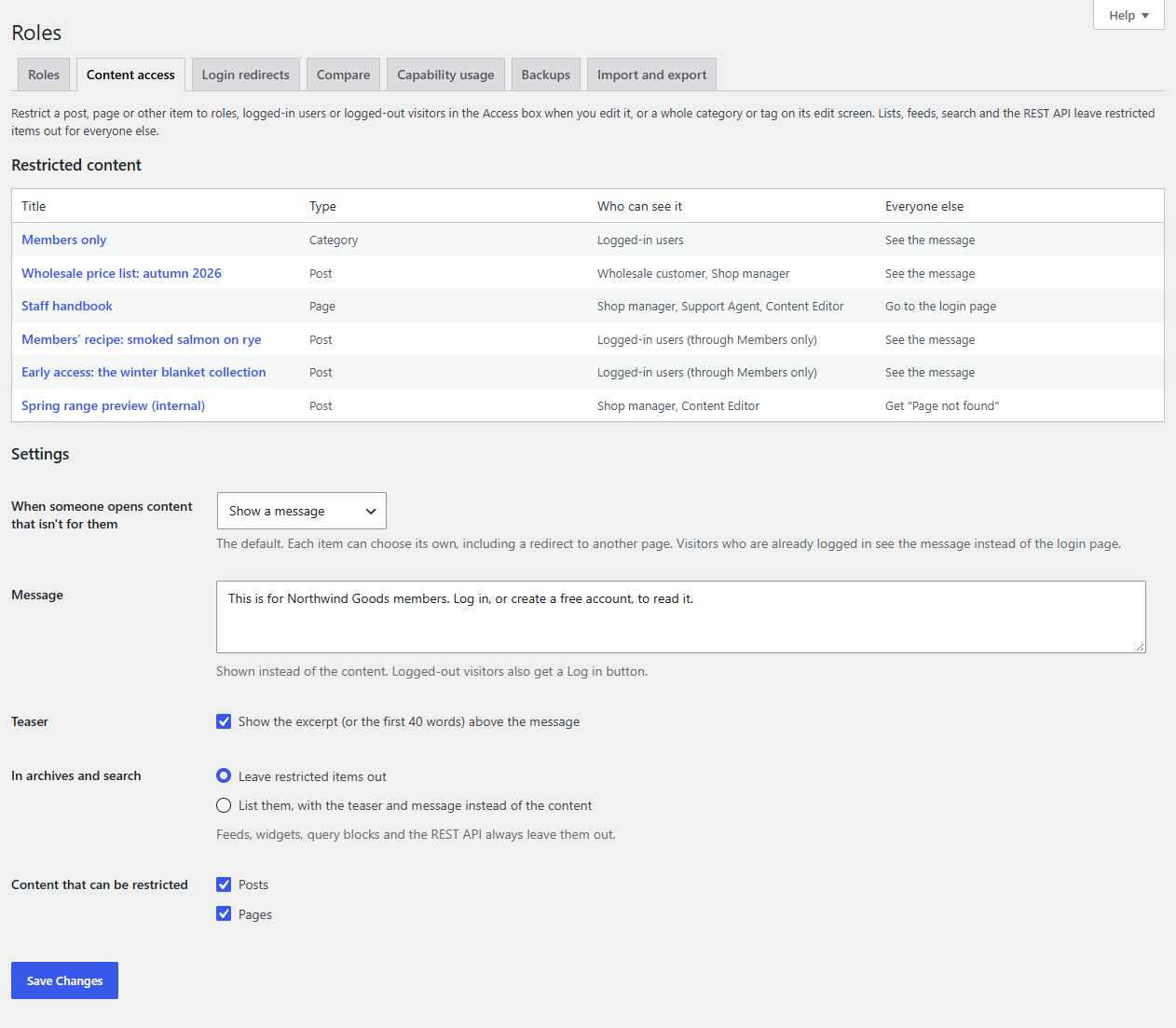
- When someone opens content that isn't for them: the default action.
- Message: the default message.
- Teaser: show the excerpt above the message.
- In archives and search: leave restricted items out, or list them with the teaser and message instead of the content. Feeds, widgets, query blocks and the REST API always leave them out.
- Content that can be restricted: which public post types get the Access box (posts and pages, and others such as WooCommerce products).
Good to know
- Rules apply to what visitors reach: pages, feeds, AJAX and the REST API. The admin screens, WP-CLI and scheduled tasks (cron) see all content, so backups, exports and indexers keep working; the
roleline_pro_rules_applyfilter changes that. - Uploaded files keep their public addresses; restrict the page that links to them.
- If you use page caching, make sure logged-in visitors aren't served cached pages (most caches skip them).
- While Roleline Pro is inactive, restricted content is visible to everyone. Roleline lists what's affected on Users → Roles.
For developers
roleline_pro_post_typesandroleline_pro_taxonomies: what can be restricted.roleline_pro_bypass_access($bypass, $post_id, $user): who always sees restricted content.roleline_pro_can_restrict($can, $post_id): who may set a rule.roleline_pro_restricted_content($html, $post, $rule): what's shown instead.roleline_pro_redirect($url): where a visitor is sent.- Add
'roleline_pro_all' => trueto aWP_Queryto list restricted posts anyway (for your own code that checks access itself). - Rules are stored as post meta
_roleline_pro_accessand term metaroleline_pro_access(mode,roles,action,redirect,message).