
What shoppers see
The Pre-order now button, the availability text, and the release date in the cart, at checkout, on the order and in emails.
On the product page
A product taking pre-orders shows:
- a Pre-order now button instead of "Add to cart" (on the product page and in product lists),
- an availability text instead of the stock line: "Available for pre-order. Ships from March 3, 2027.", or "Available for pre-order." without a date.
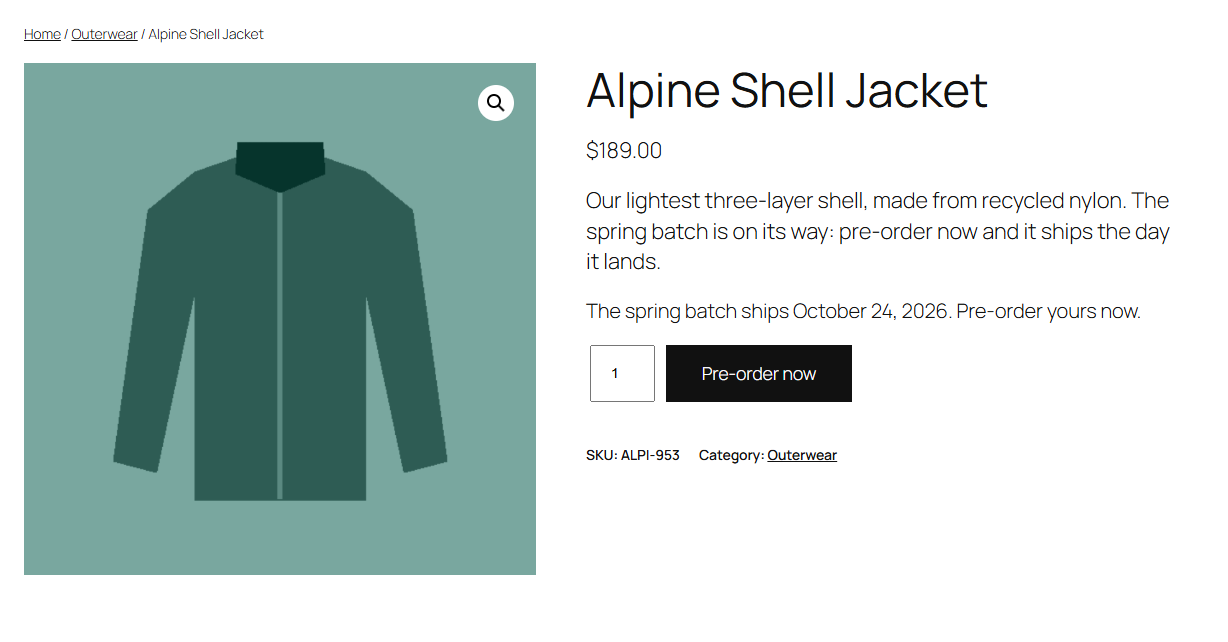
A variable product's button changes only when every variation is a pre-order, since one button serves them all. Each variation's availability text shows when a shopper picks it.
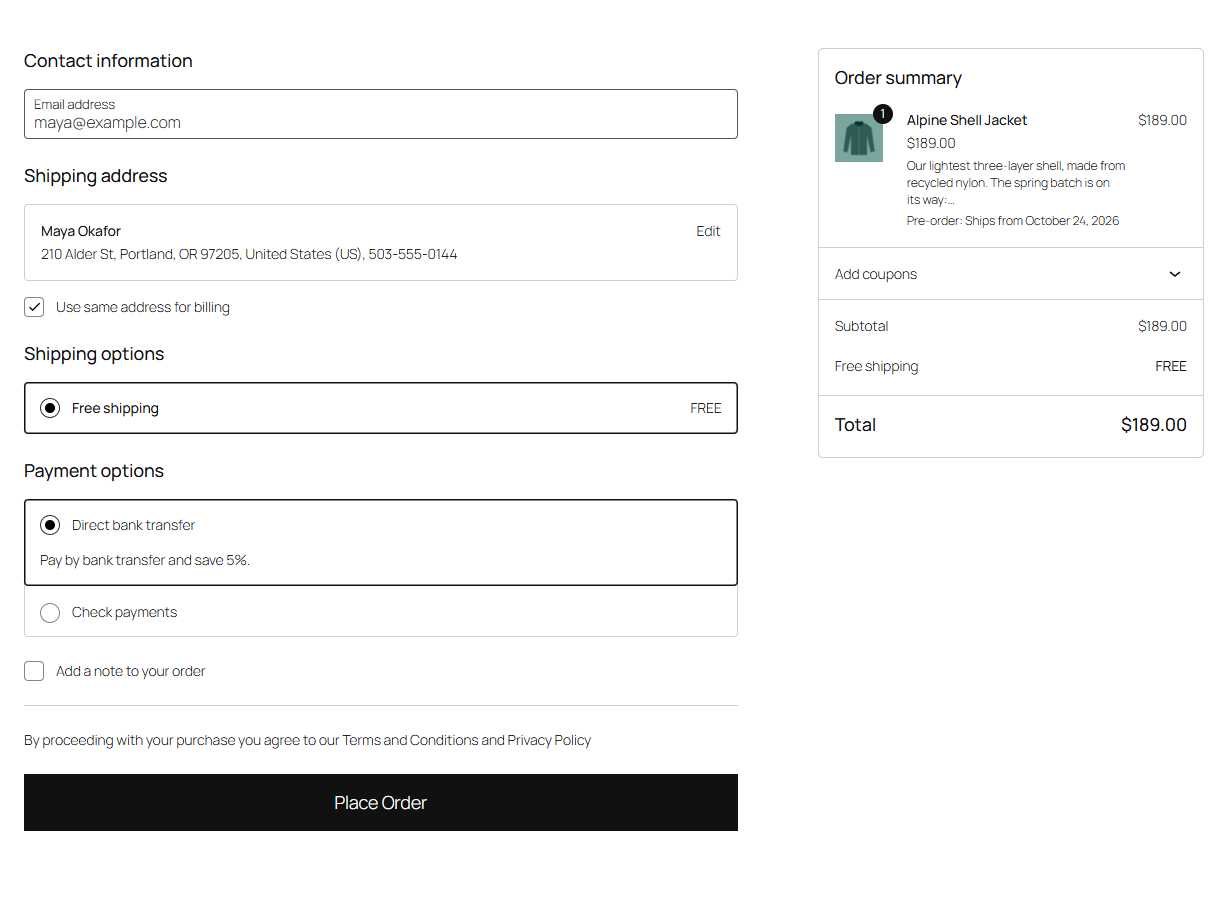
In the cart and at checkout
Each pre-ordered item shows Pre-order: Ships from March 3, 2027 (or "Ships when available") under its name, in the cart, the mini cart and at checkout, with the Cart and Checkout blocks and with the classic pages.
After the order
- The thank-you page and the order in My Account start with a notice: "This is a pre-order. It's expected on March 3, 2027, and we'll email you when it's on its way."
- The order shows the Pre-ordered status in My Account → Orders.
- Each pre-ordered item keeps its "Pre-order: Ships from …" line until it's released.
- The customer gets the Pre-order received email. See Emails.
Changing the texts
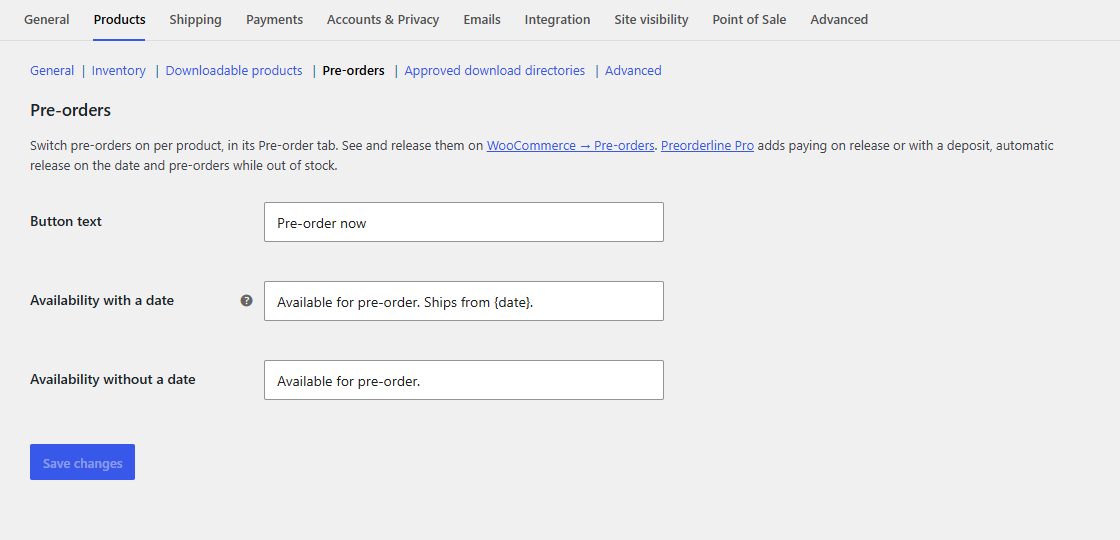
Go to WooCommerce → Settings → Products → Pre-orders:
| Setting | Default |
|---|---|
| Button text | Pre-order now |
| Availability with a date | Available for pre-order. Ships from {date}. |
| Availability without a date | Available for pre-order. |
Leave a field empty to go back to its default. A product's own Message on its Pre-order tab replaces the availability text for that product.
Tip
With Stockline, Extendiment's stock messages plugin, the pre-order line can also get its own icon and colour. See Using other Extendiment plugins.