
Releasing pre-orders
Ship waiting pre-orders when the product arrives, from WooCommerce → Pre-orders, the product, or one order at a time.
Releasing tells Preorderline the product is here: the waiting orders move on to Processing, ready to ship, and each customer gets an email that their pre-order is on its way.
WooCommerce → Pre-orders
This screen lists every product taking pre-orders, and every product that still has orders waiting:
- Status: Taking pre-orders, or Pre-orders off when you switched them off with orders still waiting.
- Release date.
- Waiting: the number of orders and units.
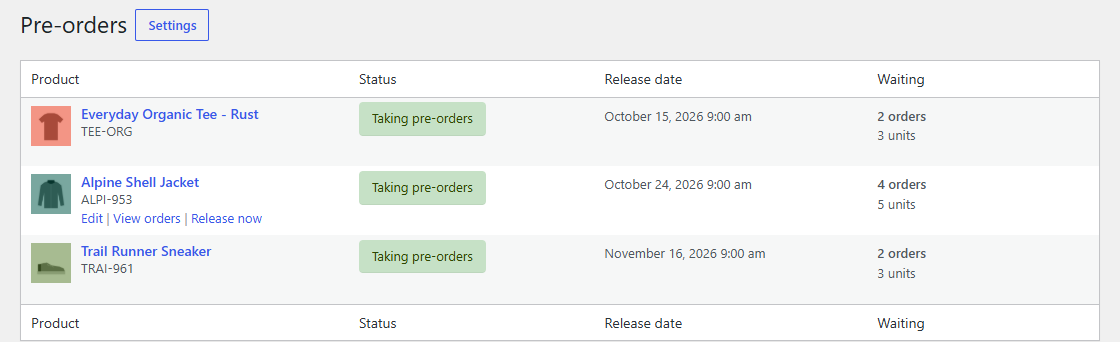
Hover over a product and click Release now. A window asks you to confirm, saying how many orders move on. Release now shows for people who can manage orders and edit the product. Draft and private products are listed only for people who can see private products. View orders opens the Orders list filtered to the product's pre-orders.
A variation with its own mode or release date has its own row and its own Release now. See Variations.
From the product
The product's Pre-order tab has the same Release now button next to what's waiting. Back on the product, a notice says how many orders moved on.
What a release does
- Every waiting item of the product is marked as released.
- An order whose pre-ordered items are now all released moves to Processing, and the customer gets the Pre-order released email. An order that still waits for another product's release stays Pre-ordered.
- A product that was Not released yet stops taking pre-orders and sells normally from its stock.
- Each order moves on once. If the same release is started twice at the same time, for example with a double click, the second one does nothing, so nobody gets a second email.
After a release, go to the product and add the delivered units to its stock.
Releasing one order early
To ship one order before the others, for example a replacement for a customer who waited long enough:
- Open the order.
- In the Order actions box, choose Release this pre-order now.
- Click Update.
The order moves on as if its products were released. The products themselves keep taking pre-orders.
From Packboard
With Packboard, Extendiment's fulfillment board, pre-orders wait in their own Pre-ordered column. Select cards and click Release now, or drag a card into To pick. See Using other Extendiment plugins.