
Installation
Install Preorderline from WordPress.org and put your first product on pre-order in a few minutes.
Preorderline is free and listed on WordPress.org, so you can install it straight from your dashboard.
Install the plugin
- Make sure WooCommerce is installed and active. Preorderline won't activate without it.
- Go to Plugins → Add New Plugin and search for Preorderline.
- Click Install Now on "Preorderline – Pre-Orders for WooCommerce", then Activate.
If you have the zip file instead, use Plugins → Add New Plugin → Upload Plugin, choose the file, then Install Now and Activate.
Nothing changes on your store yet: products only take pre-orders once you switch it on for them.
Your first pre-order product
- Go to Products and edit the product that isn't released yet, or add a new one.
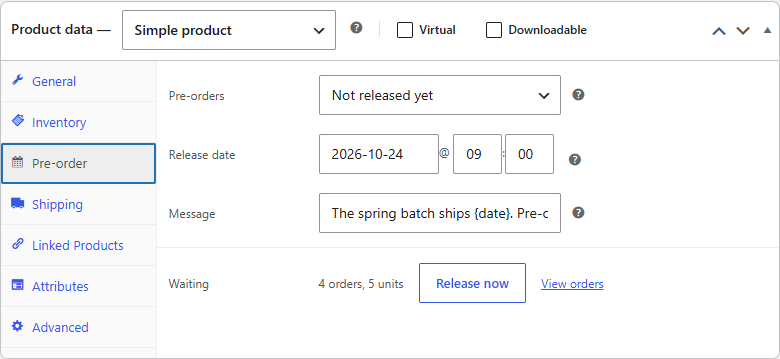
- In the Product data box, open the Pre-order tab.
- Set Pre-orders to Not released yet.
- Set the Release date if you know it. It's optional: without one, shoppers see that the product is available for pre-order, without a date.
- Click Update.
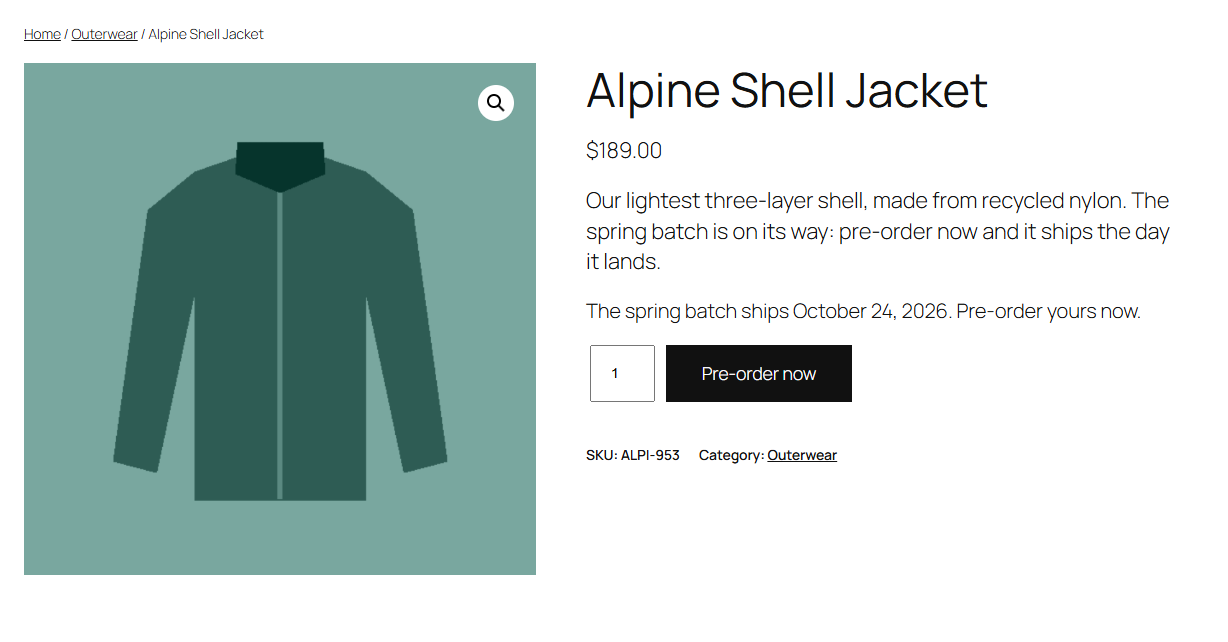
Open the product page on your store. The button now says Pre-order now, and the stock line says when it ships.
Tip
The product doesn't need any stock. Pre-orders are sold like backorders, so a product with 0 in stock can still be pre-ordered, and its stock goes below zero by the number of units you owe.
Check the store-wide texts
Go to WooCommerce → Settings → Products → Pre-orders to change the button text and the availability texts. See What shoppers see.
What's next
- Taking pre-orders explains the Pre-order tab in full.
- Pre-ordered orders describes what happens to an order once it's placed.
- Releasing pre-orders covers shipping them when the product arrives.