
Installing Fileline Pro
Upload the Fileline Pro zip, activate it next to Fileline and enter your license key. What happens to Pro rules if Fileline Pro is ever deactivated.
Note
This is part of Fileline Pro.
Fileline Pro is an add-on: it adds the email gate, roles and passwords, expiring links, statistics, Folderline folders and imports to Fileline, which stays installed and keeps doing everything else. You need both.
Before you start
- Fileline 1.0.0 or later, installed and active. If you don't have it yet, install it from Plugins → Add New Plugin (search for "Fileline"); see Installation.
- The fileline-pro.zip file and the license key from your purchase email. Both are in the email Lemon Squeezy sent after you bought Fileline Pro.
Fileline Pro doesn't need WooCommerce. Folderline (free, for Media Library folders) is optional: with it, Fileline Pro adds folder downloads.
Install and activate
- Go to Plugins → Add New Plugin and click Upload Plugin at the top.
- Choose
fileline-pro.zipand click Install Now. - Click Activate Plugin.
WordPress won't activate Fileline Pro while Fileline is inactive; it says what's missing instead. Activate Fileline first.
Enter your license key
Back on the Plugins screen, there's a box under Fileline Pro:
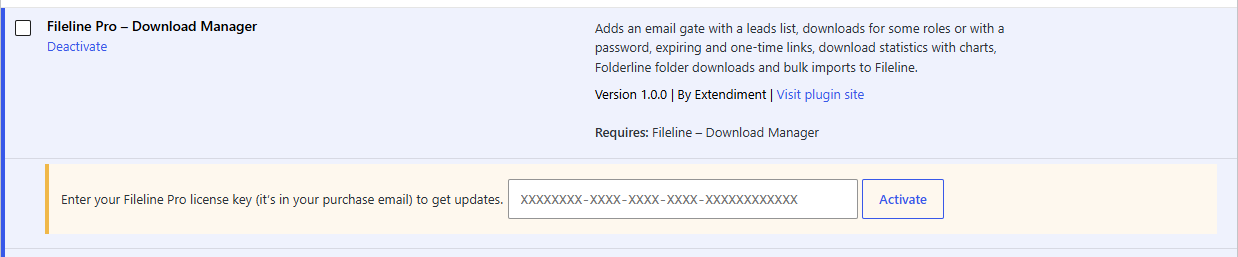
- Paste the license key from your purchase email.
- Click Activate.
The box turns green and shows the end of your key and, for a yearly license, the date your updates run until.
Note
Every feature works as soon as the plugin is active, with or without a license. The license is what lets WordPress download updates.
What you get
- Downloads → Leads, Links, Reports and Import in the menu.
- In each download's Access box: Ask for an email address first, Only these roles and Password.
- Under Downloads → Settings: the email gate's settings and emails.
- A Downloads widget on the Dashboard.
If Fileline Pro is deactivated
Your Pro data stays: leads, links, statistics and each download's rules. But nothing can check the rules while Fileline Pro is off, so Fileline keeps those downloads unavailable rather than letting everyone download them: visitors see "This download isn't available at the moment", and the Downloads list marks them Unavailable. Downloads without Pro rules keep working as before. Activate Fileline Pro again and everything works as it did.
If you stop using Fileline Pro for good, open each unavailable download and tick Remove these rules and let everyone download it in its Access box.