Blocks and shortcodes
The Download button and Download list blocks, the [fileline] and [fileline_list] shortcodes, and every option.
Download button
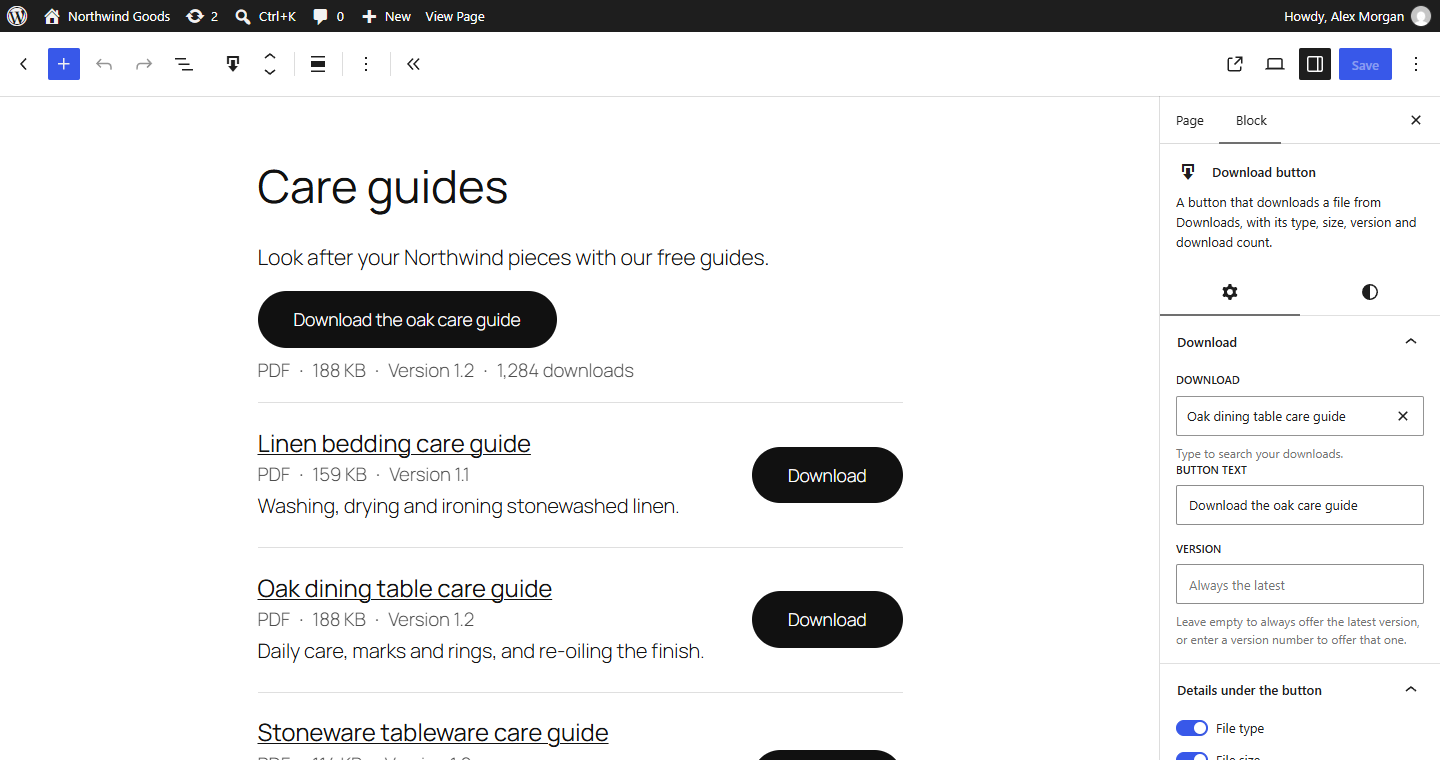
In the block editor, add the Download button block and type to find the download. Its settings:
| Setting | What it does |
|---|---|
| Button text | Instead of the default "Download" (set under Downloads → Settings). |
| Version | Empty: always the latest version. A version number: that version. |
| File type, File size, Version, Download count | The details under the button. Unset, they follow Downloads → Settings → Details under the button. |
The button shows nothing to visitors while its download is a draft, private or password protected (people who can edit the download still see it).
The shortcode does the same:
[fileline id="12"]
[fileline id="12" label="Get the care guide" show_count="yes" show_size="no"]
[fileline id="12" version="1.0"]
| Attribute | Values |
|---|---|
id |
The download's ID (in the Downloads list's Shortcode column). Needed. |
version |
A version number; empty for the latest. |
label |
The button's text. |
show_type, show_size, show_version, show_count |
yes or no. |
Download list
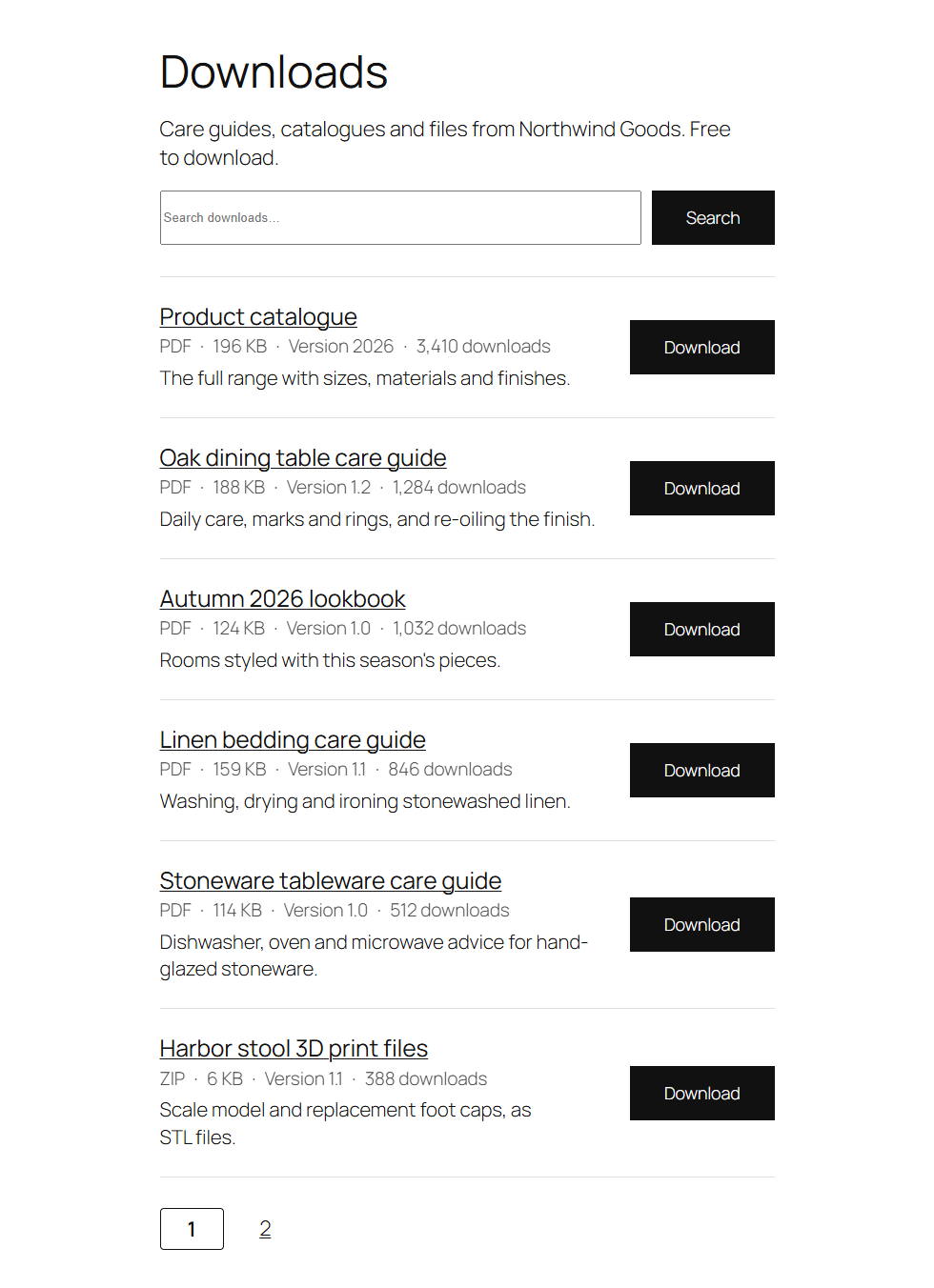
The Download list block lists downloads with their buttons:
| Setting | What it does |
|---|---|
| Category, Tag | Only downloads from that category or with that tag. |
| Order by | Title, newest first, most downloaded, recently updated or menu order. |
| Downloads per page | Page links appear under the list when there are more. |
| Search box | A search field above the list. |
| Short description | Each download's excerpt under its title. |
| Details under each button | As for the button. |
As a shortcode:
[fileline_list category="care-guides" orderby="count" limit="10" search="yes"]
Attributes: category and tag (slugs, several separated by commas), orderby (title, date, count, modified, menu_order), order (asc or desc), limit, search, show_excerpt, show_type, show_size, show_version, show_count (yes or no).
Search and page numbers are ordinary links (?fileline_s=…, ?fileline_pg=2), so lists work with any permalink setting, without JavaScript, and on cached pages.
Theme styles
Buttons use your theme's button classes (wp-element-button for block themes, button for classic themes), so they look like the rest of your site. Fileline's own stylesheet only lays things out.