Adding downloads and versions
Downloads, their versions (files or external addresses), release dates, changelogs, categories and tags.
A download is what visitors see: a title, a description, an image, categories and tags, and a download link. Behind it are one or more versions, each with its own file.
The Versions box
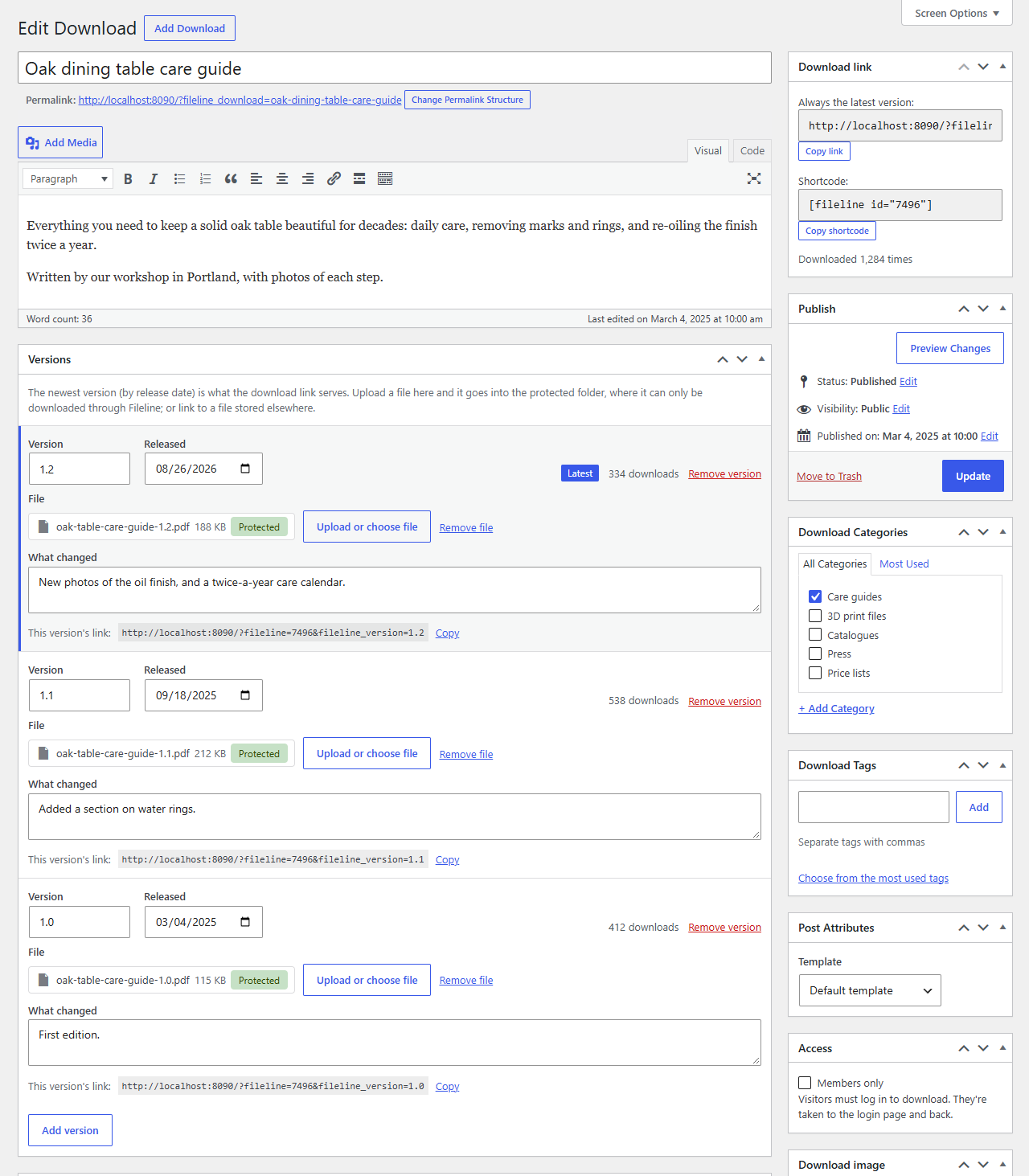
Each version has:
| Field | What it's for |
|---|---|
| Version | A number or name, such as 1.2, 2026 or Spring edition. It's part of the version's own link, so keep it short. Each version of a download needs a different one; a repeat gets -2 added. |
| Released | The date the version came out. The newest date is the latest version, marked with a blue edge. |
| File | Upload or choose file opens the Media Library. Files you upload there go into the protected folder (marked Protected). Files you pick that were uploaded elsewhere are marked Also public: they're served through Fileline too, but can also be opened at their own address. |
| Or the file's address | For a file stored elsewhere (a CDN, cloud storage, a GitHub release). Fileline counts the download, then sends the visitor there. |
| What changed | A short note. The latest version's note is shown on the download's page as "What's new". |
Click Add version to add a new one at the top: the number is suggested (1.2 becomes 1.3) and the date is today. Remove version takes a version off the download; its file stays in the Media Library and its downloads still count in the download's total.
Tip
To replace a file without changing anything else, use Remove file on the version and choose the new one. To keep the old one downloadable, add a new version instead.
Which version is served
The download link (/download/press-kit/) always serves the latest version, so the link you shared months ago keeps working and always gives the newest file.
Each version also has its own link, shown under it once saved (/download/press-kit/1.0/). Those work as long as Older versions can be downloaded from their own links is ticked under Downloads → Settings (it is by default). Turned off, only the latest version can be downloaded; people who can edit a download can still get every version.
Categories, tags and images
Downloads have their own categories and tags (under Downloads), separate from your posts'. Use them to build download lists: a "Care guides" list, a "Press" list. The Download image is shown on the download's page, as your theme shows featured images.
Drafts and private downloads
Only published downloads can be downloaded by visitors. Drafts, scheduled and private downloads can be downloaded by people who can edit them, so you can check a file before publishing. A download with a WordPress password (Visibility → Password protected) asks for that password on its page before the file can be downloaded. Download buttons and lists elsewhere on your site don't show drafts, private and password-protected downloads to visitors.