
Expiring and one-time links
Private links that work for a number of hours and/or downloads, made on Downloads → Links or emailed by the email gate.
Note
This is part of Fileline Pro.
A private link is a download link with a key, such as example.com/download/trade-prices/?fileline_key=…. It works for as long and as often as you choose, whatever the download's other rules: members only, roles, a password or the email gate.
Make a link
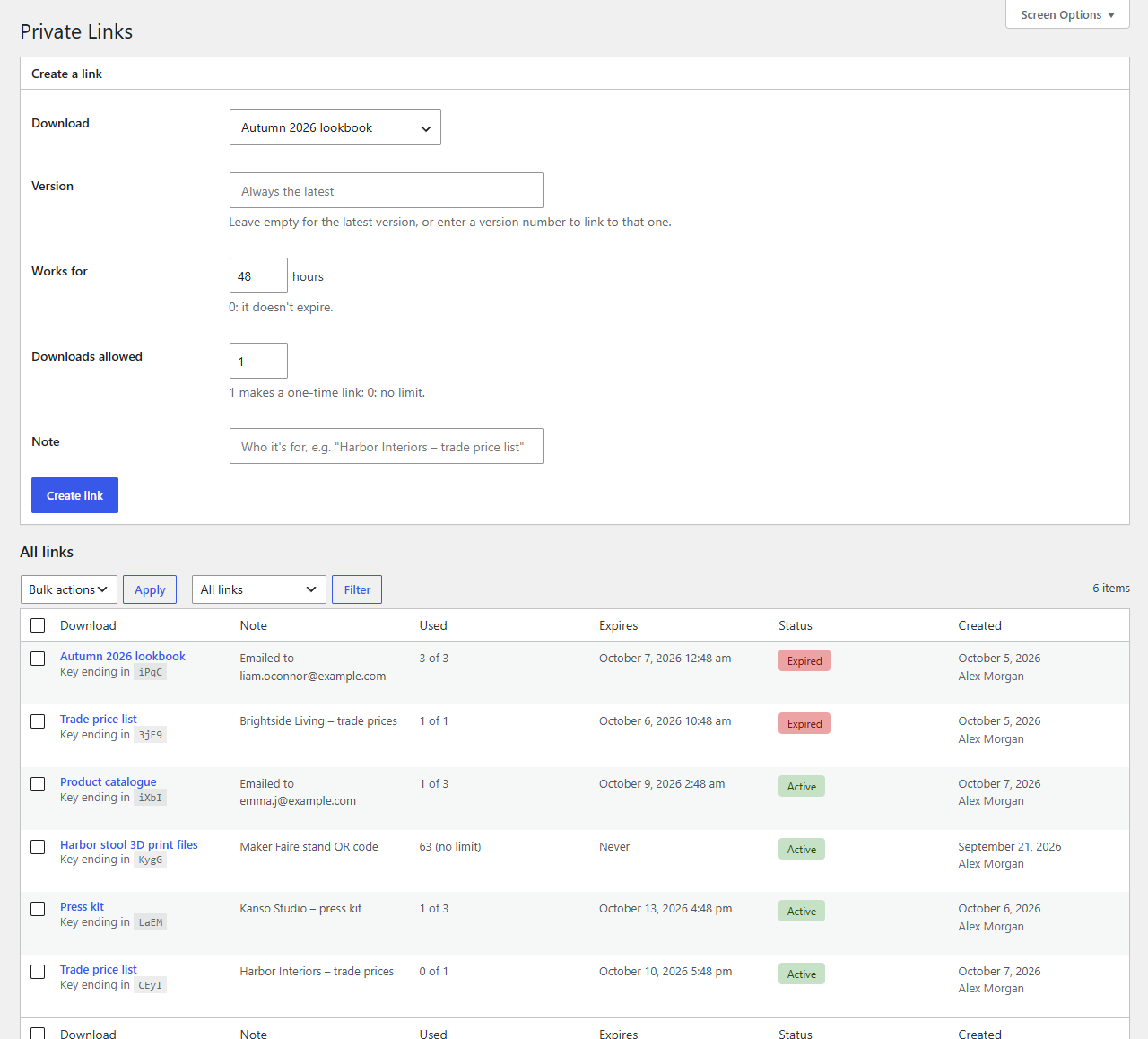
- Go to Downloads → Links (or click Create a private link in a download's Access box).
- Choose the download, and a version if the link should always give that one (empty: the latest).
- Set Works for (hours; 0 for no expiry) and Downloads allowed (1 for a one-time link; 0 for no limit).
- Add a note so you know who it's for, then click Create link.
- Copy the link from the green box and send it.
Important
For safety the link is shown once. Fileline Pro keeps only a scrambled form of its key, so it can't show it again. If you lose it, make a new one.
The list
Every link is listed with its download, note, how often it was used, when it expires and whether it's Active, Used up or Expired. Links the email gate sent are listed too, with "Emailed to …" as their note. Delete stops a link working straight away.
Links that expired or were used up more than 30 days ago are removed automatically.
How uses are counted
A link is used up by one each time the file is downloaded. Requests that only fetch part of a file to resume a download don't use it up again, so a one-time link still finishes a download that was interrupted (for six hours after it was used). A link that was never used must start from the beginning of the file: a request for a later part of it is refused. Two requests at the same moment can't both use the last download of a link.
Downloads through links are counted in the download's count and statistics like any other.