
Importing downloads
Create many downloads at once from Media Library files or a CSV file.
Note
This is part of Fileline Pro.
Downloads → Import has two ways in.
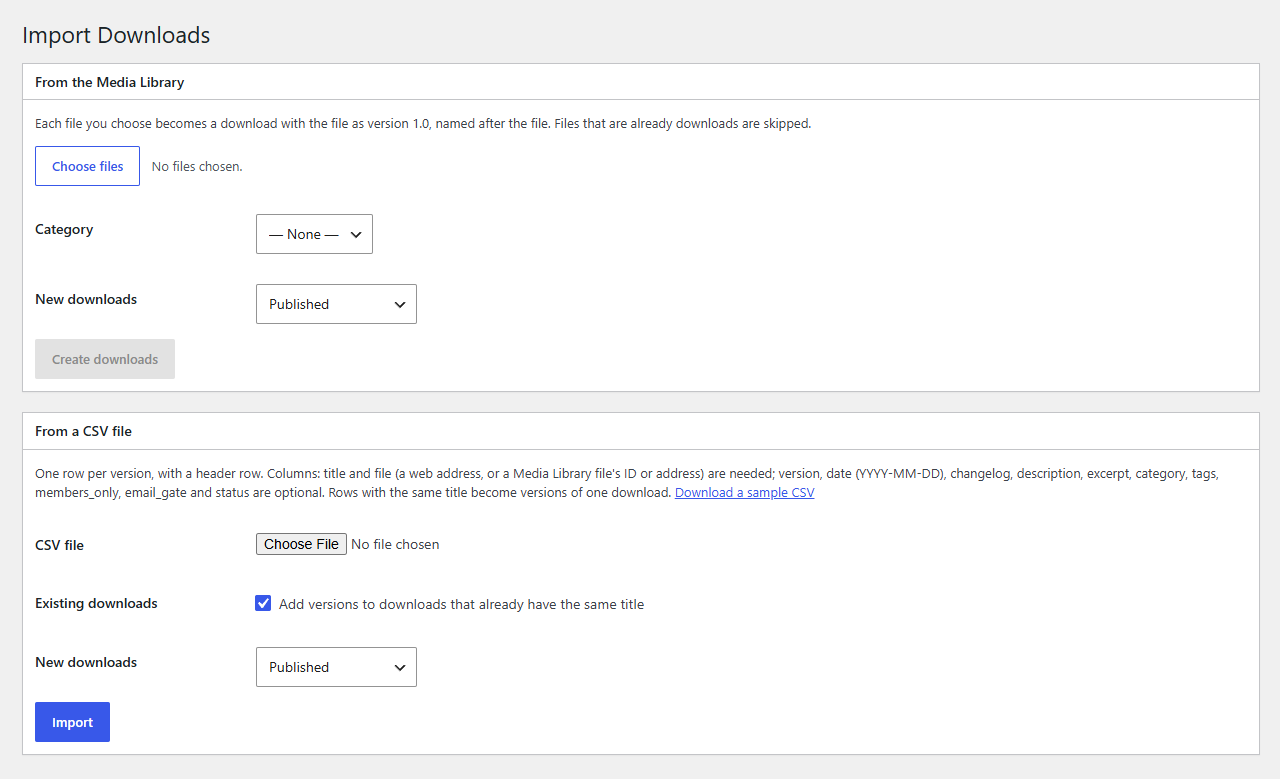
From the Media Library
- Click Choose files and select the files (hold Ctrl or Shift, or tick several in the grid).
- Optionally pick a category for all of them, and whether the new downloads are published or drafts to check first.
- Click Create downloads.
Each file becomes a download named after the file, with the file as version 1.0 and the file's upload date as its release date. Files that are already downloads are skipped.
From a CSV file
A CSV file with a header row and one row per version. Download a sample CSV on the screen to start from. Columns, in any order:
| Column | Needed | What it holds |
|---|---|---|
title |
yes | The download's title. Rows with the same title become versions of one download. |
file |
yes | A web address (https://…), or a Media Library file's ID or address on this site (that file is used). |
version |
The version number; empty uses the date. | |
date |
The release date, YYYY-MM-DD; empty is today. |
|
changelog |
What changed in this version. | |
description, excerpt |
The download's description and short description. | |
category, tags |
Names, several separated by commas or vertical bars; missing ones are made. | |
members_only, email_gate |
yes to turn them on. |
|
status |
publish or draft; empty uses the screen's choice. |
Tick Add versions to downloads that already have the same title to add new versions to downloads you already have (for example, this year's catalogue). Untick it to always make new downloads.
After the import, a notice says how many downloads and versions were made, and lists the rows that weren't imported, with their line numbers and why (no title, or no usable file).
Files given as web addresses stay where they are: Fileline Pro redirects to them and counts the downloads. To protect them, upload them in each download's Versions box instead.